Upkeep Practical Cookbook & Recipes
Step-by-step practical recipes and power workflows for Upkeep.
This cookbook walks through six real-world home maintenance workflows in Upkeep, from multi-stage agronomic lawn programs and weather-timed exterior work to competitive contractor RFPs, seasonal mountain cabin winterization, and multi-machine household sync.
View on GitHub 📖 Open User Guide →
Recipe 1: Building a Multi-Stage Agronomic Lawn Program with Sub-Events
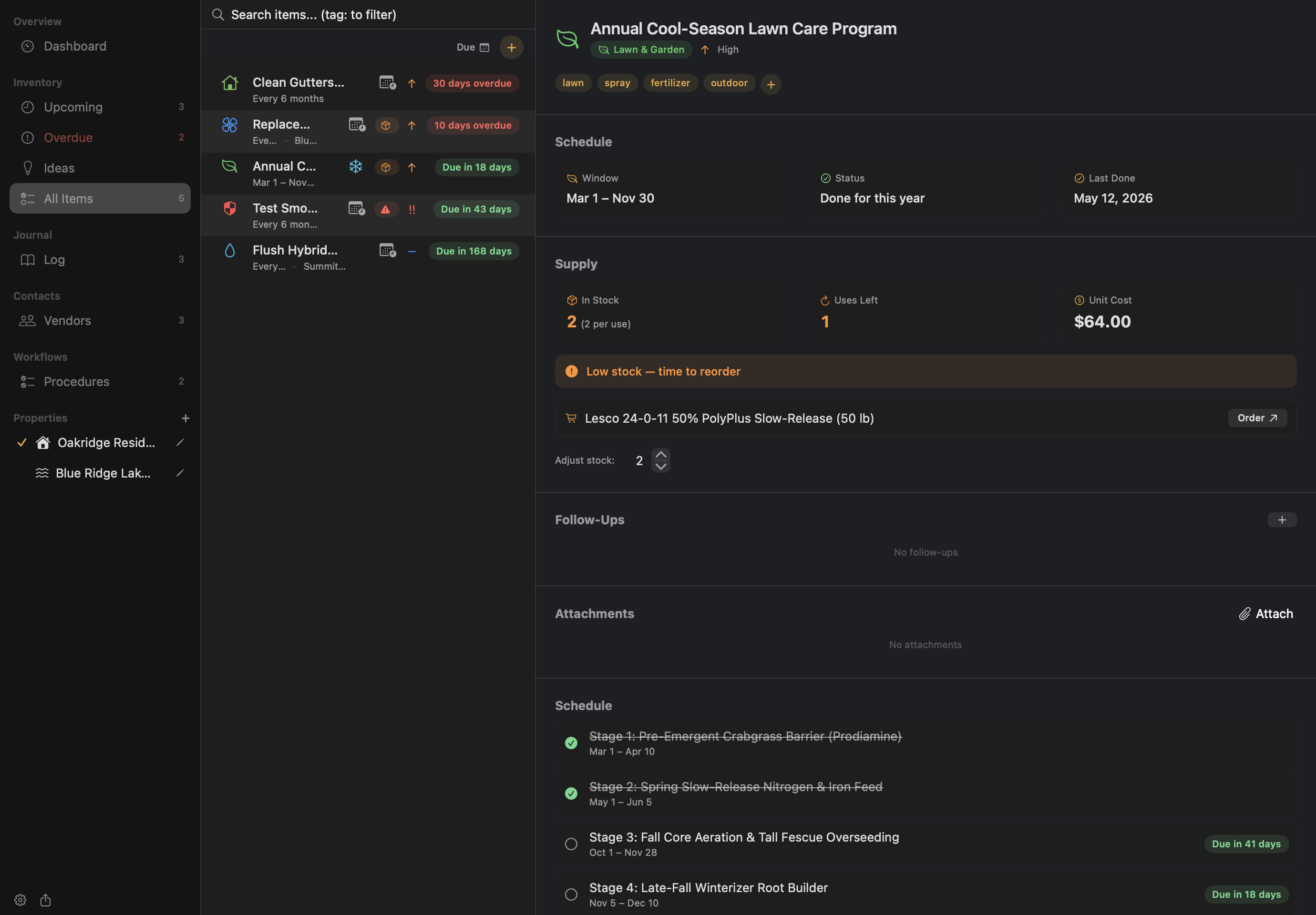
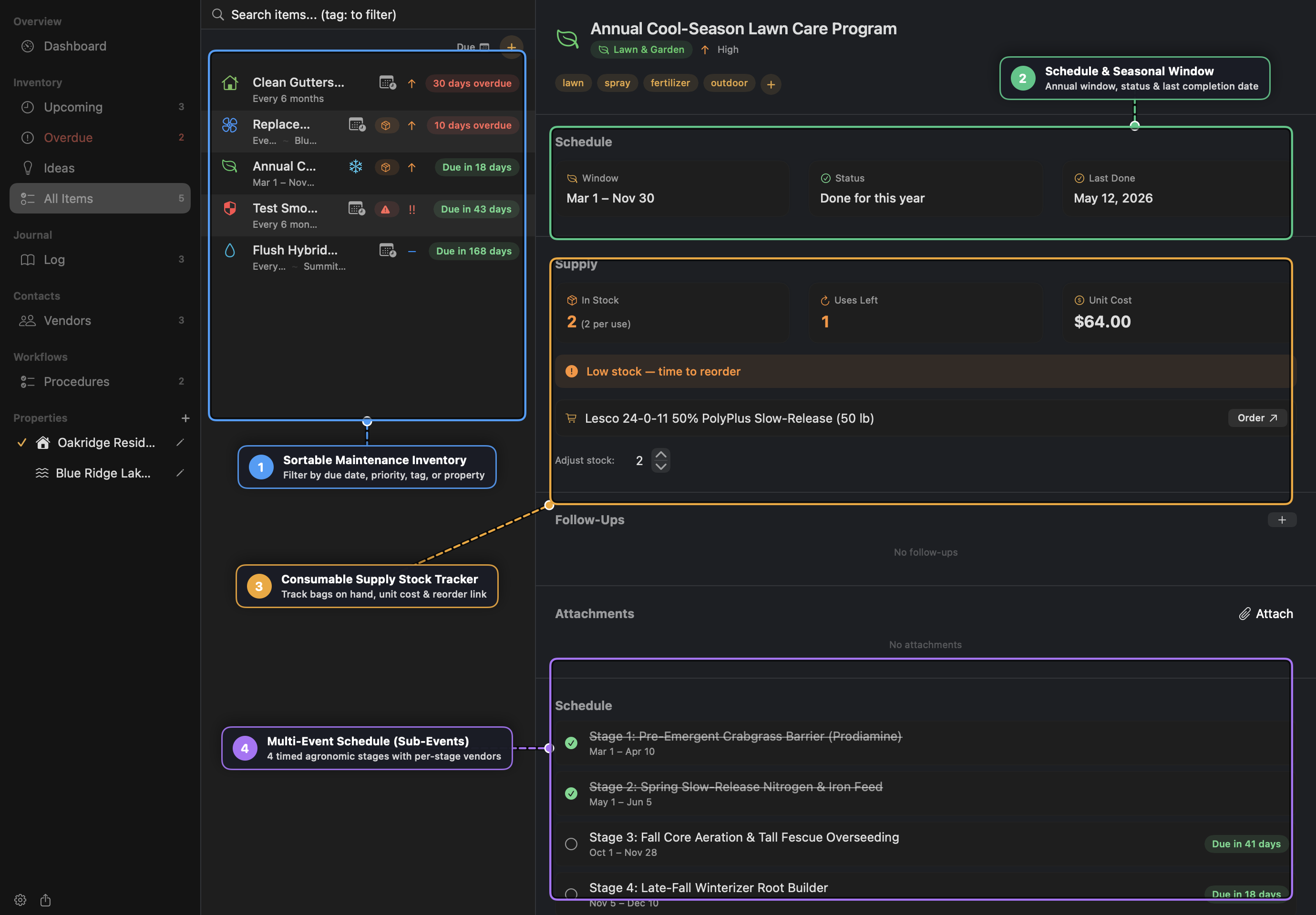
Instead of cluttering your inventory with 6 to 13 separate lawn-care items, model your entire annual turf schedule inside a single Multi-Event Maintenance Item with timed Sub-Events and consumable Supply tracking.
Step-by-Step
- Press
Cmd+Nto create a new Maintenance Item:- Name:
Annual Cool-Season Lawn Care Program - Category:
Lawn & Garden - Schedule:
Seasonal(Mar 1 – Nov 30) - Tags:
lawn,spray,fertilizer,outdoor(thesprayandoutdoortags activate inline 14-day weather spray hints).
- Name:
- Enable Supply Tracking inside the item editor:
- Product Name:
Lesco 24-0-11 50% PolyPlus Slow-Release (50 lb) - Stock on Hand:
4bags - Quantity per Use:
2bags - Unit Cost:
$64.00
- Product Name:
- Under Sub-Events (Multi-Event Schedule), add each timed treatment stage:
- Stage 1: Pre-Emergent Crabgrass Barrier (
Mar 1 – Apr 10) - Stage 2: Spring Slow-Release Nitrogen & Iron Feed (
May 1 – Jun 5) - Stage 3: Fall Core Aeration & Tall Fescue Overseeding (
Sep 1 – Oct 15) — assign your aeration contractor (Carolina Turf & Ornamental) directly to this stage’s Vendor Override. - Stage 4: Late-Fall Winterizer Root Builder (
Nov 5 – Dec 10)
- Stage 1: Pre-Emergent Crabgrass Barrier (
- When you complete a stage, click the Log checkmark next to that specific sub-event. Upkeep records a
LogEntrytied to thatsubEventID, offers to deduct2bags from your supply stock, and leaves the remaining stages scheduled for their upcoming windows.
Recipe 2: Timing Exterior & Spray Applications with the 14-Day Weather Engine
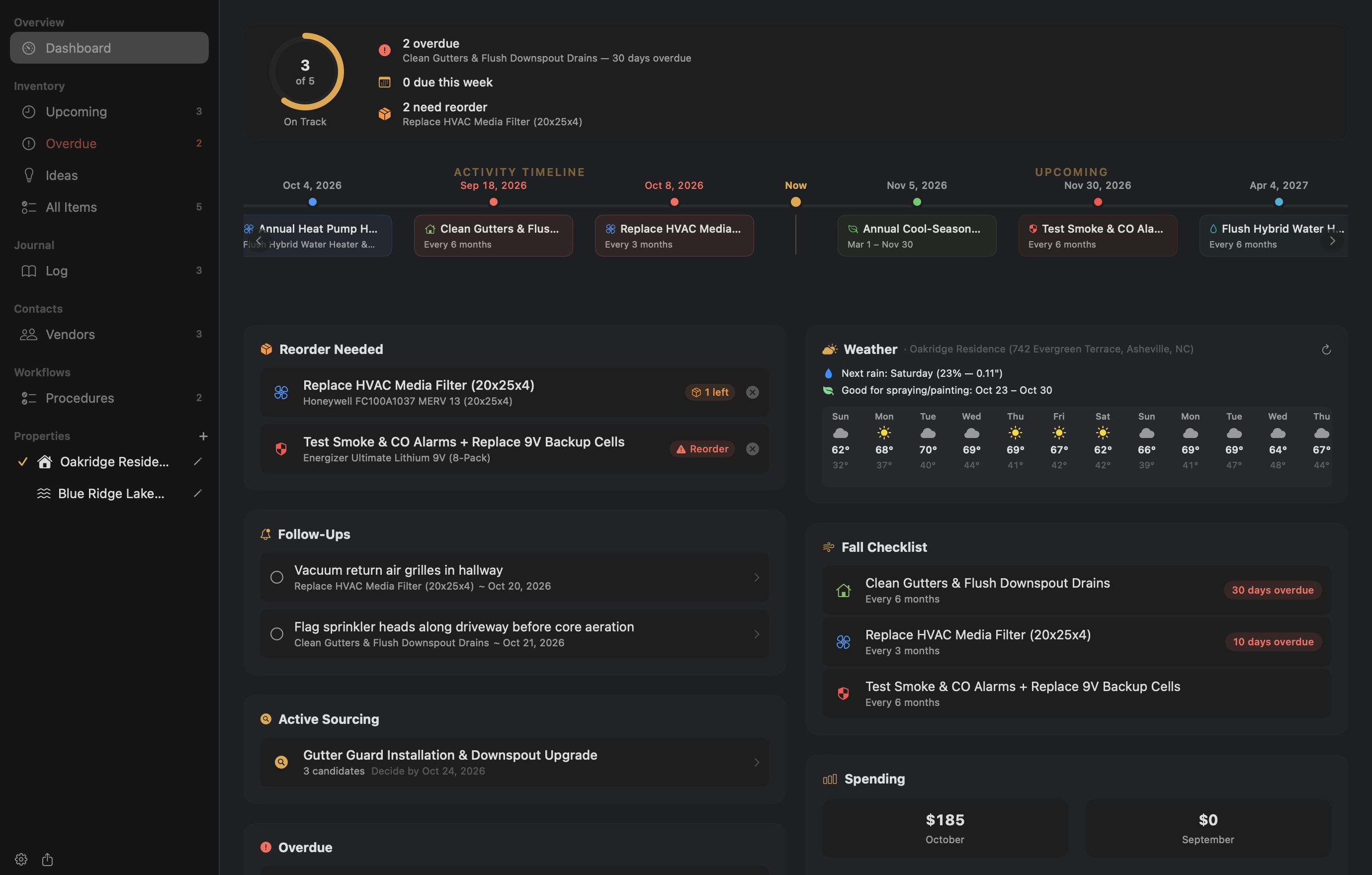
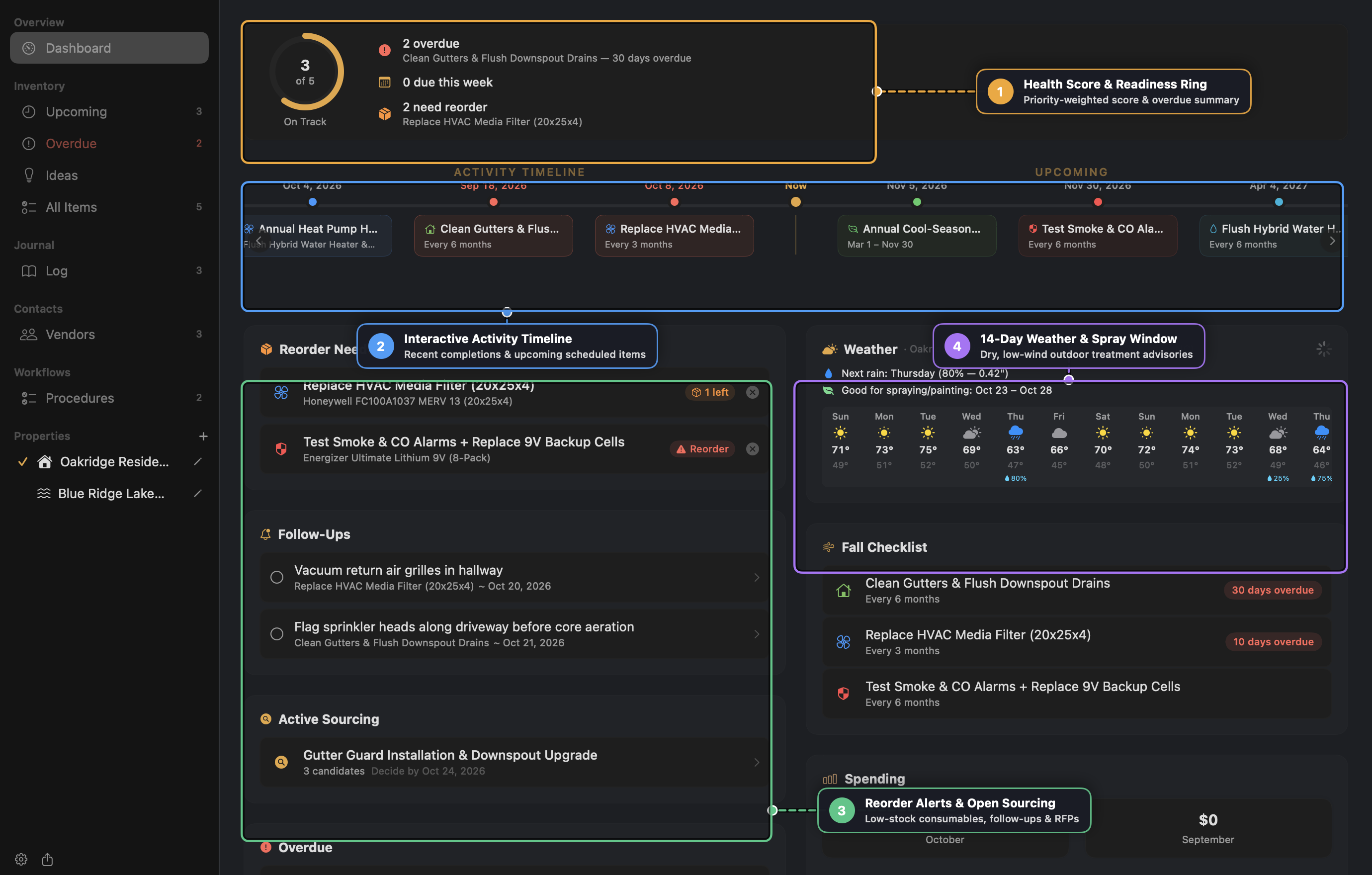
Applying pre-emergent herbicides, liquid iron, deck stain, or exterior caulk right before high winds or heavy rain wastes materials and ruins finishes. Upkeep’s Weather Widget and Item Weather Hint automate spray-window selection.
Step-by-Step
- Open your Property Profile in the sidebar under Properties and enter your property’s street address (or city/state).
- Verify the green location badge (
used for weather) appears below the address field—Upkeep geocodes the address locally via macOS Core Location and queries Open-Meteo without requiring an API key. - Open Dashboard and inspect the Weather card on the right:
- Next Rain Advisory: Displays the next forecast day with
≥ 50%precipitation probability or≥ 0.05"expected rainfall. - Good for Spraying / Painting: Highlights the longest contiguous multi-day window of dry weather with sustained winds
< 10 mphand gusts< 15 mph.
- Next Rain Advisory: Displays the next forecast day with
- Click any day in the 14-day strip to open the Hourly Weather Breakdown (temperature, feels-like, dew point, wind gusts, UV index, and barometric pressure) and pick the calmest morning hours for your application.
Recipe 3: Running a Competitive Contractor RFP & Replacing an Incumbent Vendor
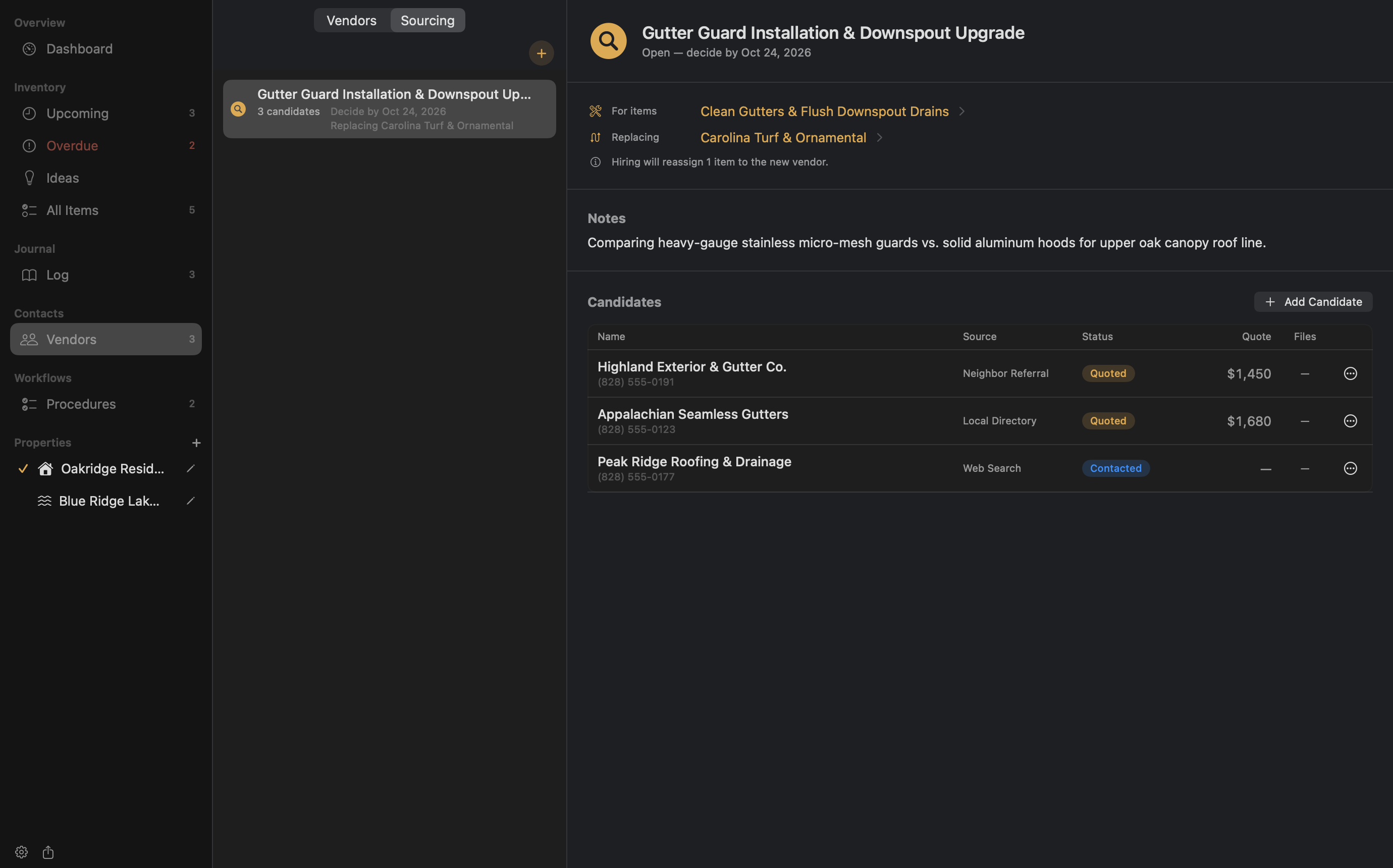
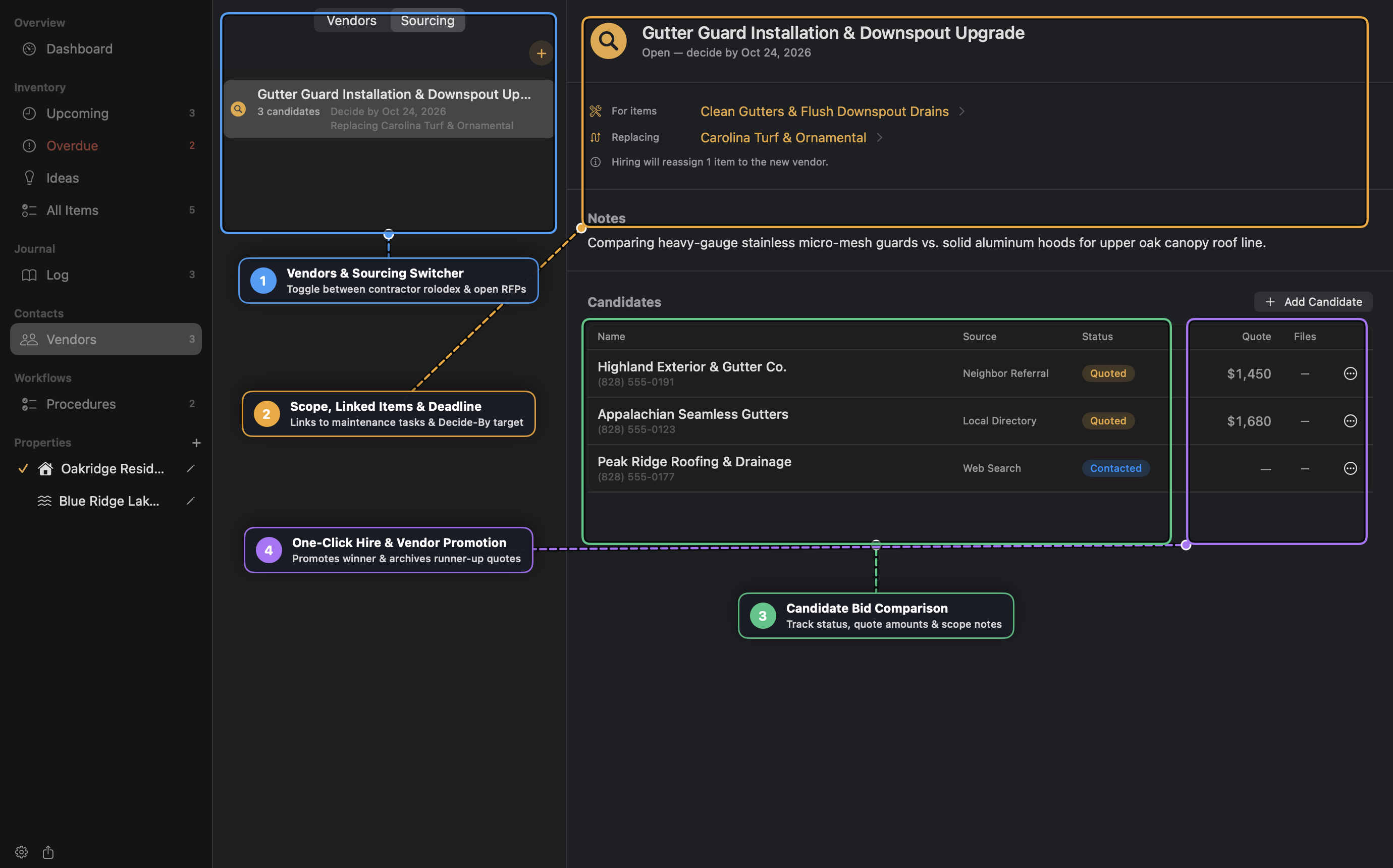
When replacing an underperforming contractor or collecting multiple bids for a capital project (such as installing micro-mesh gutter guards or replacing a heat pump), use Vendor Sourcing to manage the entire RFP lifecycle.
Step-by-Step
- Navigate to Vendors in the sidebar, switch the segmented tab to Sourcing, and click
+(New Sourcing). - Configure the sourcing scope:
- Title:
Gutter Guard Installation & Downspout Upgrade - For Items: Select
Clean Gutters & Flush Downspout Drains(and any other affected maintenance items). - Replacing Vendor: Select the incumbent contractor you are replacing.
- Decide By: Set a target decision date (Upkeep schedules a macOS notification reminder for 9:00 AM on your deadline).
- Title:
- Add 2–4 Candidates (or click Pick from Contacts… to import contractor vCards from macOS Contacts).
- As quotes arrive, update each candidate’s status to Quoted, enter their dollar Quote Amount, and attach their PDF estimate.
- Click the
⋯menu on the winning bid and select Hire…:- Confirm whether to create a new active Vendor record or link to an existing Vendor.
- Upkeep automatically marks the incumbent vendor Inactive, reassigns all linked maintenance items to the newly hired vendor, and archives the runner-up Quoted candidates as inactive vendors so their contact info and bid history are never lost.
Recipe 4: Executing & Resetting Seasonal Winterization Checklists Across Properties
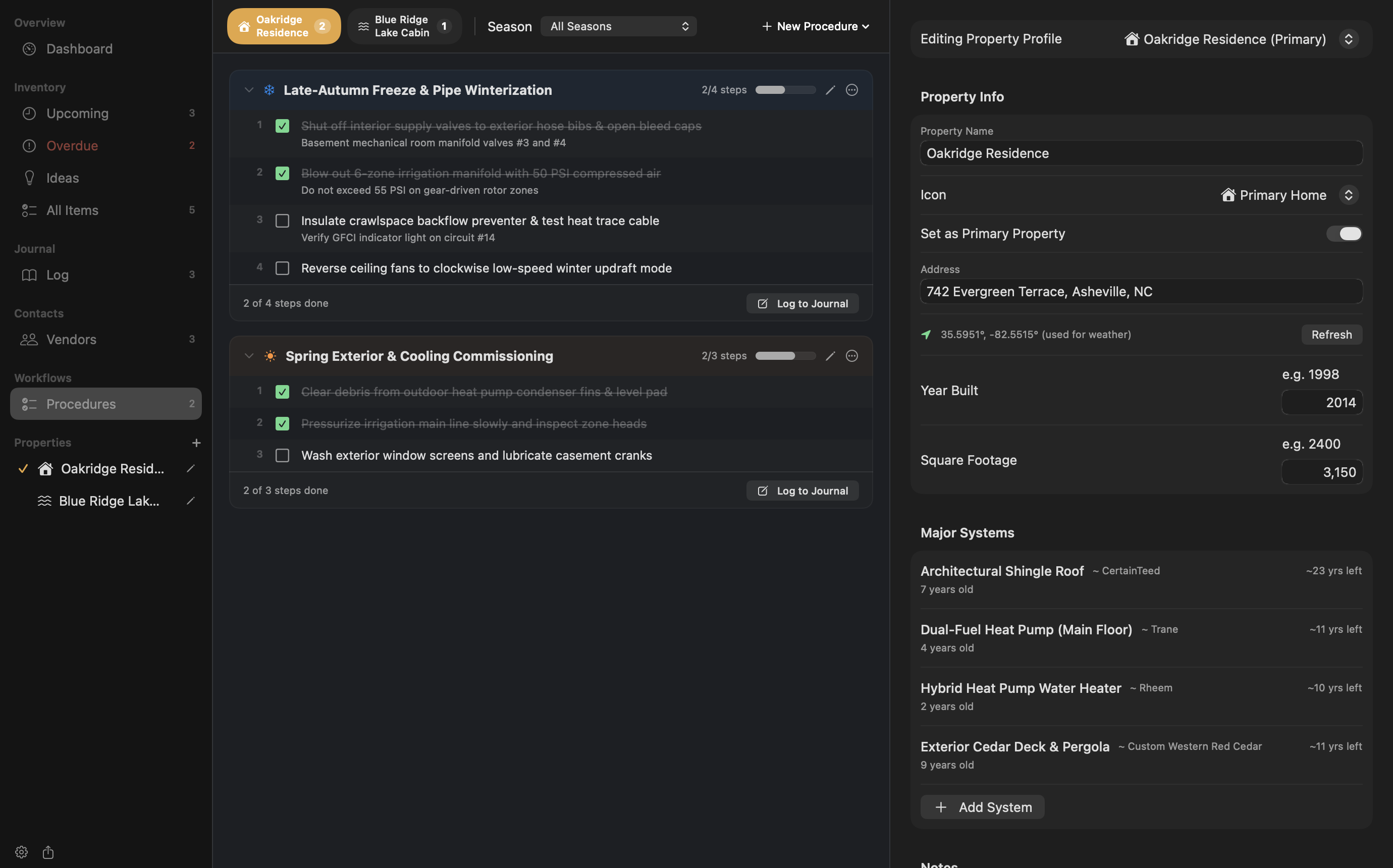
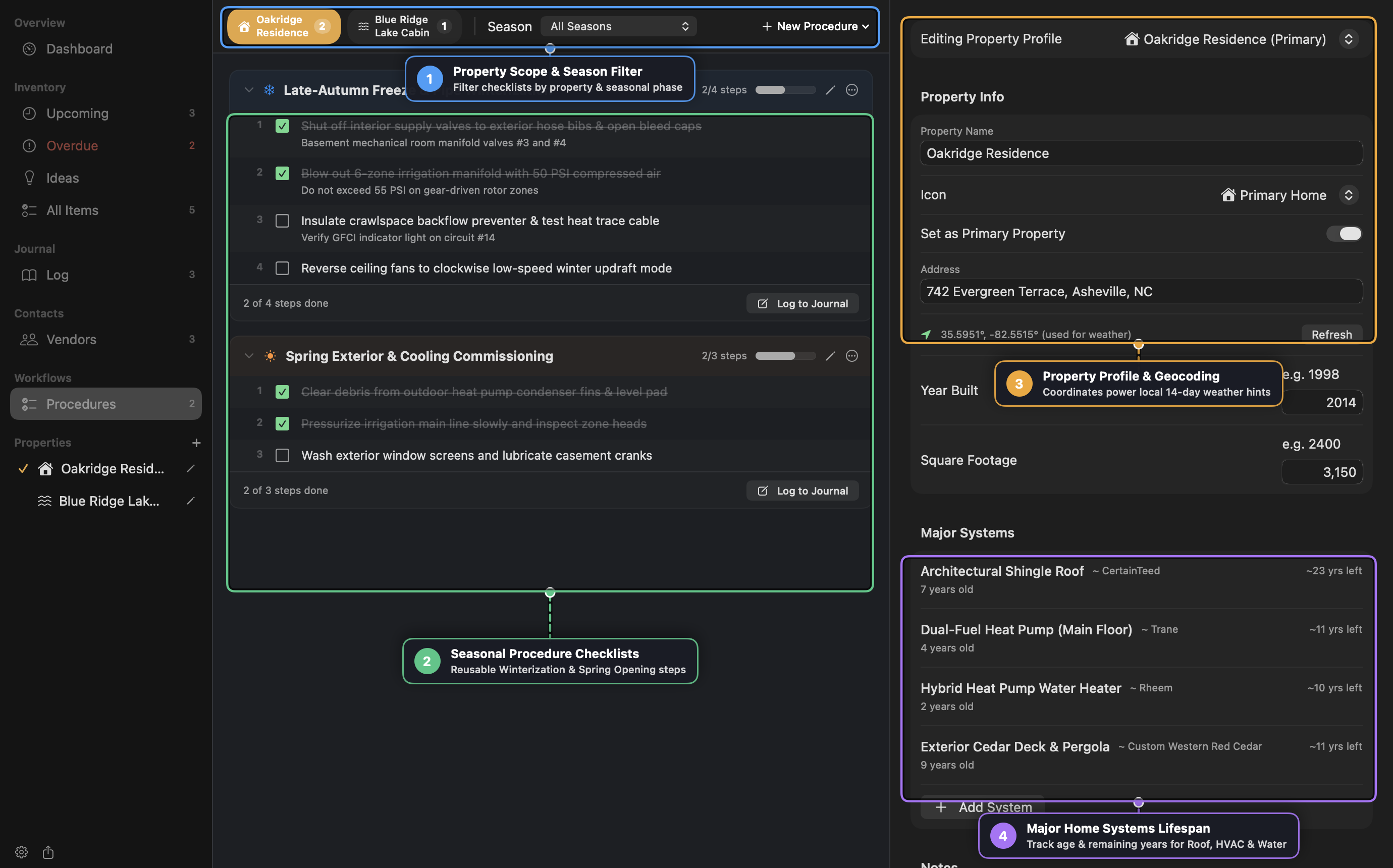
For multi-step seasonal rituals—such as closing down a mountain lake cabin before the first hard freeze or commissioning irrigation and cooling in the spring—use Procedures.
Step-by-Step
- Select Procedures under Workflows in the sidebar.
- Click New Procedure in the top-right bar to start from a built-in template (Winterization Checklist, Spring Opening, Seasonal Prep, or Home Inspection) or create a custom procedure.
- Scope the procedure to one or more properties (e.g., Oakridge Residence and Blue Ridge Lake Cabin) and assign a Seasonal Window (
Oct 15 – Nov 30). - Drag and drop steps to match your physical walkthrough order (e.g., Shut off interior manifold valves → Blow out 6-zone irrigation lines at 50 PSI → Insulate backflow preventer & verify GFCI heat trace).
- Link relevant steps to inventory items so you can jump straight to the underlying equipment specs or vendor contact.
- Once all steps are checked off, click Log to Journal at the bottom of the procedure card to record a permanent completion entry. Next autumn, click
⋯→ Reset All Steps to reuse the exact checklist.
Recipe 5: Tracking Progress Notes Without Resetting Schedules
Sometimes you want to record an interim observation—such as measuring HVAC static pressure, noting a serial number, or logging a partial repair—without resetting a recurring item’s countdown timer or auto-closing a To-do.
Step-by-Step
- Open the item in All Items and click Log Completion (or press
Cmd+Shift+N). - Enter your measurement notes, cost (if any), and attach photos of the equipment nameplate or inspection report.
- Uncheck Counts as completion (
Progress note — won't reset schedule or complete a to-do). - Click Save. The entry appears in the item’s Completion History and the global Log with a
Progress notebadge, while the item’s next-due date remains untouched.
Recipe 6: Auditing Capital System Lifespans & Setting Up Household Cloud Sync
Part A: Major System Lifespan Planning
- Click your property under Properties in the sidebar to open Property Profiles.
- Scroll to Major Systems and click Add System for each capital asset:
- Architectural Shingle Roof (Installed 2019, Expected Lifespan:
30years) - Dual-Fuel Heat Pump (Installed 2022, Expected Lifespan:
15years) - Hybrid Heat Pump Water Heater (Installed 2024, Expected Lifespan:
12years)
- Architectural Shingle Roof (Installed 2019, Expected Lifespan:
- Upkeep displays each system’s current age and remaining years (
~23 yrs left), shifting the badge tint to Amber when≤ 5years remain and Red once past expected lifespan so you can budget replacements ahead of failure.
Part B: Multi-Mac Household Sharing
- Create a shared
UpkeepDatafolder inside Google Drive, iCloud Drive, or Syncthing. - Open Settings (
Cmd+,) → Data Location → Change… and select the shared folder on each household member’s Mac. - Under Household Members, add each person and select the active member on each machine.
- Use the sidebar’s My Tasks toggle to filter the inventory to items you own, and rely on Upkeep’s automatic per-item version check (
ConflictBanner) to detect and resolve concurrent edits safely.