Stash User Guide & Visual Walkthrough
Complete visual walkthrough and reference manual for Stash.
Stash is a local-first, content-addressed personal knowledge base, media library, and triage inbox for macOS. Every link, snippet, document, image, audio/video recording, and email you capture is hashed with SHA-256, indexed in SQLite with FTS5 full-text search, and stored locally under ~/.stash so your research stays fast, private, and scriptable from both the native macOS workbench and the stash CLI.
View on GitHub 🍳 Open Practical Cookbook →
1. Getting Started & Workbench Layout
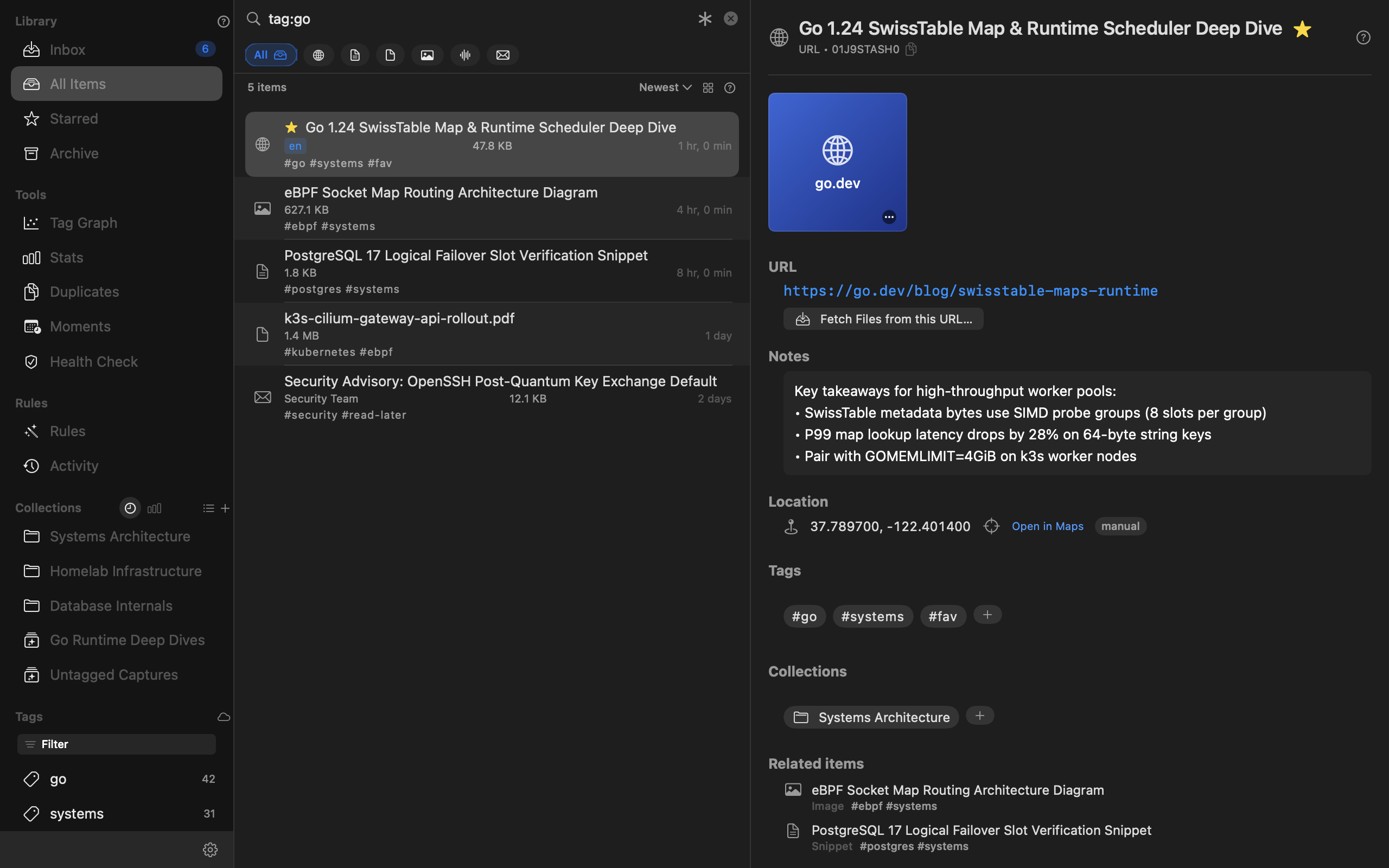
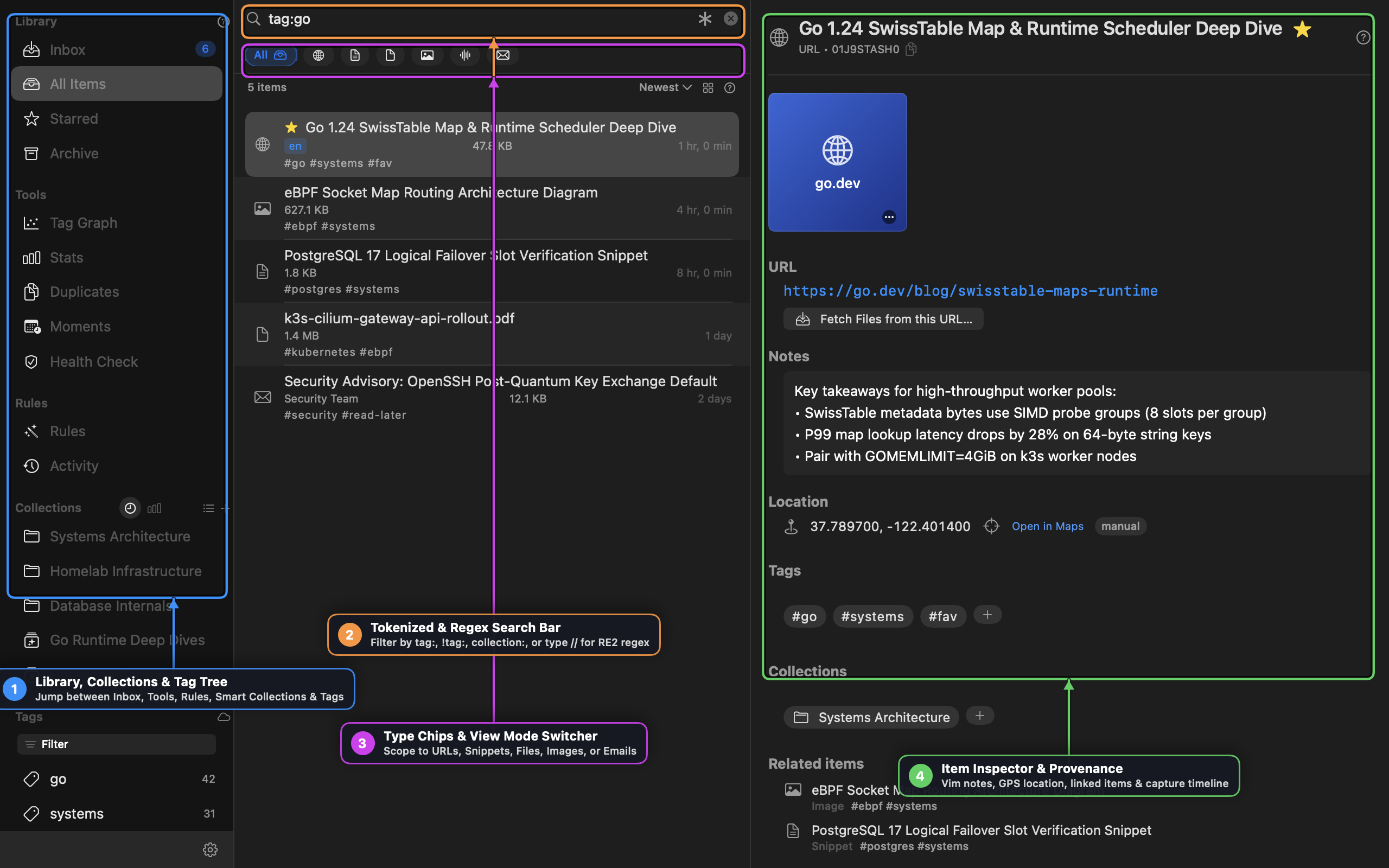
Stash organizes your library into a three-pane native macOS workbench:
- Sidebar (Left Pane) — Jump between Library views (
Inbox,All Items,Starred,Archive), Tools (Tag Graph,Stats,Duplicates,Moments,Health Check), Rules (Rules,Activity), Collections (a unified strip of Static and Smart Collections capped at your 3 most recent and 3 most frequent sets, with an All (N) ▸ popover for the full list), and Tags (toggleable between a filterable list and an interactive tag cloud). - Item List / Active Tool (Middle Pane) — Displays the tokenized search bar (
⌘F), single-click item type filter chips, sort controls, view-mode switcher (List, Grid, Gallery), and the active item rows or tool cards. - Inspector & Detail View (Right Pane) — Displays the selected item’s hero thumbnail or inline media player, metadata, Vim-enabled notes editor, GPS location map, tags, collections, related & linked items, extracted full text, and provenance timeline.
Quick Navigation & Global Shortcuts
| Shortcut | Action |
|---|---|
⌘K | Open the Quick Search command palette from anywhere in the app |
⌘F | Focus the inline tokenized search bar in the item list |
A / ⌘N | Open the Add Item sheet (URL, Snippet, or File) |
⌘[ / ⌘] | Navigate Back and Forward through selection history |
⌘R | Refresh items, tags, collections, and feed candidates |
⌘⇧/ (⌘?) | Toggle interactive Contextual Help badges across the UI |
⌘, | Open Settings (Appearance, Capture, AI Identify, Android Companion Pairing) |
[!TIP] Global Menu Bar Capture: Stash also runs a lightweight menu bar item that watches your clipboard (when enabled) and provides 1-click Stash Clipboard, Grab Current Selection, and Recent Captures actions from any macOS application.
2. Capturing & Adding Items
Stash supports six ways to bring items into your library:
- Add Sheet (
Aor⌘N) — Choose URL, Snippet, or File, assign initial tags (MultiTagFieldwith Stash-model auto-suggest) and a collection, and optionally attach notes. - Drag and Drop — Drag files, images, PDFs, audio/video files,
.emlmessages, or URLs from Finder, Safari, or Mail directly onto the item list, onto a Collection row in the sidebar (to capture and file in one motion), or onto a Tag row in the sidebar. - Fetch Media from URL (
link.badge.plusToolbar Button) — Paste any webpage URL to discover and batch-capture embedded images, videos, or documents on that page. - macOS Services & Share Sheet — Highlight text or a URL in any app and trigger Stash Selection from the macOS Services menu or Share menu.
- Browser Bookmark & History Importers — Use File → Import Browser Bookmarks… or File → Import Browser History… to bulk-import from Safari, Chrome, Arc, Brave, or Firefox with automatic deduplication.
- Watched RSS/Atom Feeds — Subscribe to feeds in the Inbox and press
Son any candidate to stash it into your permanent library.
Item Types & Automatic Processing
| Type | What Stash Extracts & Stores |
|---|---|
| URL | Fetches the page HTML, extracts readable article text into the FTS5 index, scores and caches a canonical 512px sRGB thumbnail (og:image, twitter:image, JSON-LD, or largest qualifying <img>), and resolves direct streams or YouTube/Vimeo embeds. |
| Snippet | Stores plain text, code blocks, or Markdown notes directly in the content-addressed filestore with full-text indexing. |
| File | Copies the file into ~/.stash/files (content-addressed by SHA-256), indexes PDF/document text, generates QuickLook thumbnails, and inspects .zip/.tar.gz archives inline. |
| Image | Stores the original image, generates a saliency-cropped thumbnail via Apple Vision, extracts EXIF camera/lens metadata and GPS coordinates, and runs on-device OCR text recognition. |
Parses .eml (message/rfc822) messages, indexing From, To, Subject, date headers, plain/HTML bodies, and attachments. |
3. Unified Triage Inbox
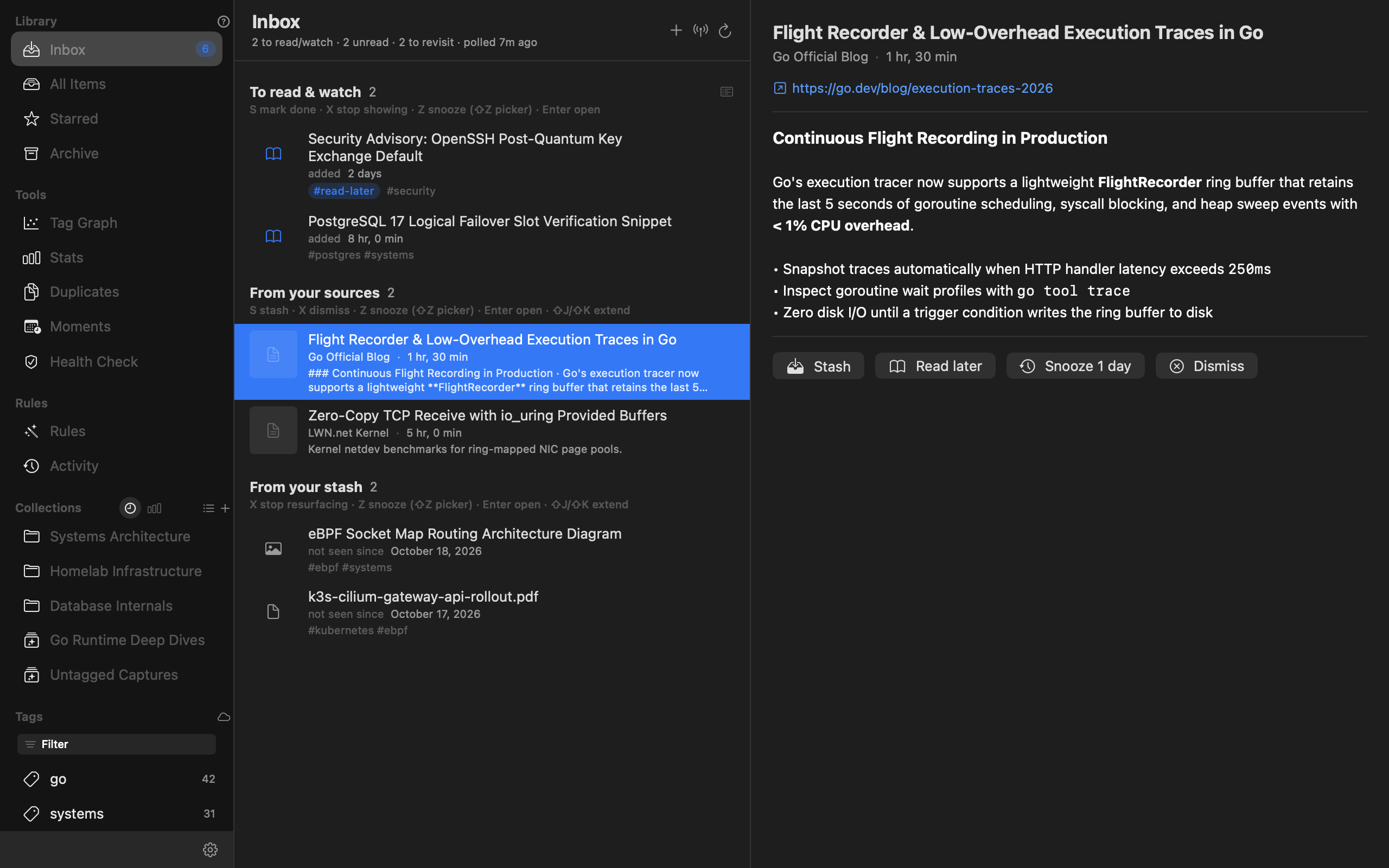
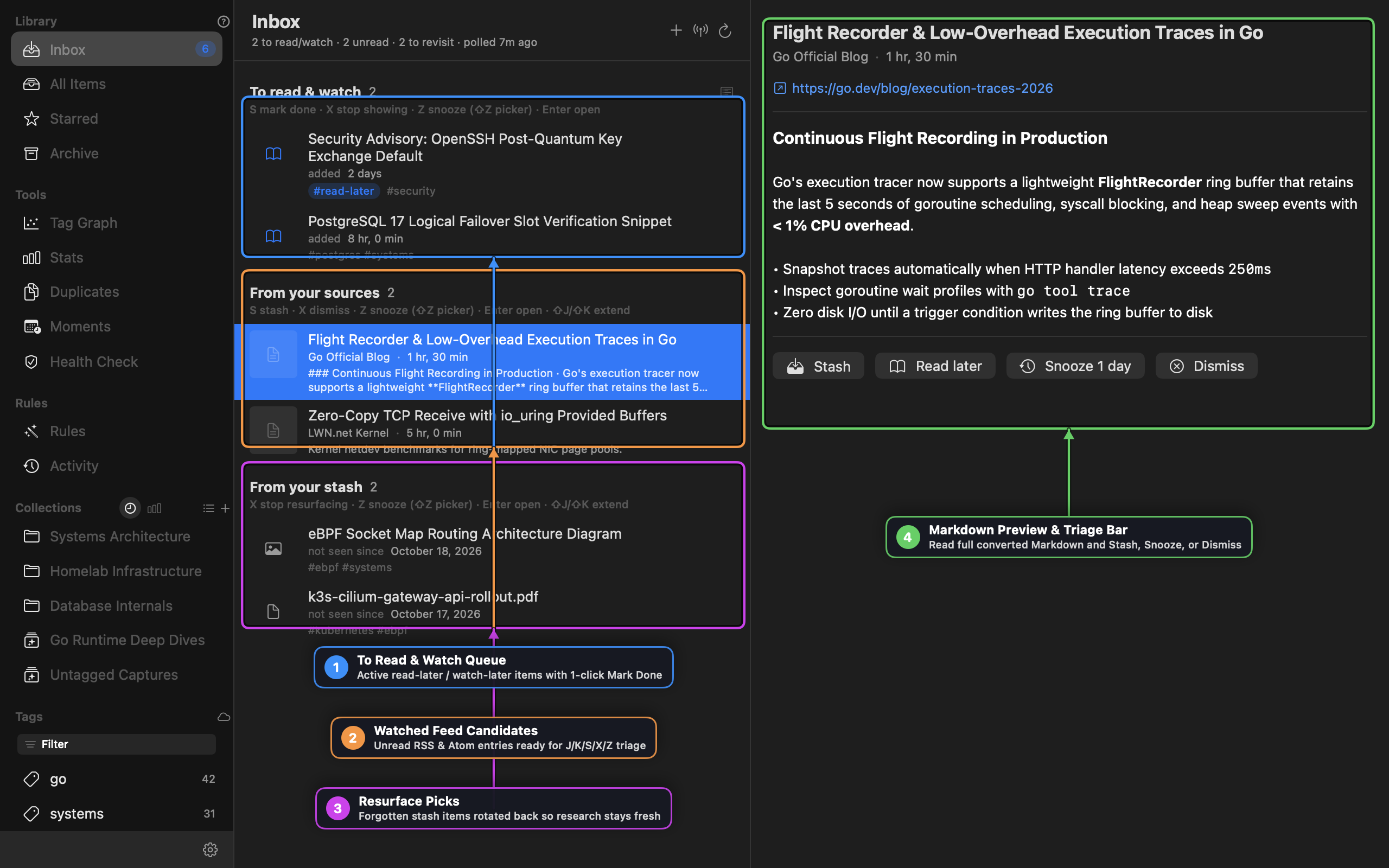
The Inbox is Stash’s keyboard-driven triage surface for processing new reading/watching material without cluttering your permanent library. It combines three live sections in a single view:
- To Read & Watch — Every stashed item tagged
read-laterorwatch-later. Once you finish an article or video, pressS(or click the checkmark) to strip the triage tag and graduate the item out of the queue while keeping it in your permanent library. - From Your Sources (Watched Feeds) — Unread entries polled from your subscribed RSS and Atom feeds, complete with cached HTML-to-Markdown previews in the right-hand inspector.
- From Your Stash (Resurface Picks) — Older, high-value items from your library that you haven’t viewed recently, rotated back into view so long-term research stays fresh.
Single-Key Inbox Triage Shortcuts
| Key | In “To Read & Watch” | In “From Your Sources” | In “From Your Stash” |
|---|---|---|---|
J / K | Move cursor down / up | Move cursor down / up | Move cursor down / up |
⇧J / ⇧K | Extend multi-selection | Extend multi-selection | Extend multi-selection |
S | Mark Done (remove read-later/watch-later) | Stash item + tag read-later | (Already stashed) |
X | Stop showing in queue | Dismiss feed entry | Stop resurfacing item |
Z | Snooze 7 days | Snooze 1 day | Snooze 7 days |
⇧Z | Open custom Snooze Picker (1h – 1w) | Open custom Snooze Picker | Open custom Snooze Picker |
Enter / O | Open item in default handler | Open article URL in browser | Open item in default handler |
4. Searching, Token Filters & RE2 Regex
Stash provides two complementary search surfaces:
- Inline Filter Bar (
⌘F) at the top of the item list for scoping the current view. - Quick Search Palette (
⌘K) for instant keyboard-first jumping, global/slash commands, and saved search history.
Search Token Grammar
Tokens can be combined freely with full-text search terms (all tokens AND together):
| Token Syntax | Meaning | Example |
|---|---|---|
tag:<name> | Require tag <name> | tag:systems tag:go |
!tag:<name> or -tag:<name> | Exclude items carrying <name> | tag:go !tag:archived |
^tag:<name> | Exclusive tag match (items with only that tag) | ^tag:inbox |
collection:<name> | Scope to a specific collection | collection:"Homelab Infrastructure" |
type:<kind> | Scope to url, snippet, file, image, or email | type:image |
//<pattern> | RE2 Regular Expression search across titles, URLs, notes & extracted text | //(?i)p99\s+latency |
Stash Auto-Suggest Interaction Model
Every filter and tag input in Stash uses a deterministic, non-intrusive auto-suggest model:
Tab(dropdown hidden) — Opens the suggestion dropdown at the cursor without mutating your text.Tab/↓(dropdown visible, multiple items) — Advances the highlight through candidates without overwriting what you typed.Tab(dropdown visible, single match) — Completes that token in place and chains directly into value suggestions.Enter— Commits the highlighted suggestion (keys insert without a trailing space and immediately open value suggestions; values insert with a trailing space and close the dropdown).Esc— Dismisses the dropdown first; a secondEscclears the field.
5. Organizing: Tags, Smart Collections & Links
Tags & Tag Graph
- Hierarchical & Flat Tagging: Add tags inline in the detail pane (
+), via right-click context menus, or by dragging items onto a tag in the sidebar. - Starred Tag (
#fav): Clicking the star icon in the detail header toggles the reservedfavtag and surfaces the item under Starred in the sidebar. - Tag Graph (
Tools → Tag Graph): Visualizes co-occurrence relationships across your library as an interactive force-directed network. Click any node to pivot into items sharing that tag cluster.
Static & Smart Collections
Stash merges Static Collections (hand-curated folders) and Smart Collections (live saved queries backed by SavedSearch rules) into a single Collections sidebar section:
- Recent & Frequent Strip: To prevent sidebar bloat, Stash displays up to 3 Recent and 3 Frequent collections directly in the sidebar and provides an All (N) ▸ popover with instant search for your entire collection list.
- Smart Collections (
sparkles.rectangle.stack): Define live filters by query string, item type, required/excluded tags, or untagged state. Any newly captured item matching the criteria appears automatically. - Merge & Add-To Workflows: Right-click any collection in the sidebar to merge multiple collections into a survivor or copy items between collections.
Bidirectional Item Links
Link related items together (for example, connecting a benchmark diagram to the architecture RFC it illustrates) using the Linked Items section in the detail pane. Each link carries an optional directional label (benchmarks, references, supersedes) and allows 1-click traversal between connected items.
6. Capture Rules & Automation
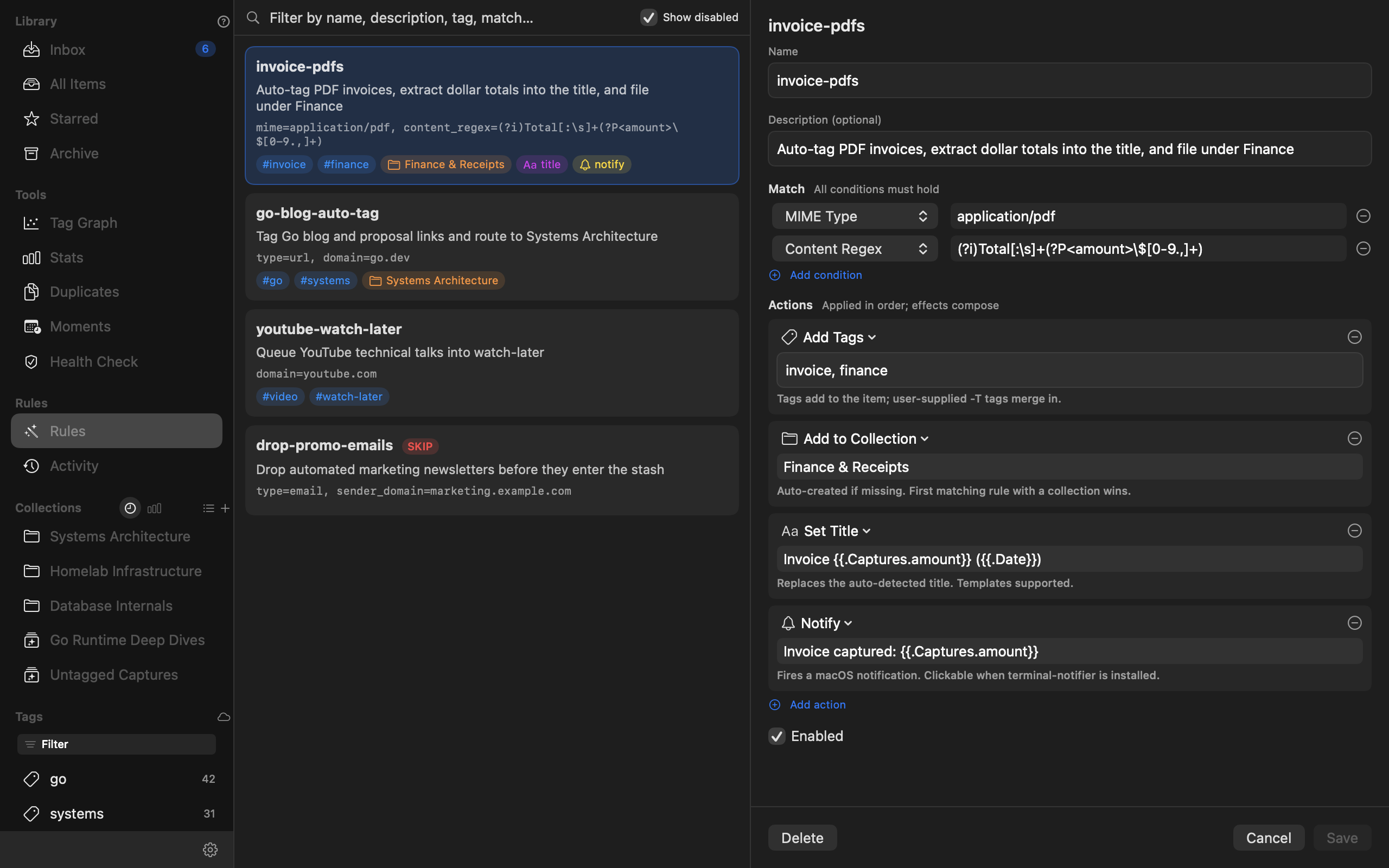
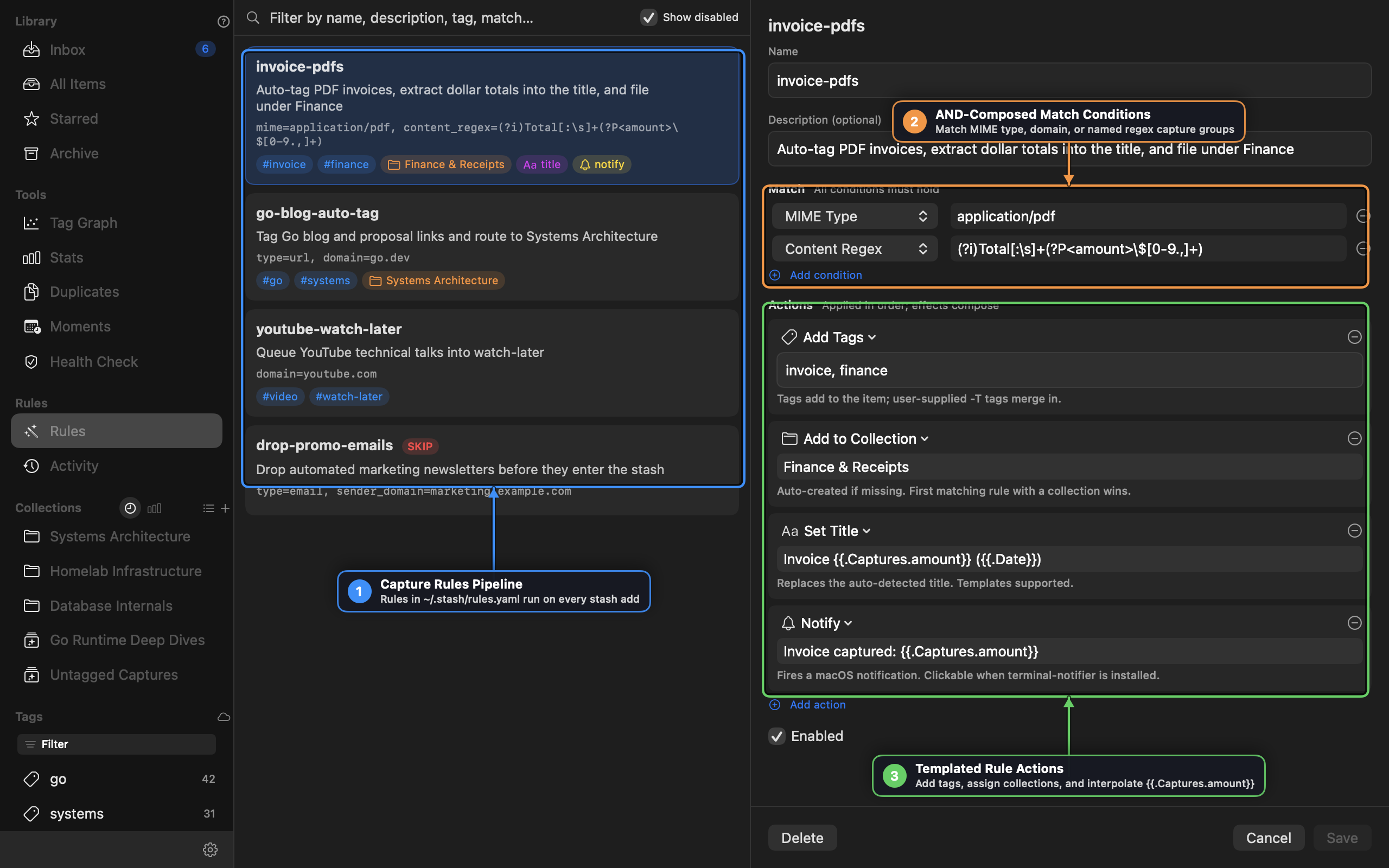
Every time an item enters Stash—whether from the macOS app, the menu bar, watched feeds, or stash add on the CLI—it runs through the Capture Rules Engine (~/.stash/rules.yaml).
Match Conditions (AND-Composed)
A rule fires only when all configured match conditions hold:
- Item Type (
url,snippet,file,image,email) - Domain / Sender Domain (e.g.,
go.dev,youtube.com,github.com) - MIME Type (e.g.,
application/pdf,image/png,audio/*) - URL Regex / Title Regex / Content Regex — Full RE2 regular expressions with support for named capture groups (
(?P<amount>\$[0-9.,]+)). - File Path / Extension globs
Rule Actions & Template Interpolation
When a rule matches, its actions execute in order and compose across all matching rules:
- Add Tags / Remove Tags — Automatically tag incoming items (supports
{{.Captures.<name>}}interpolation). - Add to Collection — Route the item into a collection (auto-creating the collection if needed).
- Set Title — Rewrite the item’s title using Go template variables (
{{.Title}},{{.Domain}},{{.Date}}, and named regex captures like{{.Captures.amount}}). - Set Thumbnail — Trigger
autoextraction or bind a custom thumbnail URL/path. - Notify — Fire a native macOS notification with custom templated text.
- Run Shell Command — Execute a local script or webhook with item metadata passed in environment variables.
- Skip Capture (
SKIP) — Drop unwanted items (such as automated marketing emails) before they enter your database.
[!NOTE] Rule Activity & Backfill: Open Rules → Activity in the sidebar to inspect a live audit log of every rule firing, or click Apply to Existing Items on any rule to backfill historical items in your library.
7. Moments: Temporal, GPS & Vision Clustering
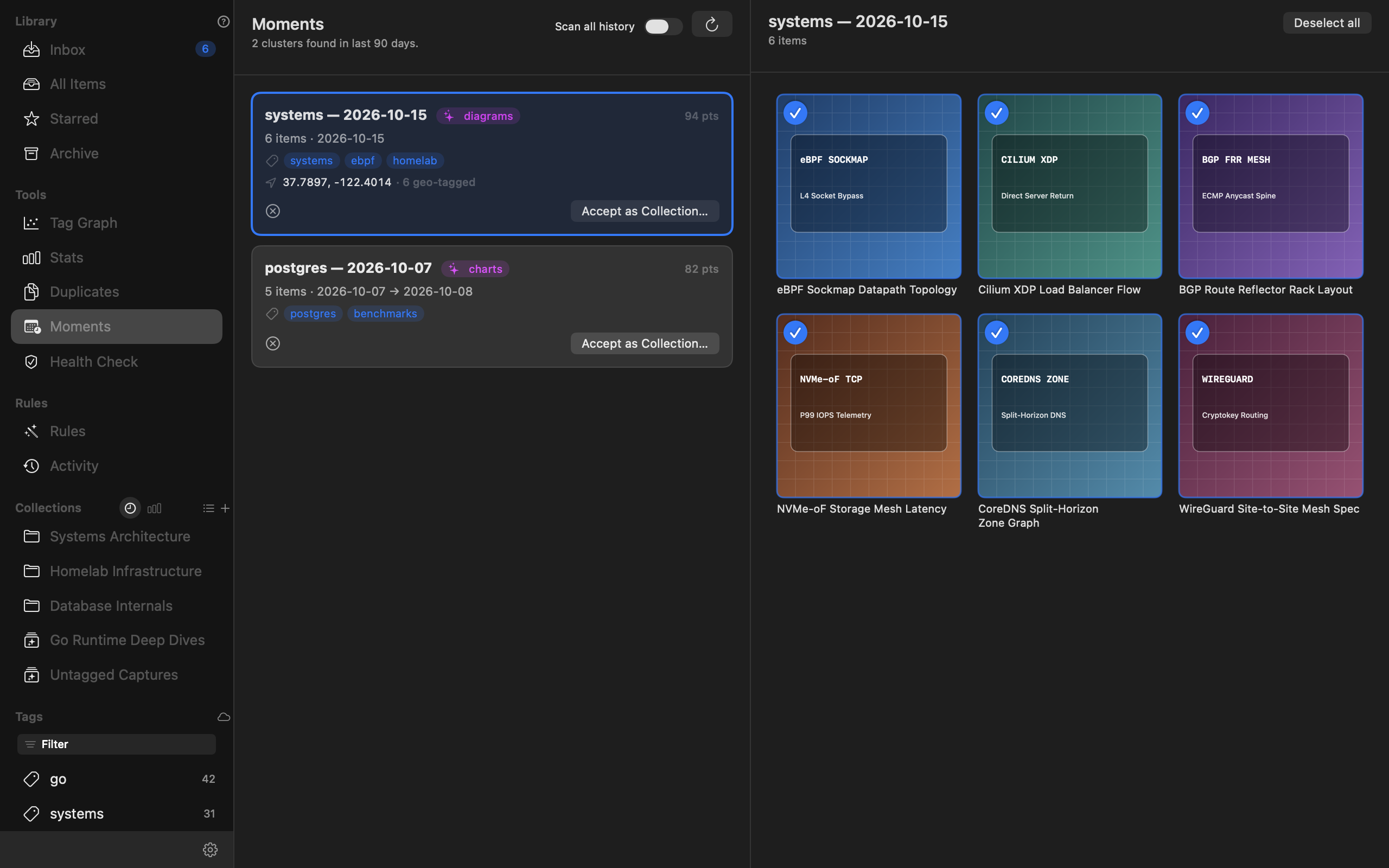
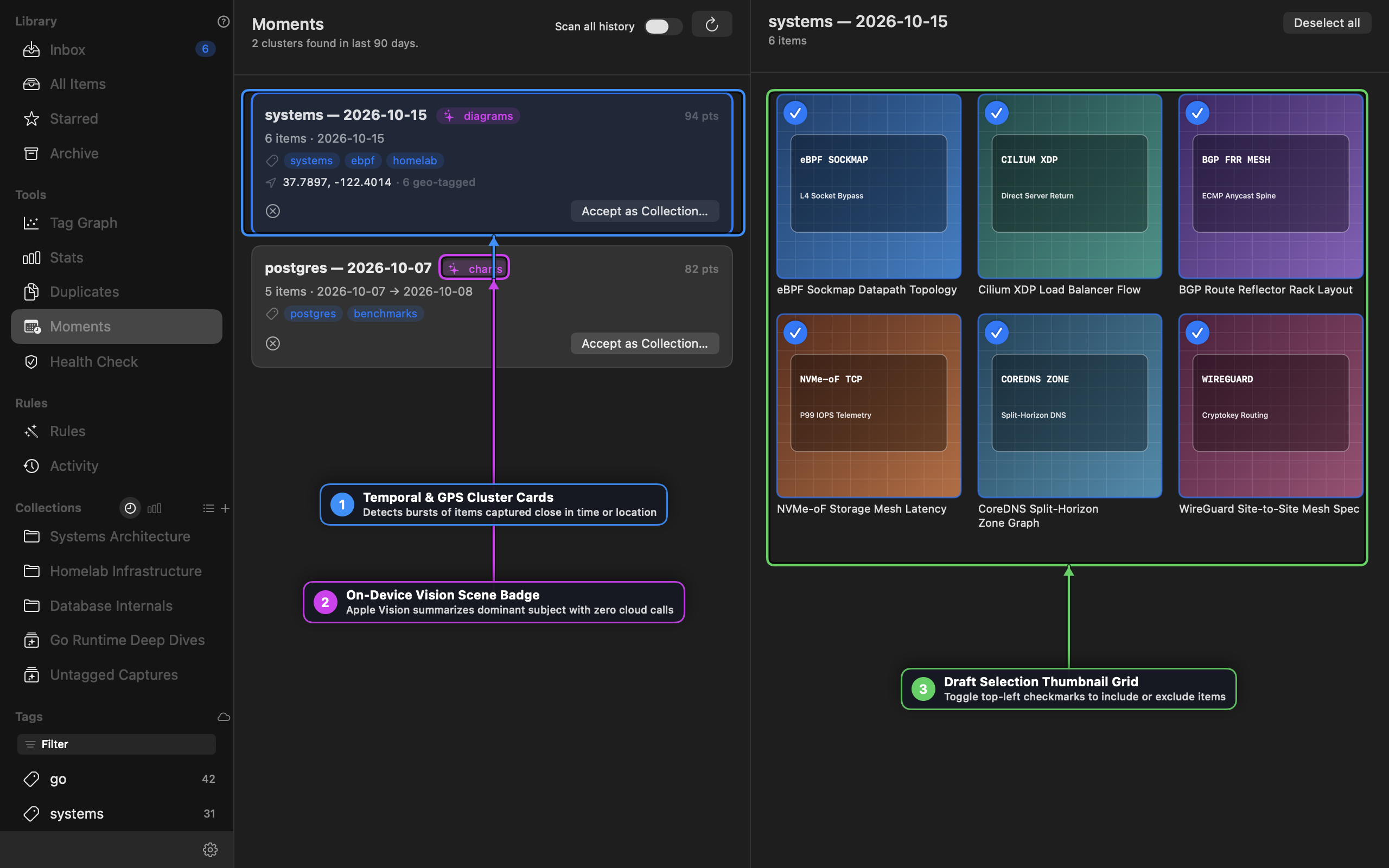
Moments (Tools → Moments) automatically discovers bursts of related activity across your library—such as a whiteboard session, an architecture workshop, or a field trip—by clustering items captured close together in time and GPS location.
- On-Device Apple Vision Scene Badges: Stash runs Apple’s on-device
VNClassifyImageRequestacross image thumbnails in each cluster to compute a dominant scene label (e.g.,✨ diagrams,✨ charts,✨ documents) with zero cloud API calls. - Draft Selection Grid: Select any Moment card to inspect its items in a visual grid. Toggle the top-left checkmarks on individual tiles to include or exclude specific items.
- 1-Click Promote to Collection: Click Accept as Collection… to turn the curated cluster into a permanent named collection.
8. Item Detail, Media Playback & Audio X-Ray
Selecting any item opens the Item Detail Inspector, which adapts to the item’s media type:
- Inline AVKit Video & Audio Player: Local video/audio files (
video/*,audio/*), direct stream URLs, and YouTube/Vimeo links render an inline player right at the top of the inspector. PressSpaceto play/pause. - Audio X-Ray & Multi-Track Remixing: For multi-track recordings and interviews, expand the Audio X-Ray workbench to inspect per-speaker waveforms, speaker diarization markers, and real-time DSP remixing controls:
- Adaptive Switcher vs. Simple Linear Mix
- Noise Floor Gate & Voice Activity Threshold
- Speech EQ and per-channel gain alignment
- Interactive Hero Thumbnail: Drag a replacement image onto the thumbnail block, paste an image URL, pick from alternate page candidates, or click
↻to re-fetch. - GPS Location & EXIF: View camera/lens metadata and click the coordinate pill to open an interactive Apple Maps popover or jump to Maps.app.
- Archive Tree Preview: Selecting a
.zipor.tar.gzfile renders its internal directory hierarchy inline without extracting to disk. - Provenance Activity Timeline: Expand the Activity section at the bottom of the inspector to see the complete lifecycle of the item—when it was captured, which Capture Rules fired, and every tag or collection change.
9. Vim Mode & Slash Commands in Notes
The Notes editor in the Item Detail pane and the YAML Code Editor in Capture Rules both support optional Vim modal editing and live / slash commands (configurable in Settings → Appearance):
- Activating Vim Mode: All editors start in standard macOS editing mode by default. Click the subtle
:_watermark in the bottom-right corner of the editor (or type/vimat the start of a line) to enter Vim Normal Mode (VIM:N). - Vim Mode Badge & Cheatsheet: While active, a top-right badge displays
VIM:N,VIM:I, orVIM:Valongside a?popover cheatsheet and×exit button, and the first line wraps cleanly before the badge. - Built-in Slash Commands: Type
/at the start of a line to open the dynamic slash command bar (Tab/↑/↓to cycle,EnterorSpaceto execute):/vim— Toggle Vim modal editing/uc//lc— Convert text to uppercase or lowercase/trim— Trim leading/trailing whitespace and collapse blank lines/sort//dedup— Sort lines alphabetically or remove duplicate lines/fix//sum//tags— Run on-device or configured AI text cleanup, summarization, or tag extraction
10. Library Maintenance: Duplicates, Health Check & Stats
- Duplicates (
Tools → Duplicates): Scans your library for exact SHA-256 hash matches, canonicalized URL collisions, and near-duplicate titles. Select any group to Merge Items—combining all tags, collections, links, and notes into the survivor item cleanly. - Health Check (
Tools → Health Check): Verifies SQLite FTS5 integrity, checks for missing filestore blobs or orphaned thumbnails, and offers 1-click Repair. - Stats (
Tools → Stats): Displays storage breakdown by item type, capture velocity over time, top domains, and tag distribution. - AI Identify & 1Password Secrets (
Settings → AI): Configure Gemini or Claude for optional image/document identification and rule suggestions. API keys can be stored directly or referenced via 1Passwordop://secret URIs with built-in token usage and cost tracking.