Runbook User Guide & Visual Walkthrough
Complete visual walkthrough and reference manual for Runbook.
Runbook is a native macOS workbench for discovering, authoring, executing, and scheduling declarative YAML runbooks powered by the runbook CLI. It pairs a three-panel SwiftUI interface with a non-modal streaming console tray, a Vim-enabled YAML and inline code editor, a visual serpentine step pipeline (StepFlowCanvas), and run-scoped historical log extraction.
View on GitHub 🍳 Open Practical Cookbook →
Table of Contents
- Installation & First-Launch CLI Setup
- Architecture: Frontend to the
runbookEngine - The Runbook Workbench & Docked Console Tray
- YAML Authoring, Modal Vim Engine & Pre-Save Diff Review
- Schedules & Visual Step Flow Pipelines
- Execution History & Run-Scoped Step Log Slices
- Shared Collections & Templates (
runbook pull) - State on Disk & File Locations
- Keyboard Shortcuts & Reference
- Troubleshooting & Decision Trees
1. Installation & First-Launch CLI Setup
Homebrew (Recommended)
brew install --cask msjurset/tap/runbook-mac
Installing the cask places Runbook.app into /Applications/ and automatically installs the companion runbook CLI binary if it is not already present.
Building from Source
make deploy
Builds the universal macOS binary, packages the .app bundle, and installs it into /Applications/Runbook.app.
First-Launch CLI Auto-Install & Updates
On launch, Runbook verifies that the runbook CLI binary is available in your PATH (or ~/.local/bin, /opt/homebrew/bin, /usr/local/bin). If missing, the CLI Setup Sheet opens automatically:
- Step 1 — Install CLI: Downloads the latest release tarball from GitHub, installs the binary into
~/.local/bin, and installs the man page and Zsh completion scripts. - Step 2 — Pull Shared Runbooks (Optional): Clones a starter collection into
~/.runbook/books/so you can explore working examples immediately.
Once installed, Runbook checks for new CLI releases once every 24 hours and surfaces a non-intrusive CLI Update Banner at the top of the window whenever an upgrade is available.
2. Architecture: Frontend to the runbook Engine
Runbook Mac intentionally contains zero divergent execution logic. Every execution, validation pass, schedule change, and git repository pull delegates directly to the runbook CLI binary on disk:
flowchart LR
    GUI["Runbook Mac (SwiftUI)"] -->|Process exec| CLI["runbook (Go CLI)"]
    CLI -->|reads| Books[("~/.runbook/books/ (YAML)")]
    CLI -->|writes| History[("~/.runbook/history/ (JSON)")]
    CLI -->|writes| Logs[("~/.runbook/logs/ (.log)")]
    GUI -->|watches via FSEvents| Books
    GUI -->|reads| History
    GUI -->|reads & indexes| Logs
    GUI -->|persists| Pinned[("~/.runbook/pinned.json")]
    GUI -->|snapshots| Backups[("~/.runbook/backups/")]
- Single Source of Truth: Running a playbook from the macOS app produces the exact same behavior, history JSON, and log markers as running
runbook runfrom an SSH session or cron job. - Live Filesystem Sync (
FSEvents):RunbookStorewatches~/.runbook/books/via macOSFSEvents. Editing a YAML file in Neovim or pulling a git repo in your terminal updates the GUI sidebar automatically without manual refreshes.
3. The Runbook Workbench & Docked Console Tray
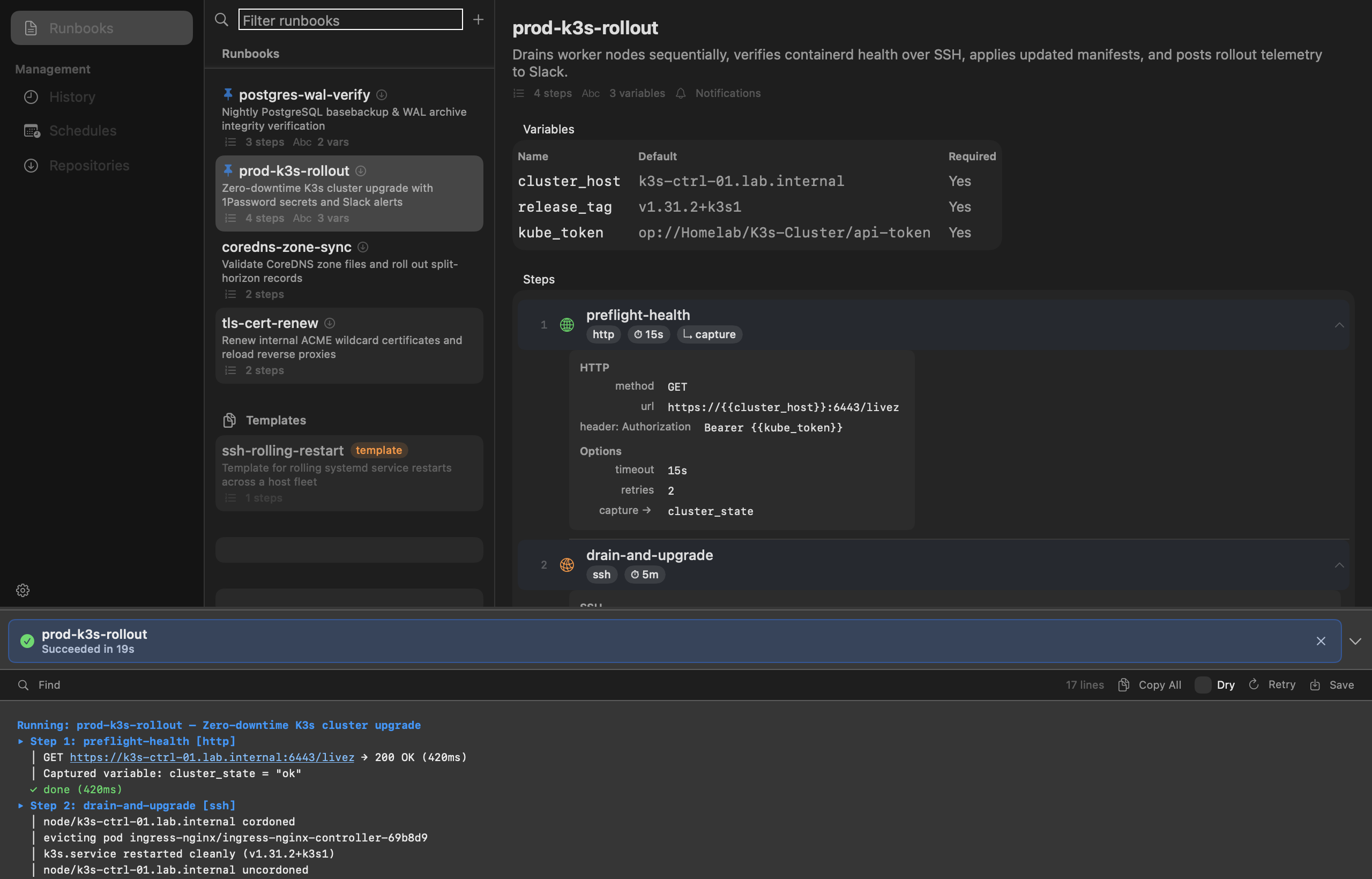
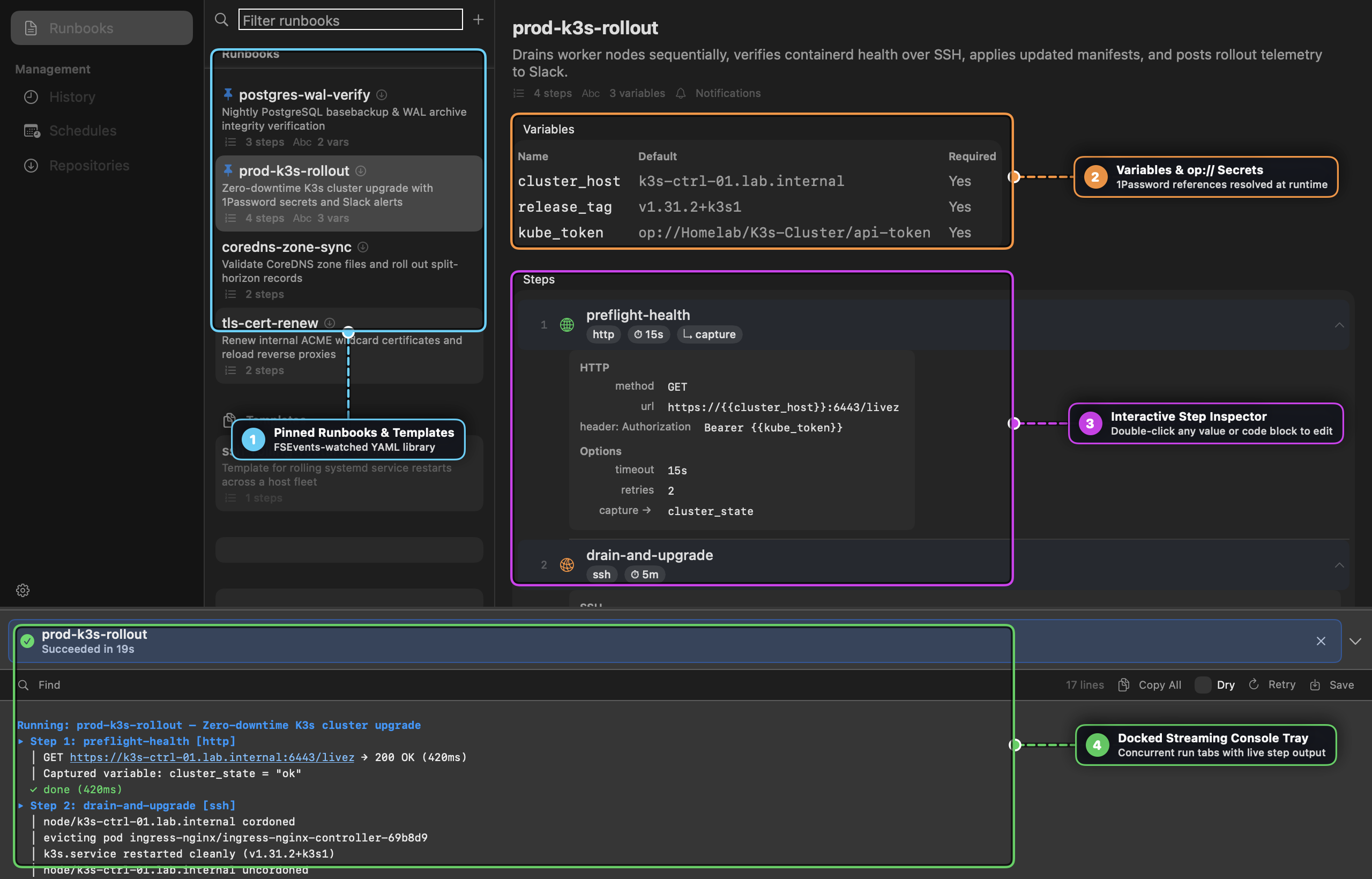
Visual Callout Guide
- Pinned Runbooks & Templates (
RunbookListView): Browse all discovered runbooks in~/.runbook/books/and 1-level subdirectories. Frequently used playbooks can be pinned to the top (~/.runbook/pinned.json), while reusable scaffolds undertemplates/appear in a dedicated collapsible Templates section. - Variables &
op://Secrets: Declared inputs are displayed with their default values and required flags. Secret references using 1Password (op://Vault/Item/Field) are never stored in plaintext—they resolve at runtime through the CLI and system Keychain cache. - Interactive Step Inspector: Click any step row to inspect its
shell,ssh,http, orconfirmparameters, timeouts, retry policies,capturetargets, andconditionexpressions. Double-click any single-line value to edit it inline, or double-click a multiline command/payload block to open the syntax-highlighted popout editor. - Docked Streaming Console Tray (
ConsoleTray): Launching a runbook opens the non-modal bottom tray. Multiple runbooks can execute concurrently—each session gets its own tab inSessionTabBarwith live status icons, elapsed timers, regex-driven output coloring (~/.runbook/highlights.yaml), clickable URLs, inline search (⌘F), cancellation (⌘.), and 1-click Retry with an inline Dry toggle.
4. YAML Authoring, Modal Vim Engine & Pre-Save Diff Review
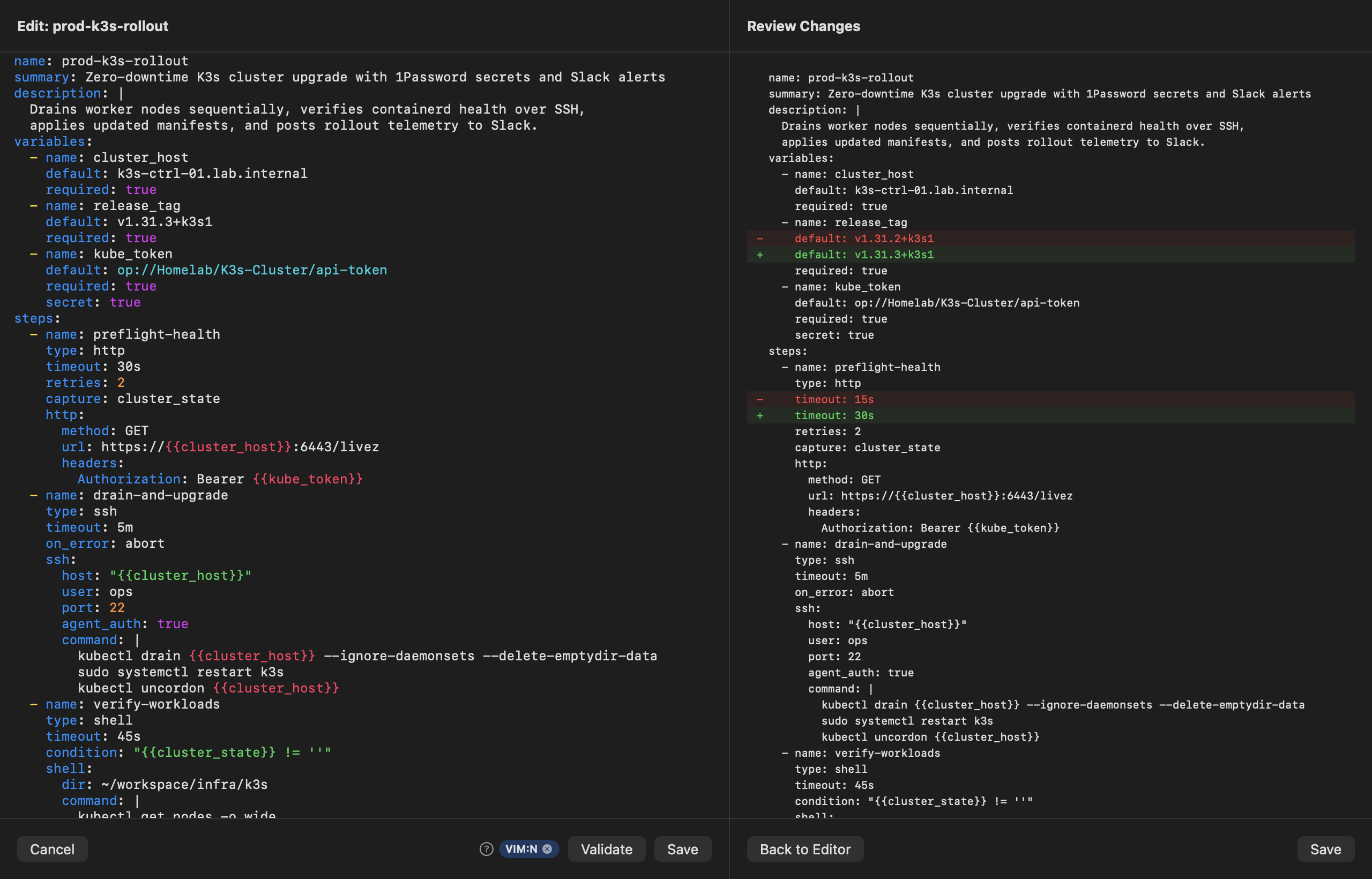
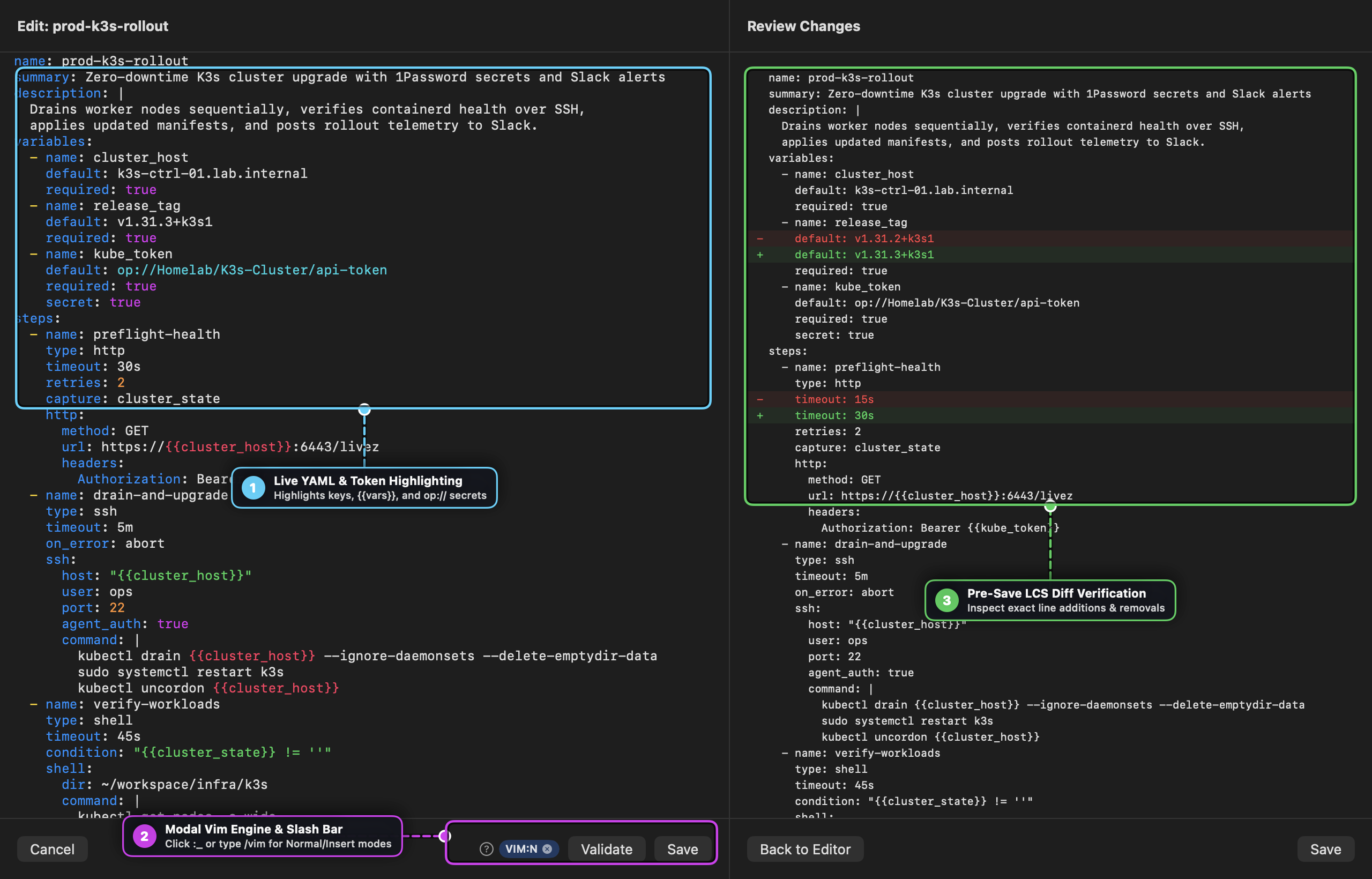
Visual Callout Guide
- Live YAML & Token Highlighting (
CodeEditorView): Full-file YAML editor with live syntax coloring for YAML keys, strings, booleans, numbers, comments,{{variable}}template tokens, andop://1Password secret references. PressTabfor context-aware schema completion (steps:,type:,on_error:, etc.). - Modal Vim Engine & Slash Command Bar (
VimToolbarItem): Every multiline editor starts in standard macOS editing mode (VIM=OFF). Click the:_watermark button or type/vimat the start of a line to activate modal Vim editing (VIM:N,VIM:I,VIM:V) powered byVimEngine, complete with an interactive?command cheatsheet popover and:w/:wq/:qex-commands. - Pre-Save LCS Diff Verification (
DiffView): Clicking Save (or:w) computes a line-by-line Longest Common Subsequence (LCS) diff comparing the on-disk YAML against your buffer. Every save automatically writes a timestamped snapshot to~/.runbook/backups/before modifying the file.
5. Schedules & Visual Step Flow Pipelines
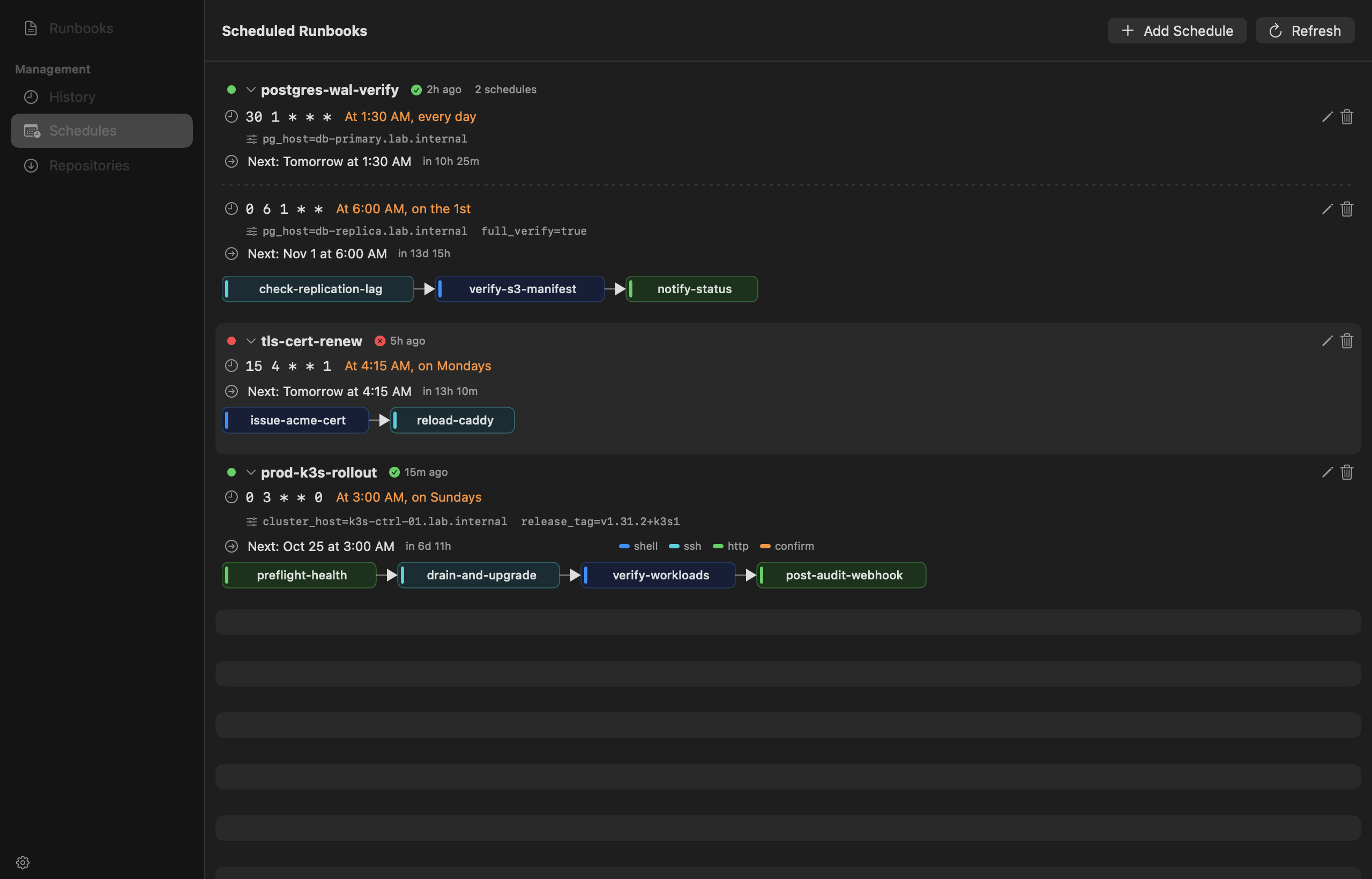
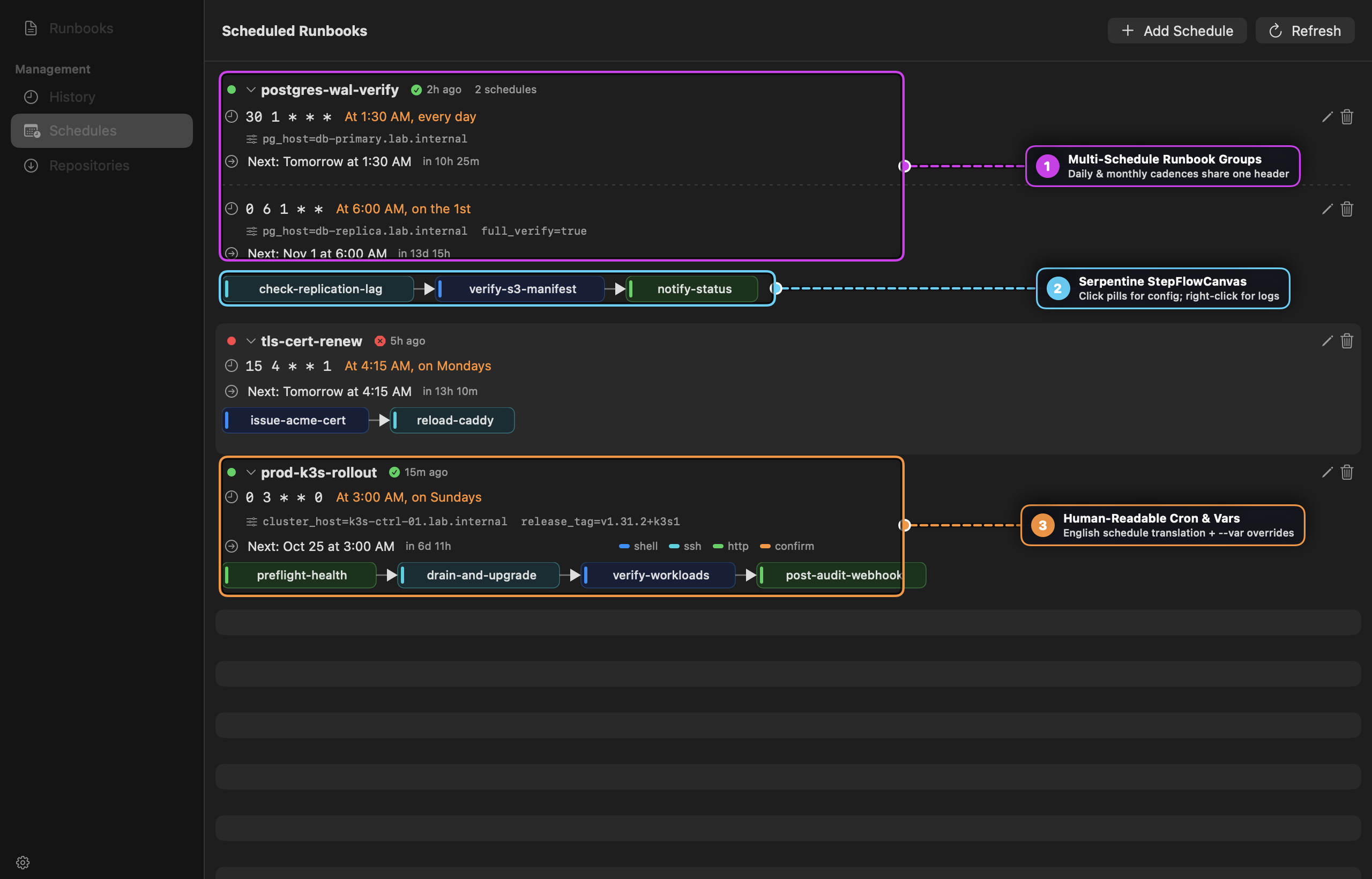
Visual Callout Guide
- Multi-Schedule Runbook Groups (
CronRunbookGroupView): When a runbook is scheduled across multiple cadences (for example, a daily incremental run and a monthly full verification), Runbook groups them under a single runbook card with individual schedule sub-rows and a shared step pipeline. - Serpentine StepFlowCanvas (
StepFlowCanvas): Custom SwiftUICanvaspipeline that draws each step as a color-coded pill (shell= blue,ssh= orange,http= green,confirm= gray):- Left-click a pill: Opens a popover displaying the step’s full configuration and syntax-highlighted code block.
- Right-click a pill: Opens a popover with the most recent run’s log slice for that specific step.
- Double-click a pill: Navigates directly to the Runbook Detail view and expands that step.
- Human-Readable Cron &
--varOverrides (CronScheduleRow): Translates 5-field cron expressions into plain English (e.g.,"At 3:00 AM, on Sundays"), calculates a live relative countdown to the next execution, and displays per-schedule--var key=valueoverrides inline.
6. Execution History & Run-Scoped Step Log Slices
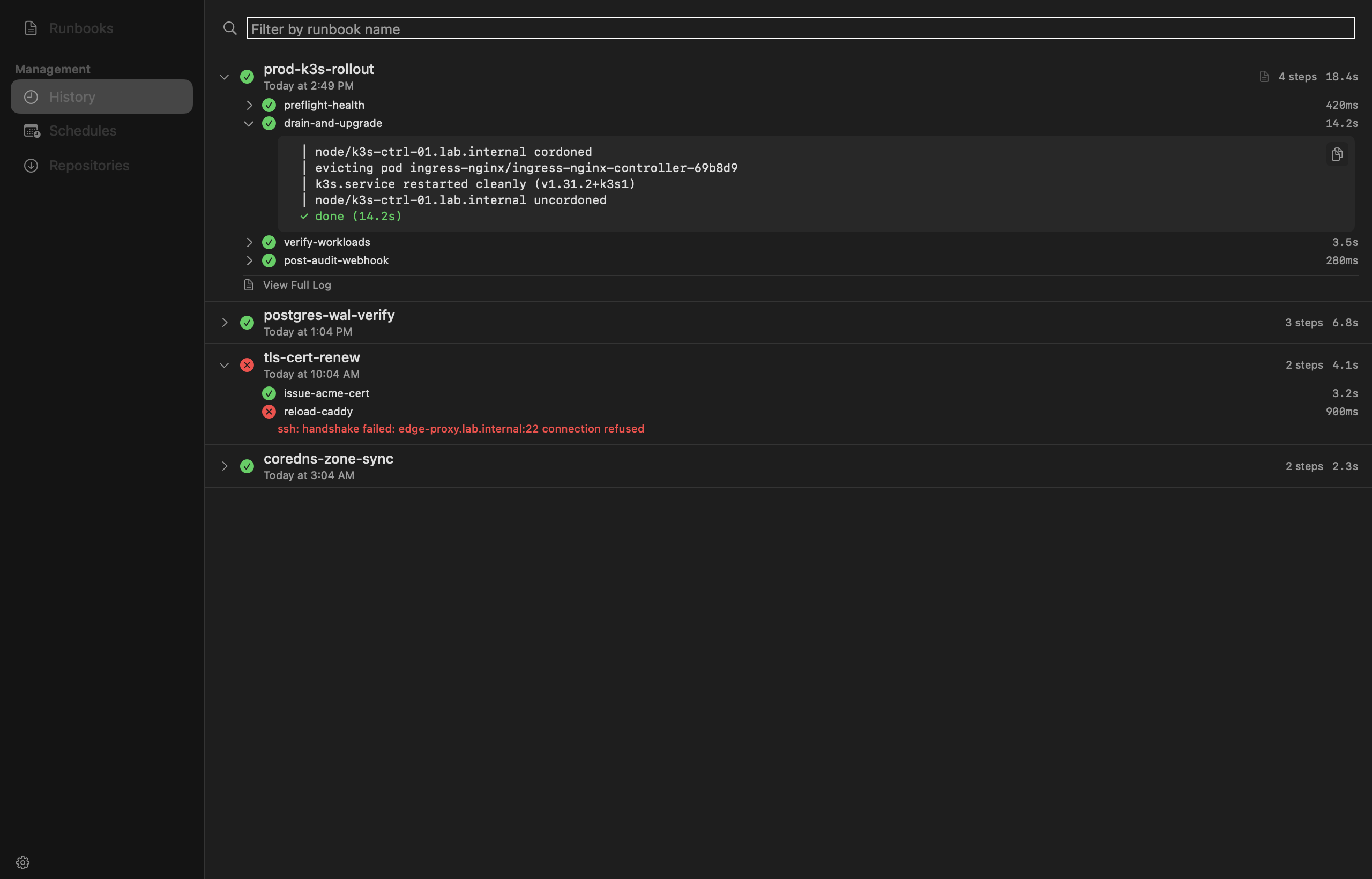
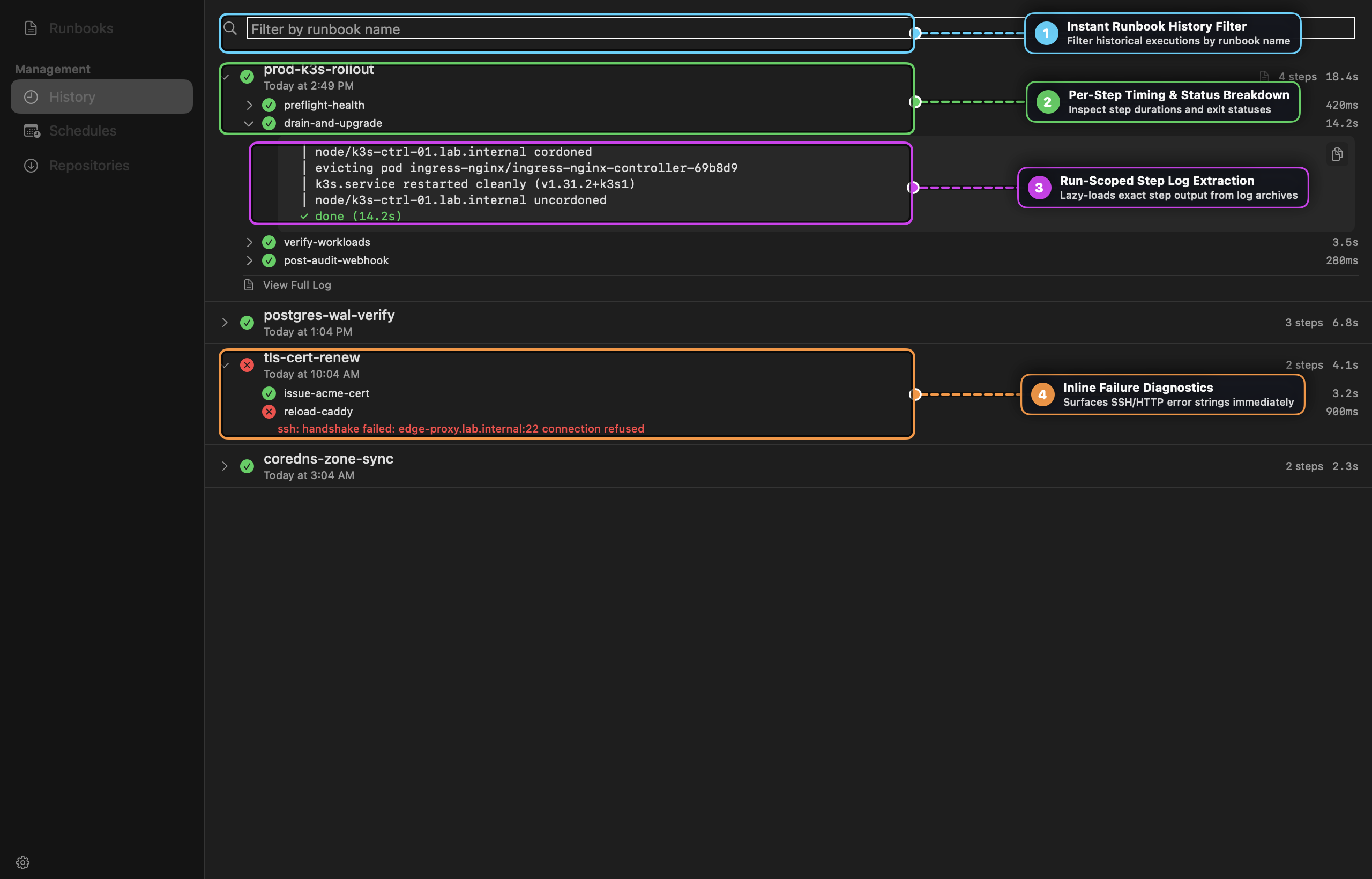
Visual Callout Guide
- Instant Runbook History Filter: Filter historical runs across
~/.runbook/history/*.jsonby runbook name in real time. - Per-Step Timing & Status Breakdown: Expand any execution row to inspect individual step statuses (
✓success,✗failed,⊘skipped) and millisecond/second durations. - Run-Scoped Step Log Extraction (
StepLogExtractor): Expanding a step inside a historical run lazy-loads the exact stdout/stderr slice for that specific run and step (correlatingLogIndexand timestamp markers with a 60-second mtime safety gate so append-mode logs never leak output from older runs). - Inline Failure Diagnostics: Failed steps immediately surface their captured error string (such as SSH handshake failures or non-zero exit codes) directly beneath the step row.
7. Shared Collections & Templates (runbook pull)
The Repositories sidebar section (⌘4) provides a visual manager for git-backed runbook collections:
- Pull New Repository: Clone any Git repository or download a standalone
.yamlURL into~/.runbook/books/<repo>/. - Update & Remove: Fast-forward existing checkouts (
git pull --ff-only) or remove unused collections. - Template Discovery: Any YAML files inside a
templates/directory (local or inside a pulled repository) are automatically separated into the Templates section so teams can scaffold standardized playbooks via New from Template.
[!TIP] Customizing a Pulled Runbook: Avoid editing files directly inside
~/.runbook/books/<repo>/, as local modifications will blockgit pull --ff-only. Instead, right-click the runbook and choose Duplicate (or copy it to the top-level~/.runbook/books/directory). Top-level runbooks automatically take precedence over subdirectory runbooks with the same name.
8. State on Disk & File Locations
| Path | Format | Managed By | Purpose |
|---|---|---|---|
~/.runbook/books/*.yaml | YAML | App & CLI | Top-level user runbooks |
~/.runbook/books/<repo>/ | Git checkout | CLI (runbook pull) | Shared runbook collections |
~/.runbook/books/**/templates/ | YAML | User / Repo | Reusable runbook templates |
~/.runbook/history/*.json | JSON | CLI | Per-execution metadata and step timings |
~/.runbook/history/<name>.log | Plain text | CLI (cron) | Append-only stdout/stderr for scheduled runs |
~/.runbook/logs/*.log | Plain text | App & CLI | Per-run output logs captured by the GUI and CLI |
~/.runbook/logs/index.json | JSON | App & CLI | Maps (runbookName, startedAt) to exact log file paths |
~/.runbook/pinned.json | JSON array | App | Pinned runbook names |
~/.runbook/backups/ | YAML snapshots | App | Automatic pre-save and pre-delete YAML backups |
~/.runbook/highlights.yaml | YAML rules | User | Custom regex colorization rules for console & log output |
9. Keyboard Shortcuts & Reference
Global Navigation
| Shortcut | Action |
|---|---|
⌘K | Open Quick Jump palette |
⌘1 | Switch to Runbooks |
⌘2 | Switch to History |
⌘3 | Switch to Schedules |
⌘4 | Switch to Repositories |
⌘N | Create New Runbook |
⌘R | Reload runbooks and history from disk |
⌘, | Open Settings |
⌘? | Open Runbook Help window |
Console Tray & Editor
| Shortcut | Context | Action |
|---|---|---|
⌘F | Console Tray | Toggle inline output search bar |
⌘. | Console Tray | Stop the currently focused running session |
Return / ⇧Return | Console Search | Jump to next / previous search match |
Tab | YAML Editor | Insert context-aware YAML key/value completion |
/vim | Any Multiline Editor | Toggle modal Vim editing (VIM:N / VIM:I / VIM:V) |
:w / :wq / :q | Vim Normal Mode | Save (with diff review), save & close, or exit Vim mode |
⌘W | Code Popout Editor | Close popout editor and commit changes to YAML |
10. Troubleshooting & Decision Trees
Run Finishes, But History View Doesn’t Show It
- Was it a Dry Run? Dry runs (
--dry-run) intentionally skip writing JSON history records and on-disk log files so exploratory previews never pollute your success/failure metrics in History or Schedules. Use the Save button in the console tray toolbar if you want to archive a dry-run transcript. - Refresh the View: Press
⌘Ror switch sidebar tabs to reload~/.runbook/history/*.json.
Step Log Slice Shows “Loading…” or Wrong Content
- Verify whether logs were rotated externally (
newsyslog/logrotate). - Run
runbook log reindexin your terminal to rebuild~/.runbook/logs/index.jsonacross~/.runbook/logs/and~/.runbook/logs/archive/.
Scheduled Runbooks Install But Never Fire on macOS
- Open System Settings → Privacy & Security → Full Disk Access and ensure
/usr/sbin/cronis enabled. - Ensure every variable required by the scheduled runbook either has a
default:in YAML, is passed via schedule--var key=valueoverrides, or uses a pre-warmedop://secret (runbook auth <name>).
Deep-Dive Guides
For additional architectural notes and narrative walkthroughs, see the companion guides in docs/guide/: