PackIt User Guide & Visual Walkthrough
Complete visual walkthrough and reference manual for PackIt.
PackIt is a native macOS trip planning, modular packing checklist, meal provisioning, and step-by-step procedure workbench. Built around reusable Templates, Composite Kits, 6-Tier Prep Timelines, and Shared Folders, PackIt eliminates pre-trip guesswork while keeping your packing lists 100% local and human-readable on disk.
View on GitHub 🍳 Open Practical Cookbook →
Core Concepts
PackIt separates reusable packing knowledge from individual trip checklists:
| Concept | Role |
|---|---|
| Templates | Reusable blueprints containing categorized gear items, pre-trip Prep Tasks, Phase Procedures, Reference Links, and Context Tags. |
| Composite Templates | Master templates (e.g., Dolomites Alpine Expedition) that link modular sub-templates (e.g., International Travel Core, Mirrorless Field Kit) so common kits never need to be duplicated. |
| Context Tags | Lowercase labels (cold-weather, alpine, international, photography, camping) attached to both templates and individual items to filter gear for specific trip conditions. |
| Trip Instances | Independent packing workspaces created from one or more templates. Checking off, adding, or deleting items in a trip never mutates your master templates unless you explicitly promote an Ad-Hoc (new) item back. |
Creating & Organizing Templates
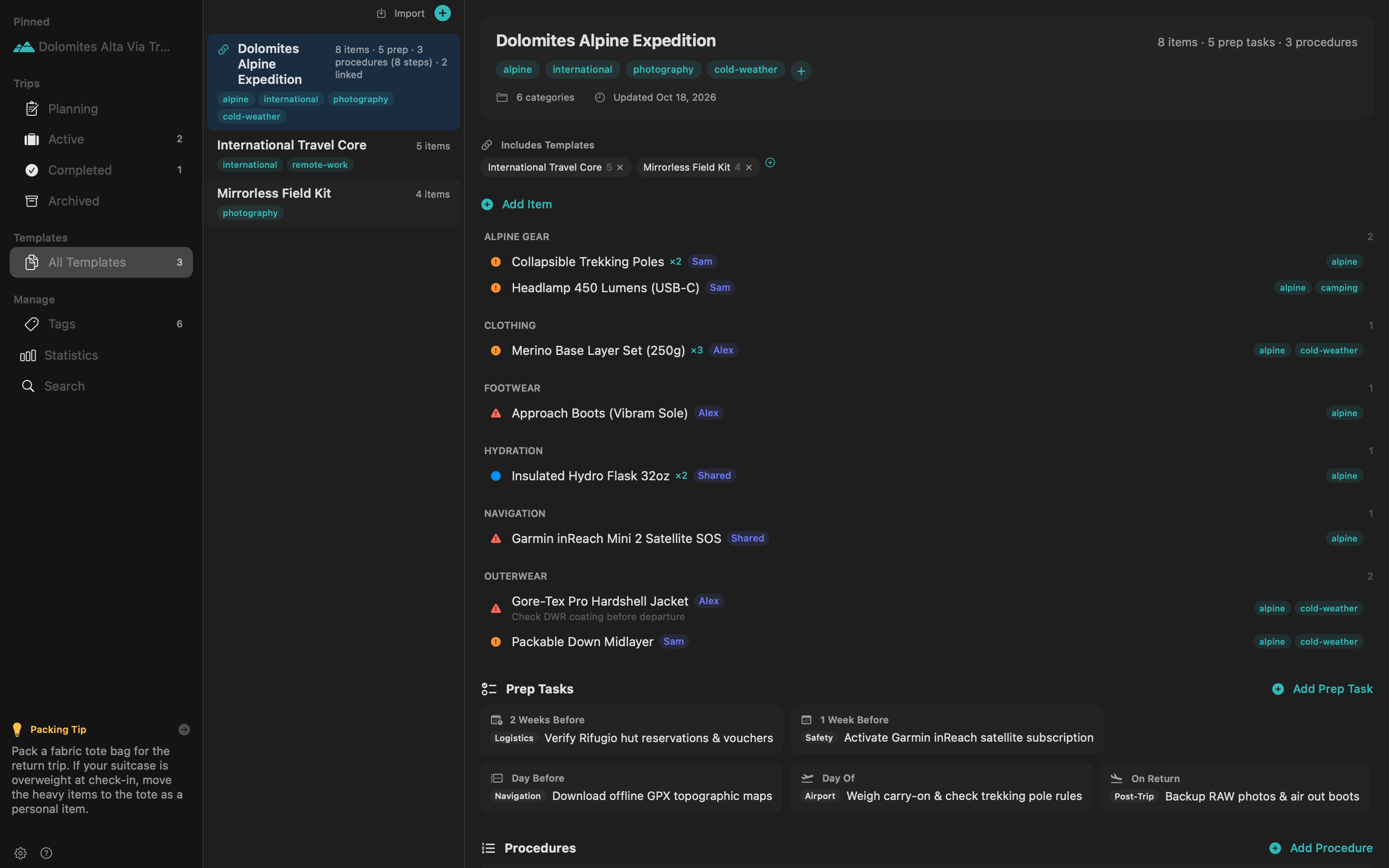
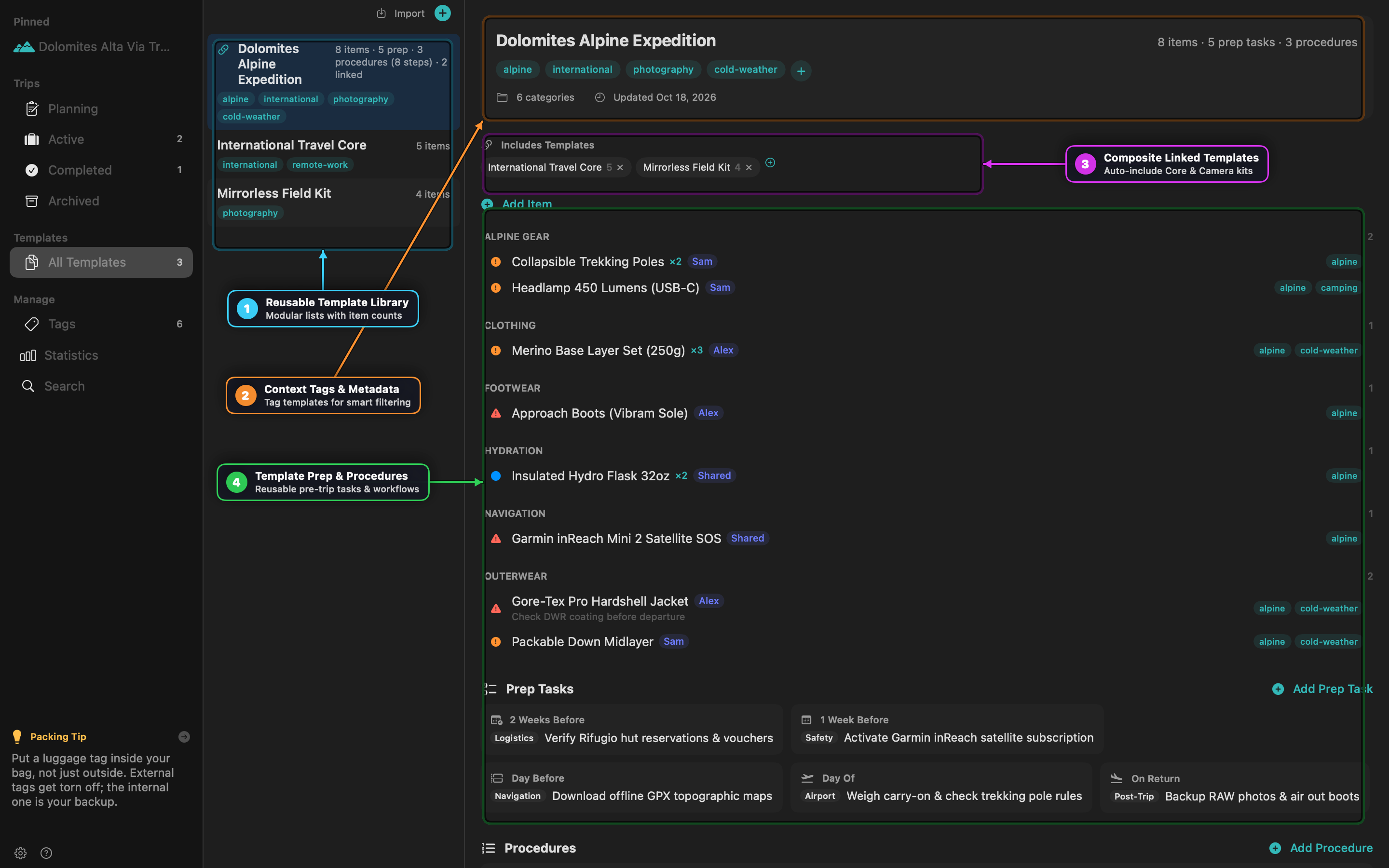
Select All Templates in the sidebar (Cmd+Shift+N to create a new template) to manage your reusable gear blueprints:
- Template Header & Context Tags: Assign context tags at the top of the template to describe the trip profile.
- Composite Linked Templates: Use the Includes Templates bar (
+ Link Template) to attach modular sub-kits. When you create a trip from a composite template, PackIt automatically traverses all linked templates and deduplicates overlapping items. - Categorized Template Items:
- Click Add Item to define an item’s Name, Category (
Documents,Outerwear,Electronics,Camera Gear), Default Owner (Alex,Sam,Shared), Quantity, Priority (Low,Medium,High,Critical), Context Tags, and Notes. - Items are displayed in responsive multi-column category cards. Drag items between categories to recategorize or reorder them.
- Click Add Item to define an item’s Name, Category (
- Template Prep Tasks & Procedures: Attach recurring countdown tasks and multi-step phase checklists directly to a template so every future trip inherits them automatically.
Creating a Trip & Filtering by Context
Press Cmd+N from anywhere in PackIt to launch the New Trip sheet:
- Name & Icon: Give the trip a name and choose from 40+ categorized icons (
mountain,camping,international,beach,skiing,sailing,rv, etc.). - Destination & Weather: Search for your destination city or region. PackIt geocodes the coordinates and displays a live 16-day weather forecast widget directly in the trip header once your dates fall within the forecast window.
- Travel Mode: Choose Plane, Car, Train, Bus, RV, Boat, Bicycle, or Walking. The travel mode dynamically updates timeline icons for Day Of departure and On Return steps.
- Departure & Return Dates: Navigate date fields with arrow keys (
Up/Downto increment/decrement,Left/Rightto move between month/day/year) or click the calendar popover button. - Select Templates & Context Tags:
- Check one or more templates. Linked sub-templates are automatically included.
- Toggle Filter by context tags to include only items matching the tags you select for this specific trip (plus untagged universal items).
- Pinning Trips: Right-click any trip in the list and choose Pin to Top to keep active expeditions anchored in the Pinned sidebar section.
The Trip Packing Workbench
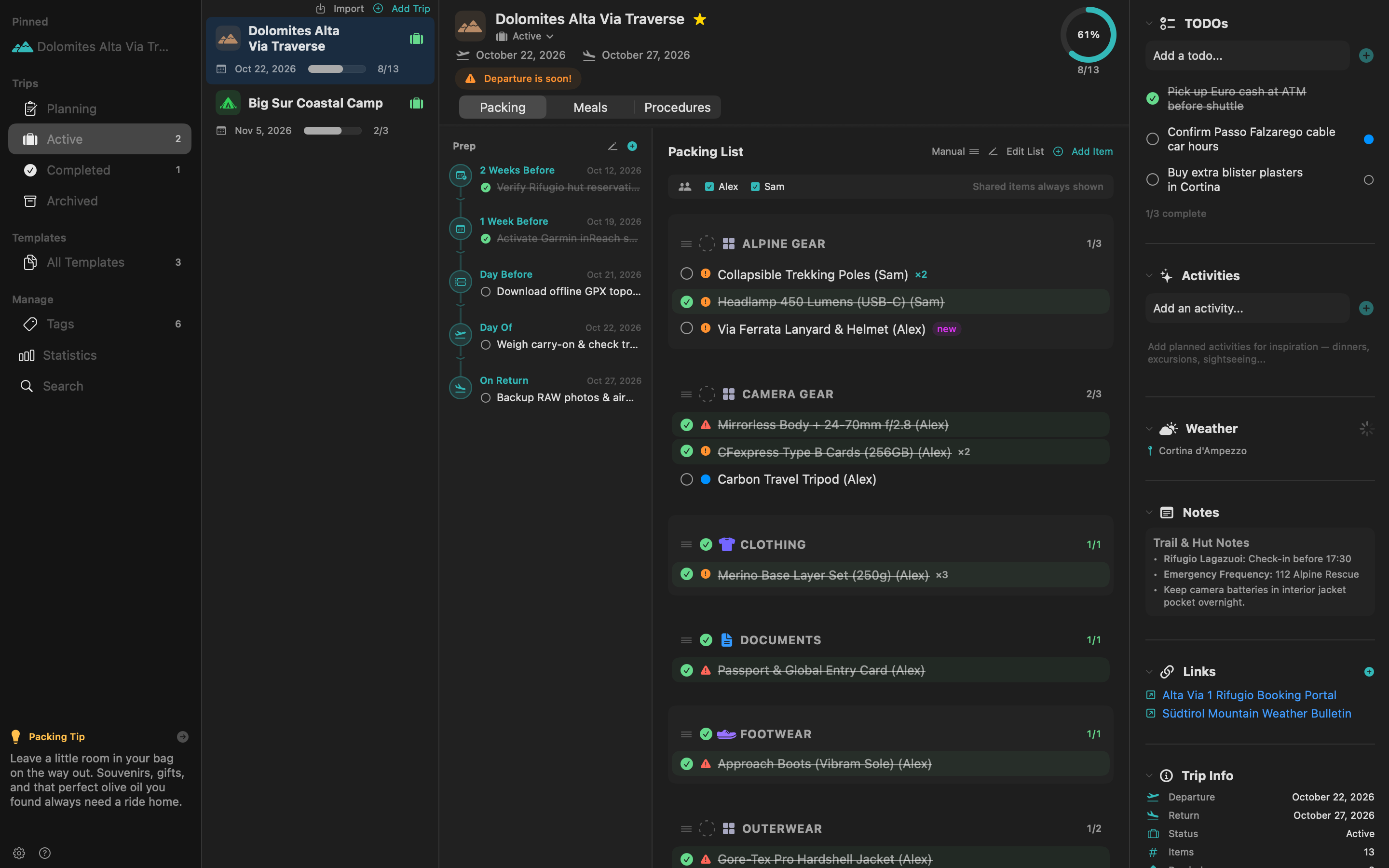
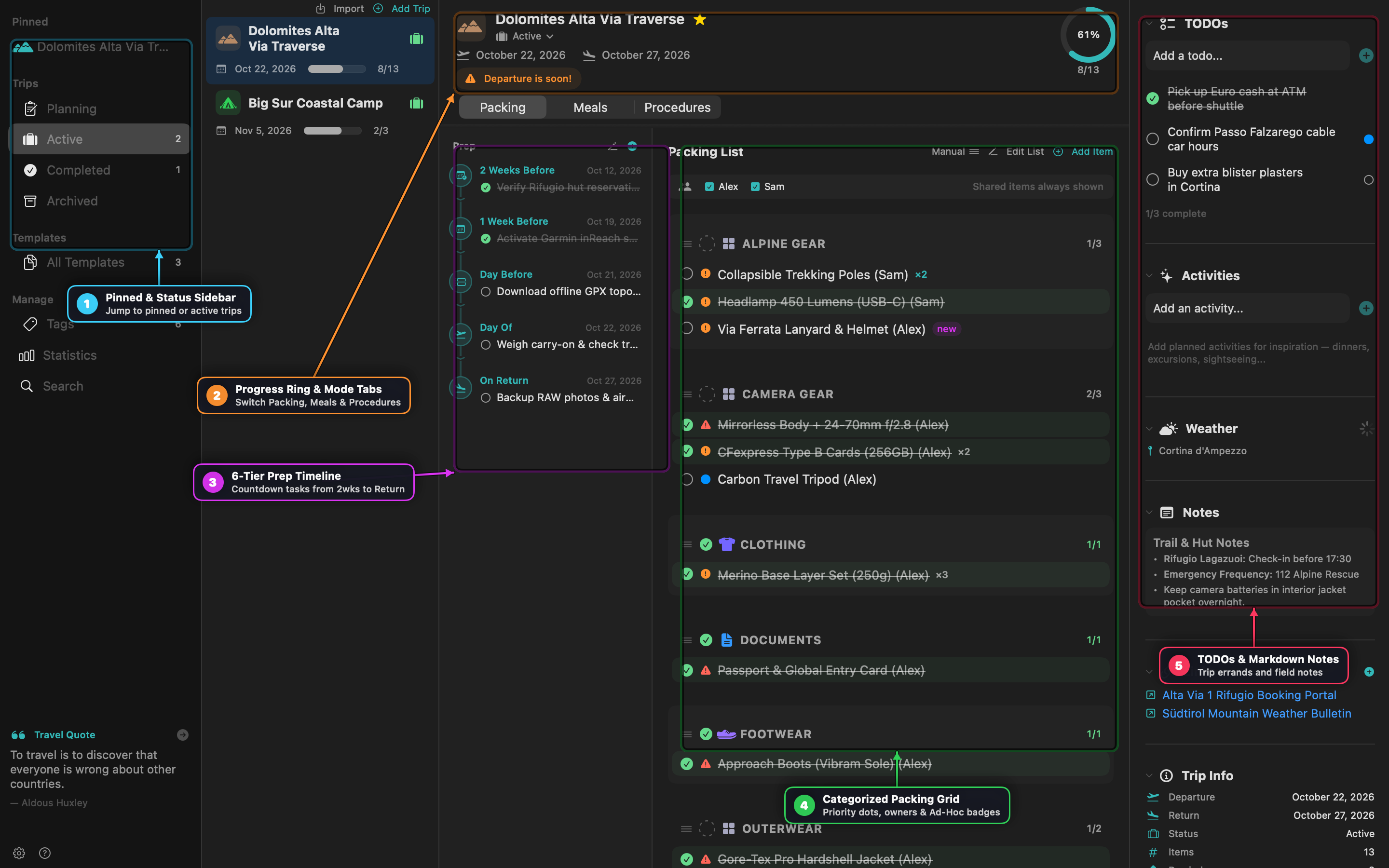
Each trip opens in a three-zone workbench designed for rapid keyboard and mouse triage:
1. Trip Header, Weather & Progress Ring
- Completion Ring: Displays real-time packing percentage (
packed / total). - Batch Pack / Unpack: Click Pack All to mark every visible item packed, or Unpack All when preparing for your return leg.
- Mode Switcher: Switch the center canvas between Packing, Meals, and Procedures.
2. 6-Tier Prep Tasks Timeline
Above your gear categories, PackIt organizes pre-trip preparation into six chronological tiers anchored to your departure and return dates:
| Tier | Due Date Calculation | Typical Examples |
|---|---|---|
| Early | 21 days before departure | Renew passport, book permits, schedule pet boarding |
| 2 Weeks Before | 14 days before departure | Verify hut/hotel vouchers, order foreign currency |
| 1 Week Before | 7 days before departure | Activate satellite SOS communicator, refill prescriptions |
| Day Before | 1 day before departure | Check in for flights, download offline maps, charge battery banks |
| Day Of | Departure date | Weigh carry-on luggage, lock windows, set thermostat |
| On Return | Return date | Back up camera cards, air out tents/boots, unpack cooler |
3. Multi-Column Packing Checklist & Bulk Actions
- Priority Indicators: Colored dots indicate urgency — Blue (
Low), Amber (Medium), Orange (High), and Red (Critical). - Owner Filtering: Filter the checklist by traveler (
All,Alex,Sam,Shared,Unassigned) using the member bar. - Multi-Select & Bulk Operations:
Cmd+Clickmultiple items across categories to reveal the floating bulk action bar — reassign Owner, Duplicate For… another family member, or Remove in one click. - Ad-Hoc Items (
newBadge): Items added directly to a trip display a tealnewbadge. Right-click any ad-hoc item (or use Merge to Template) to promote it back into a master template for future trips.
4. Tokenized Search (Cmd+F)
Press Cmd+F inside a trip to open the Find in List bar with Stash-model token auto-suggest (Tab to cycle suggestions, Enter to commit):
category:— Filter by category name (e.g.,category:Electronics)owner:— Filter by assigned person (owner:Alex,owner:unassigned)priority:— Filter by urgency (priority:critical,priority:high)packed:— Filter by state (packed:yes,packed:no)name:/notes:— Match specific substrings in item names or notes
5. TODOs & Markdown Scratch Notes Inspector
Click the sidebar toggle (sidebar.right) in the top-right of the trip view to open the TODOs & Notes inspector:
- TODOs: Quick errands with optional due dates and priorities.
- Scratch Notes: Full Markdown notes editor supporting headings (
#), bold/italic, checkboxes (- [ ]), bulleted/numbered lists with Smart Enter continuation, and clickable links.
Meal Planning & Phase Procedures
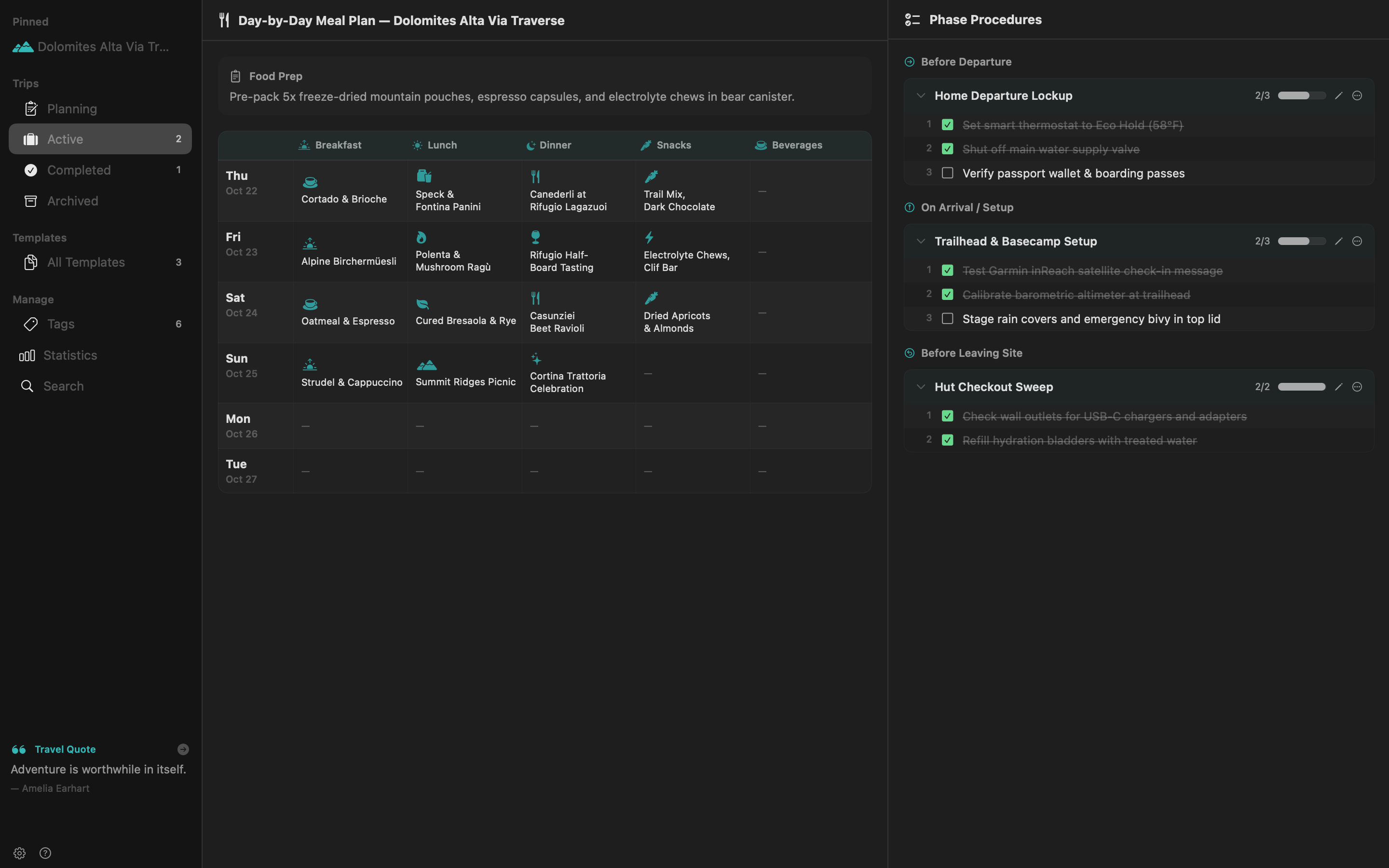
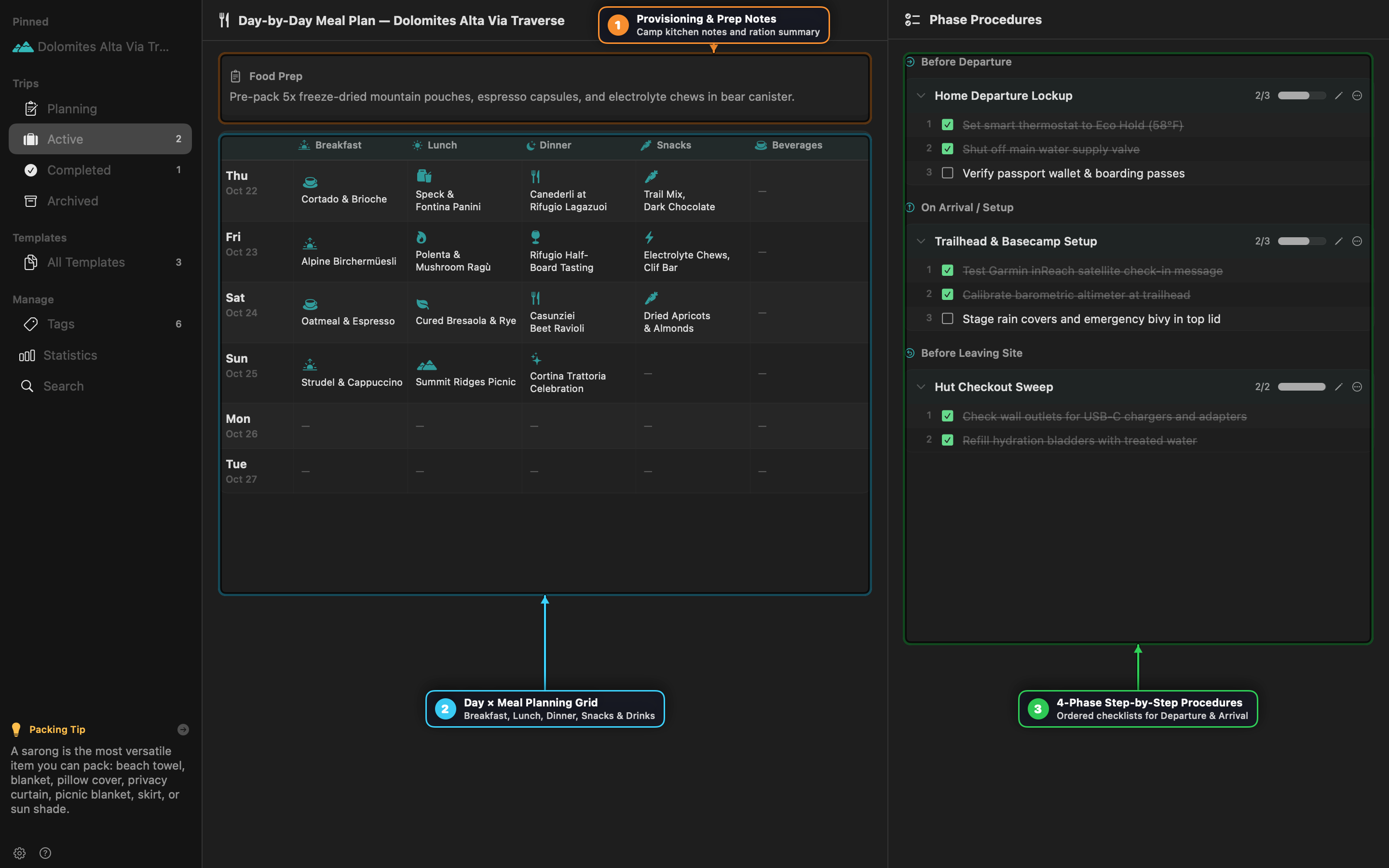
Day-by-Day Meal Planning Grid
Switch to the Meals tab on any trip to plan camp or travel provisioning across every day of your itinerary:
- Prep Notes: Record high-level kitchen notes, dietary restrictions, or ration counts at the top.
- 5 Meal Slots per Day: Plan Breakfast, Lunch, Dinner, Snacks, and Beverages for each calendar day from departure through return.
- Food Icons & Grocery Aggregation: Attach visual icons to meal slots and inspect
allFoodItemsfor consolidated provisioning. Changing trip dates automatically preserves and shifts your existing meal days.
4-Phase Step-by-Step Procedures
Switch to the Procedures tab for ordered operational checklists that must be executed in sequence:
- Before Departure — Home lockup, water shutoff, thermostat hold, vehicle hitch check.
- On Arrival / Setup — Campsite leveling, trailhead altimeter calibration, satellite check-in.
- Before Leaving Site — Room/hut outlet sweep, hydration refill, trash pack-out.
- On Return Home — Gear washdown, battery storage charge, photo ingest.
Packing Statistics Dashboard
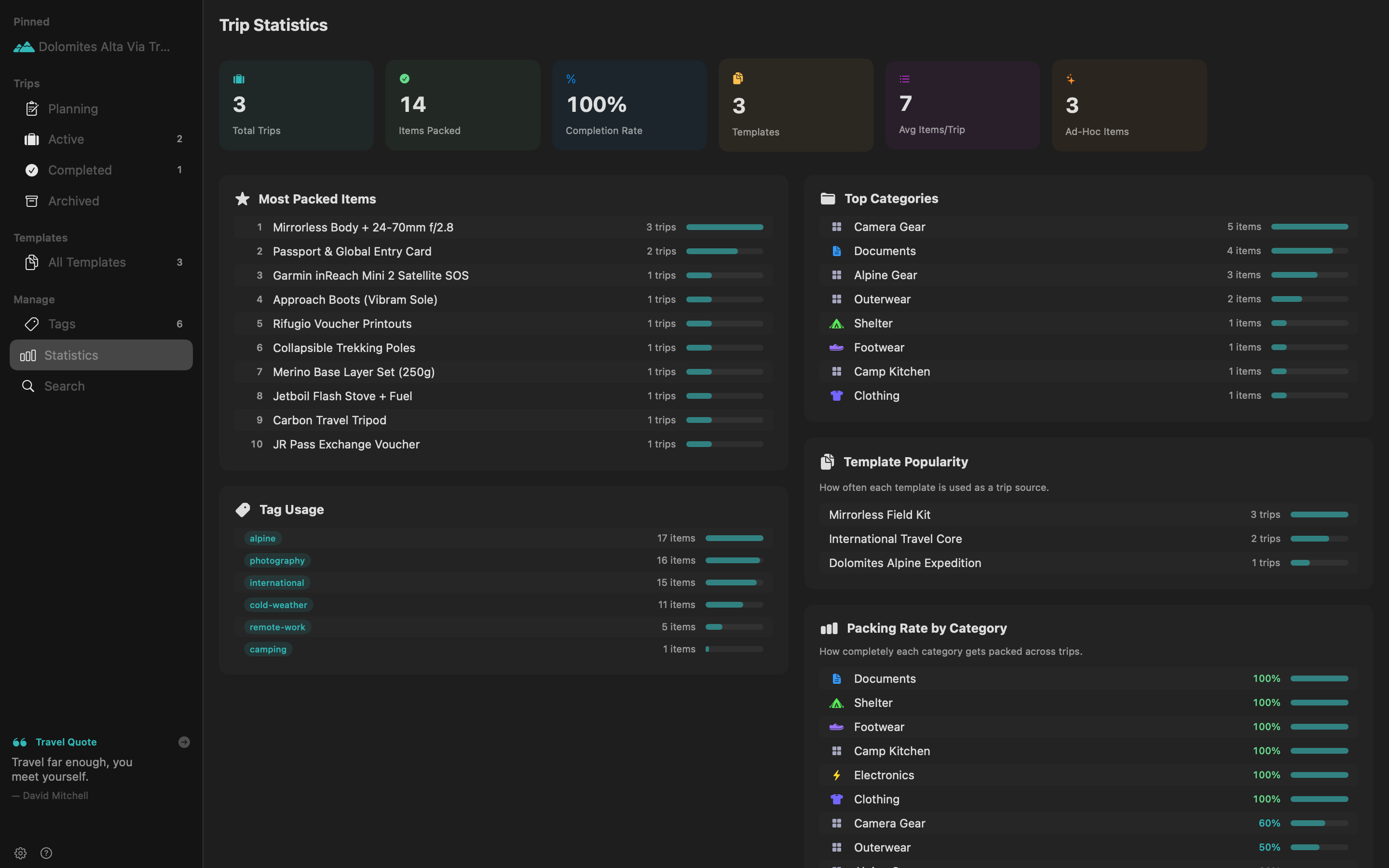
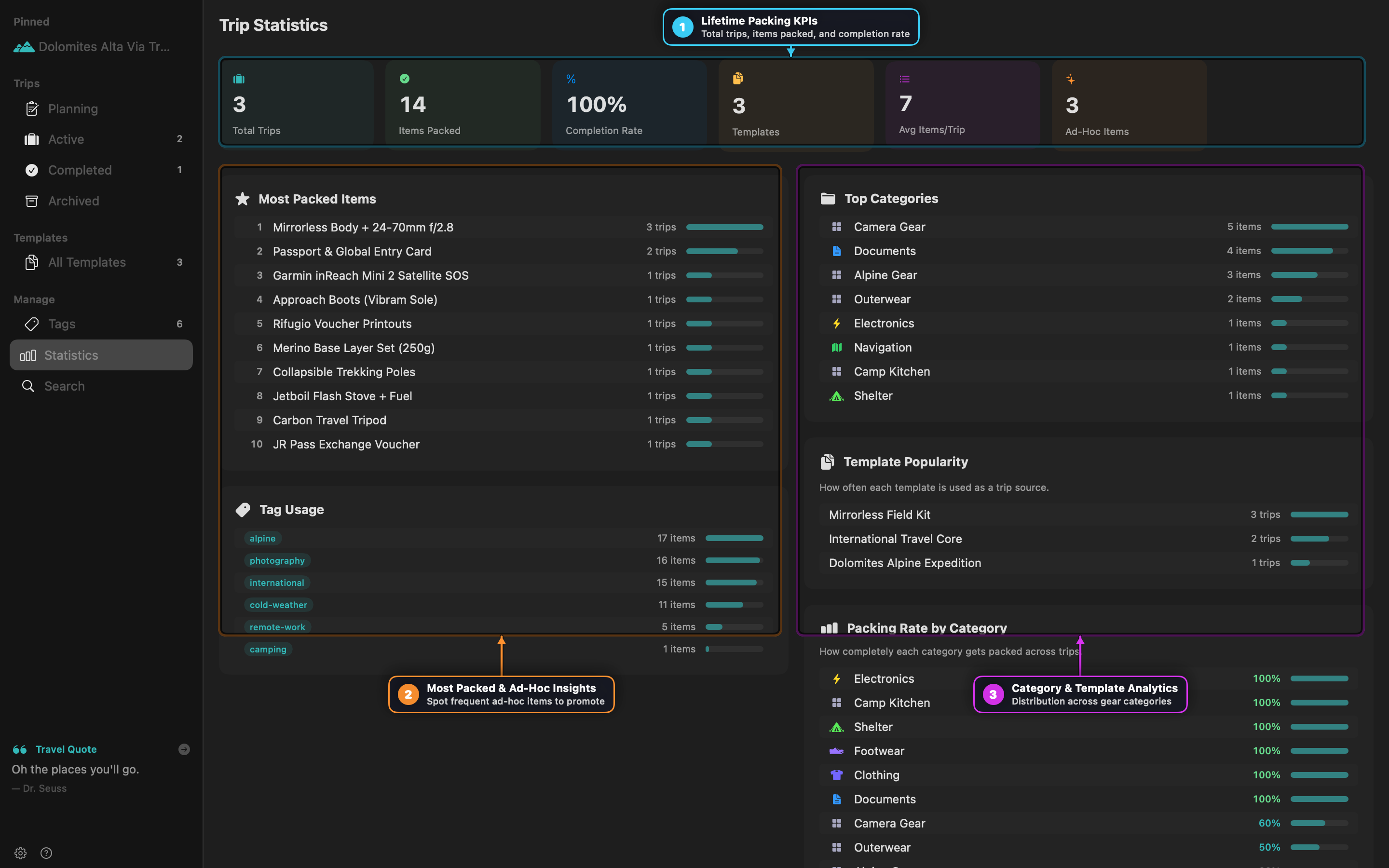
Select Statistics in the sidebar to audit your historical packing habits across all active, completed, and archived trips:
- Overview KPI Cards: Track Total Trips, Items Packed, overall Completion Rate, Templates, Avg Items/Trip, and Ad-Hoc Items.
- Most Packed Items & Top Categories: See which gear items and categories travel with you most frequently.
- Ad-Hoc Insights: Identify items you repeatedly add at the last minute so you can permanently merge them into your templates.
- Packing Efficiency & Trip Timeline: Review completion rates per trip and chronological travel history.
Printing, Exporting & Selective Sharing
Custom Watermarked Printing (Cmd+P)
PackIt generates clean, multi-column printable checklists with three independent watermark layers configurable in Settings (Cmd+,):
- Repeating Pattern: Tile the trip’s icon across the background with adjustable opacity.
- Full-Page Art: Render a large centered watermark or custom image behind the checklist.
- Decorative Border: Frame the page with a themed icon border.
Export Formats
Right-click any trip or template and choose Export…:
- PackIt Archive (
.packitlist/.packittemplate): Lossless JSON bundle for sharing with other PackIt users or importing viaCmd+Shift+I. - HTML Checklist: Self-contained, print-ready web page with interactive checkboxes.
- CSV Spreadsheet: Flat table of categories, items, quantities, owners, priorities, and packed states.
Selective Sharing via Shared Folders
Configure a Shared Folder (iCloud Drive, Dropbox, Syncthing, or NAS mount) in Settings (Cmd+,):
- Right-click specific trips or templates and toggle Share to Folder.
- Shared items display a Sharing or Shared by [Name] badge.
- If two collaborators edit the same shared trip simultaneously, PackIt surfaces a non-destructive Conflict Banner allowing you to compare versions and choose Keep Mine or Accept Theirs.
Automated Backups & packit-backup CLI
PackIt stores all data as human-readable JSON files in ~/Library/Application Support/PackIt/ (or a custom directory) and ships with the packit-backup companion CLI:
# Create a timestamped .tar.gz backup archive
packit-backup backup

# List available backups with trip/template counts
packit-backup list

# Restore from a backup (automatically creates a pre-restore safety snapshot)
packit-backup restore <backup-file.tar.gz>

# Prune old backups while keeping the 10 most recent archives
packit-backup prune --keep 10
Keyboard Shortcuts
| Shortcut | Action |
|---|---|
Cmd+N | New Trip |
Cmd+Shift+N | New Template |
Cmd+Shift+I | Import Trip or Template (.packitlist / .packittemplate) |
Cmd+F | Find in Current Packing List (Tokenized Filter Bar) |
Cmd+P | Print Current Trip Checklist |
Cmd+, | Open PackIt Settings |
Cmd+Click | Multi-select items for bulk owner assignment, duplication, or removal |
Tab / Shift+Tab | Cycle token filter suggestions (category:, owner:, priority:, packed:) |
Escape | Dismiss suggestion dropdown, clear search bar, or exit multi-select |