Drifter User Guide & Visual Walkthrough
Complete visual walkthrough and reference manual for Drifter.
Welcome to Drifter! This guide covers everything you need to know to monitor local network hosts, audit port drift, launch SSH sessions with 1Password Touch ID, and trigger automated Runbook workflows.
View on GitHub 🍳 Open Practical Cookbook →
Table of Contents
- Overview
- Getting Started & Local Network Access
- Network Discovery & Authoritative Baselining
- Searching & Filtering Hosts
- SSH Terminal & 1Password Touch ID Integration
- Runbook Automation Integration
- Deep Port Probing, Wake-on-LAN & Homelab Services
- Menu Bar Status Item & Background Watchdog
- Exporting Network Security Audit Reports
- Optional AI Security Advisor
- Settings & Customization
- Data Storage & Privacy
1. Overview
Drifter is a native macOS application designed for home lab enthusiasts, DevOps engineers, and network administrators who want real-time visibility over local network devices without subscription bloat or cloud dependencies.
Drifter continuously monitors your local subnet to track:
- New Hosts: Devices that join your local network.
- Port Drift: Open ports that appear or disappear on hosts.
- mDNS Services: Broadcast services like Home Assistant (
_home-assistant._tcp) or HTTP Web (_http._tcp).
2. Getting Started & Local Network Access
When you launch Drifter for the first time:
- Local Network Access: macOS 14/15 will ask for permission to scan your local network. Click Allow to enable ARP and mDNS discovery.
- Initial Subnet Scan: If your host list is empty, Drifter automatically triggers a subnet scan using your Mac’s ARP table.
- Manual Scan: Click Scan Local Network at the bottom of the sidebar at any time to run an instant scan.
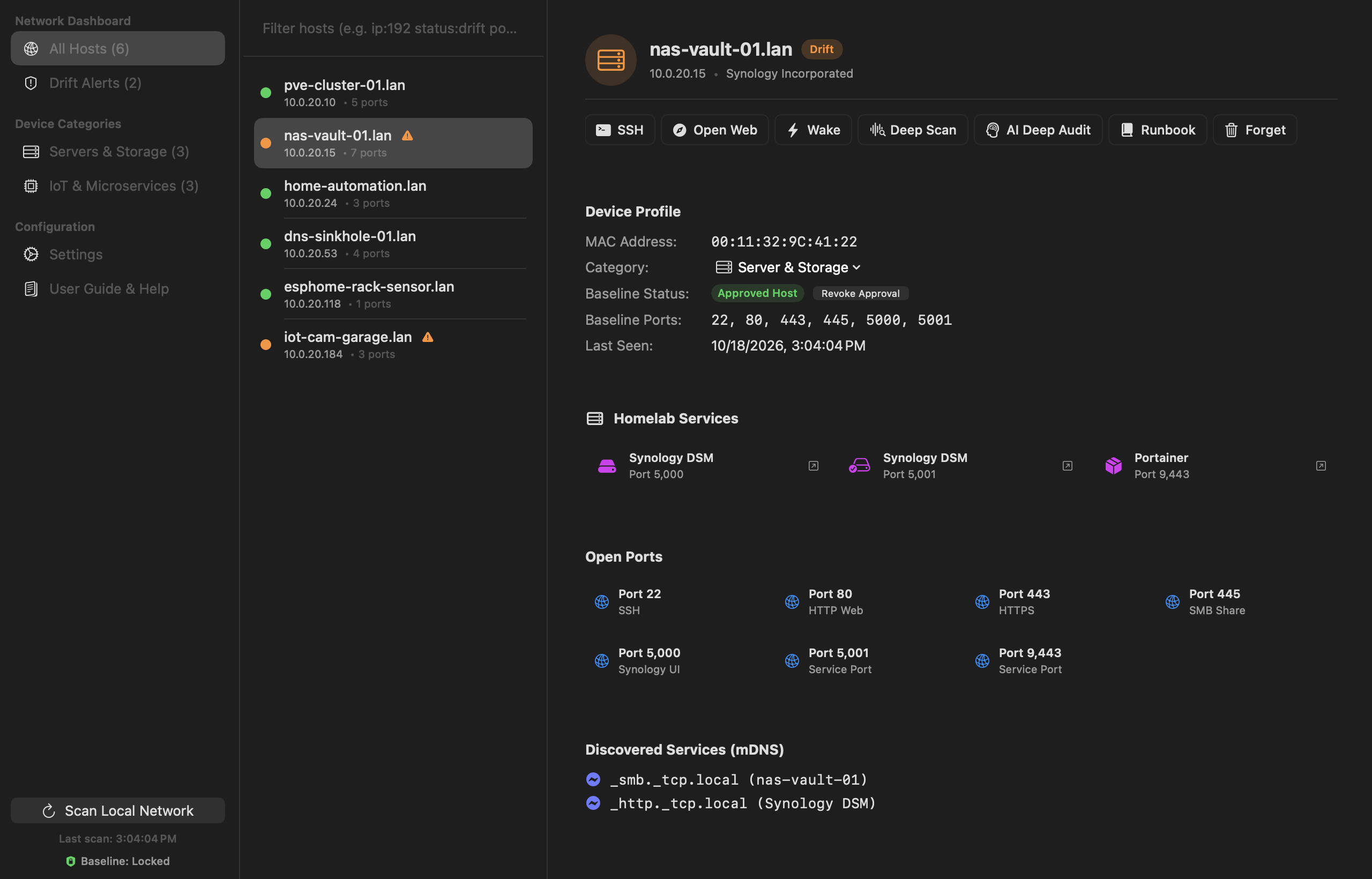
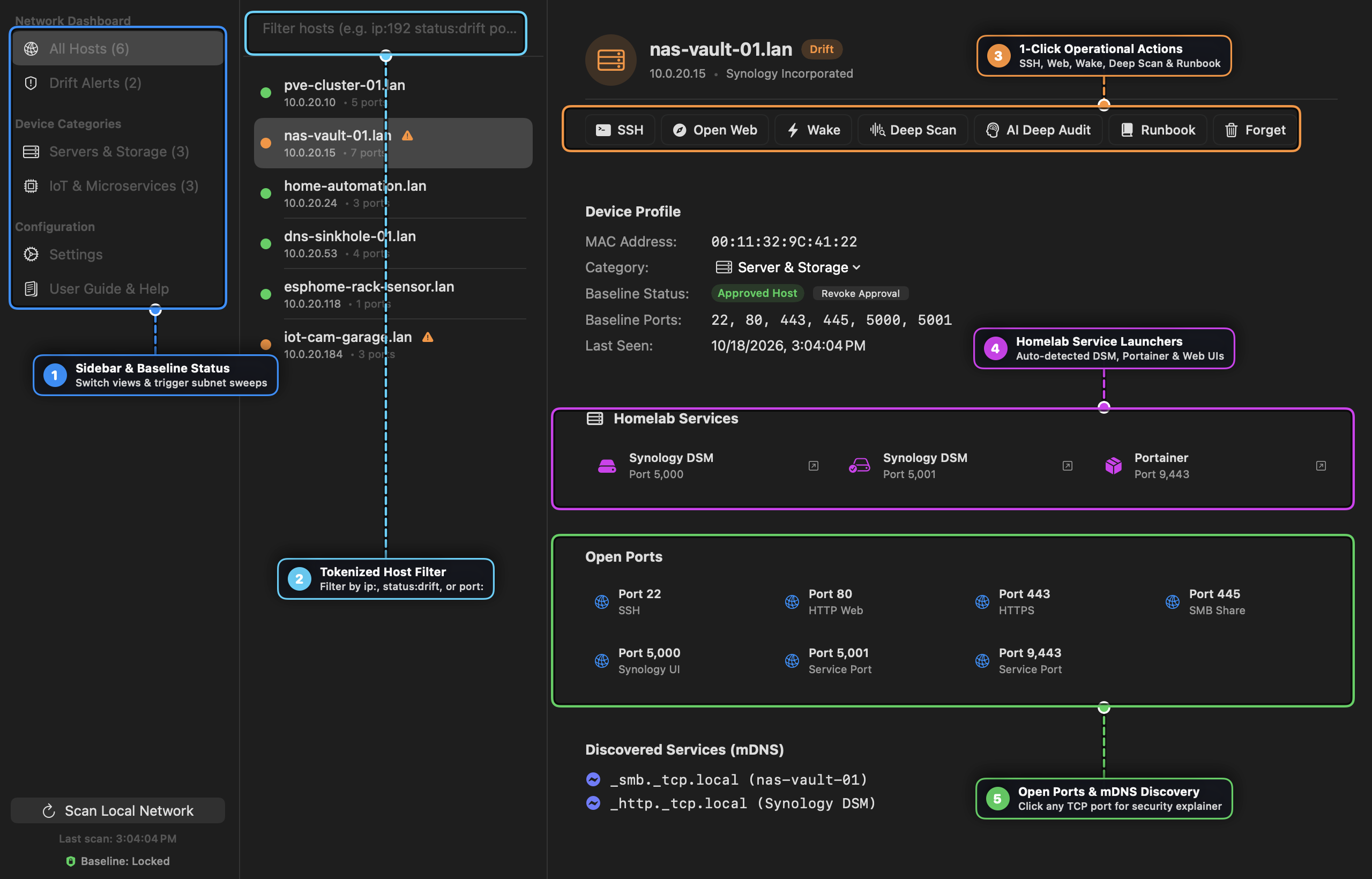
Visual Callout Guide — Network Dashboard
- [1] Sidebar & Baseline Status: Switch between All Hosts, Drift Alerts, Device Categories, Settings, and User Guide & Help, or trigger an immediate subnet sweep via Scan Local Network.
- [2] Tokenized Host Filter: Filter your subnet inventory in real time using
ip:,status:drift,port:, or free-text hostname/vendor queries. - [3] 1-Click Operational Actions: Launch an SSH session (with 1Password Touch ID &
~/.ssh/configresolution), open the host’s Web UI, send a Wake-on-LAN magic packet, run a 23-port Deep Scan, trigger an AI Audit, or dispatch a Runbook. - [4] Homelab Service Launchers: Automatically identifies known homelab applications (Synology DSM, Portainer, Proxmox VE, Home Assistant, Grafana, Plex, Jellyfin, Cockpit) and provides 1-click browser launchers.
- [5] Open Ports & mDNS Discovery: Inspect active TCP ports and Bonjour broadcasts (
_smb._tcp,_home-assistant._tcp). Clicking any port opens the interactive Port Security Explainer popover.
3. Network Discovery & Authoritative Baselining
How Discovery Works
- Subnet ARP Sweeping: Automatically detects your active IPv4 subnet (e.g.
10.0.20.0/24) and dispatches concurrent, non-blocking UDP probes to warm the macOS kernel ARP cache before querying/usr/sbin/arp -a. - Port Probing: Checks common infrastructure ports (
22SSH,53DNS,80HTTP,443HTTPS,8123Home Assistant,8080Web Alt,5000Synology). - Native Bonjour Discovery (
NWBrowser): Actively queries Zeroconf/Bonjour broadcasts to identify service names and device categories (_home-assistant,_esphomelib,_matter,_smb,_airplay,_printer). - Expanded Hardware OUI Lookup: Maps MAC addresses to hardware vendors including Logitech (Harmony Hub, remotes), Roku, Smart TVs (Samsung, LG, Sony), Espressif (ESP32/ESP8266), Raspberry Pi, Ubiquiti, Synology, Tuya, Sonoff, Philips Hue, Intel, Dell, Netgear, TP-Link, Sonos, Shelly, LIFX, Broadlink, Lutron, Wyze, Eufy, Roborock, Meross, Chamberlain/myQ, Withings, Nanoleaf, Belkin/Wemo, Cisco, ASUS, Amazon Eero, and network printers (HP, Brother, Epson, Canon).
Authoritative Baseline Evolution
Drifter provides an authoritative baseline model:
- Bless All & Lock Baseline: In initial rolling discovery mode (
Baseline: Rolling), a banner appears above the alert list with a Bless All (N) action. Clicking it snapshots all active hosts and ports into the authoritative baseline AND marks all active initial discovery alerts as resolved in a single click. - Lock Baseline: Click Lock Baseline in Drift Alerts or Settings to snapshot the entire current network state (all known hosts and open ports) as the authoritative gold master without modifying alert statuses.
- Incremental “Approve into Baseline”: When legitimate changes occur (e.g. you spin up a new container on port 9443 or add a new device), click Approve on the alert card or right-click to approve. This merges the change directly into that host’s baseline without needing to reset or rebuild the rest of the network.
- Rogue Host Detection: If an unknown device joins an established network baseline, it is immediately flagged as
Unapproved / Roguewith a drift alert.
Right-Click Alert Context Menus
Right-click any alert row in Drift Alerts to reveal native macOS workflow actions:
- AI Security Advisor: Trigger a Deep Security Investigation or Quick Triage targeting that specific alert and host.
- Host Navigation: Jump directly to View Host in Inventory with the device pre-selected.
- Service Launchers: Open Web Interface (detects open HTTP/HTTPS/8080/8123 ports), Launch SSH Session in your preferred terminal, or trigger Runbook Triage.
- Alert Resolution: Approve into Baseline, Acknowledge Alert, or Dismiss Alert (
trash). - Clipboard Helpers: Copy IP address, hostname, or timestamped log details.
Drift Alerting
Whenever Drifter detects a structural change (new open port, closed port, IP lease change, or unapproved host), it generates a Drift Alert. Drift alerts appear in:
- The Drift Alerts tab in the main sidebar.
- The macOS Menu Bar icon badge.
- Native macOS desktop notifications (when enabled).
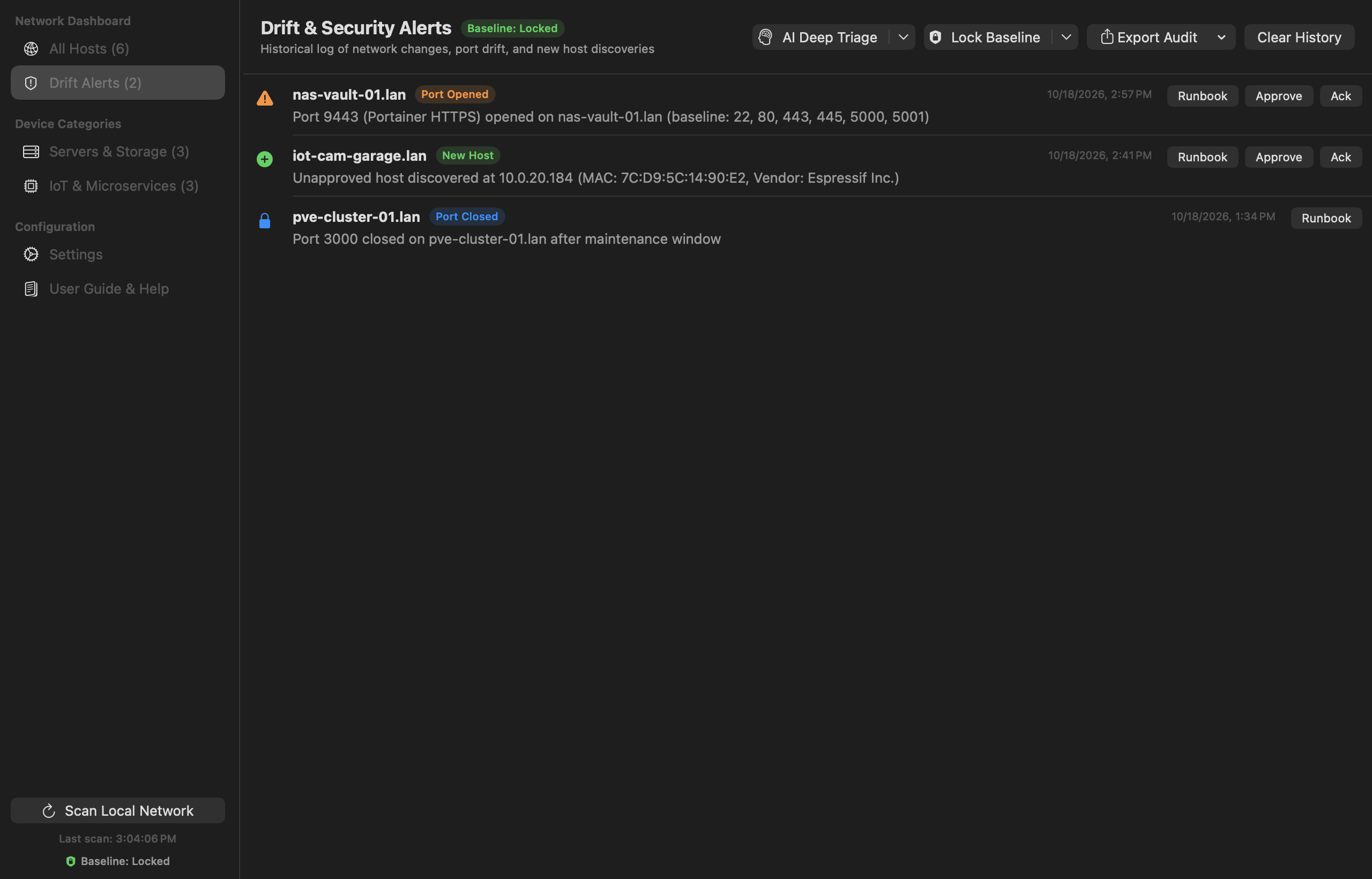
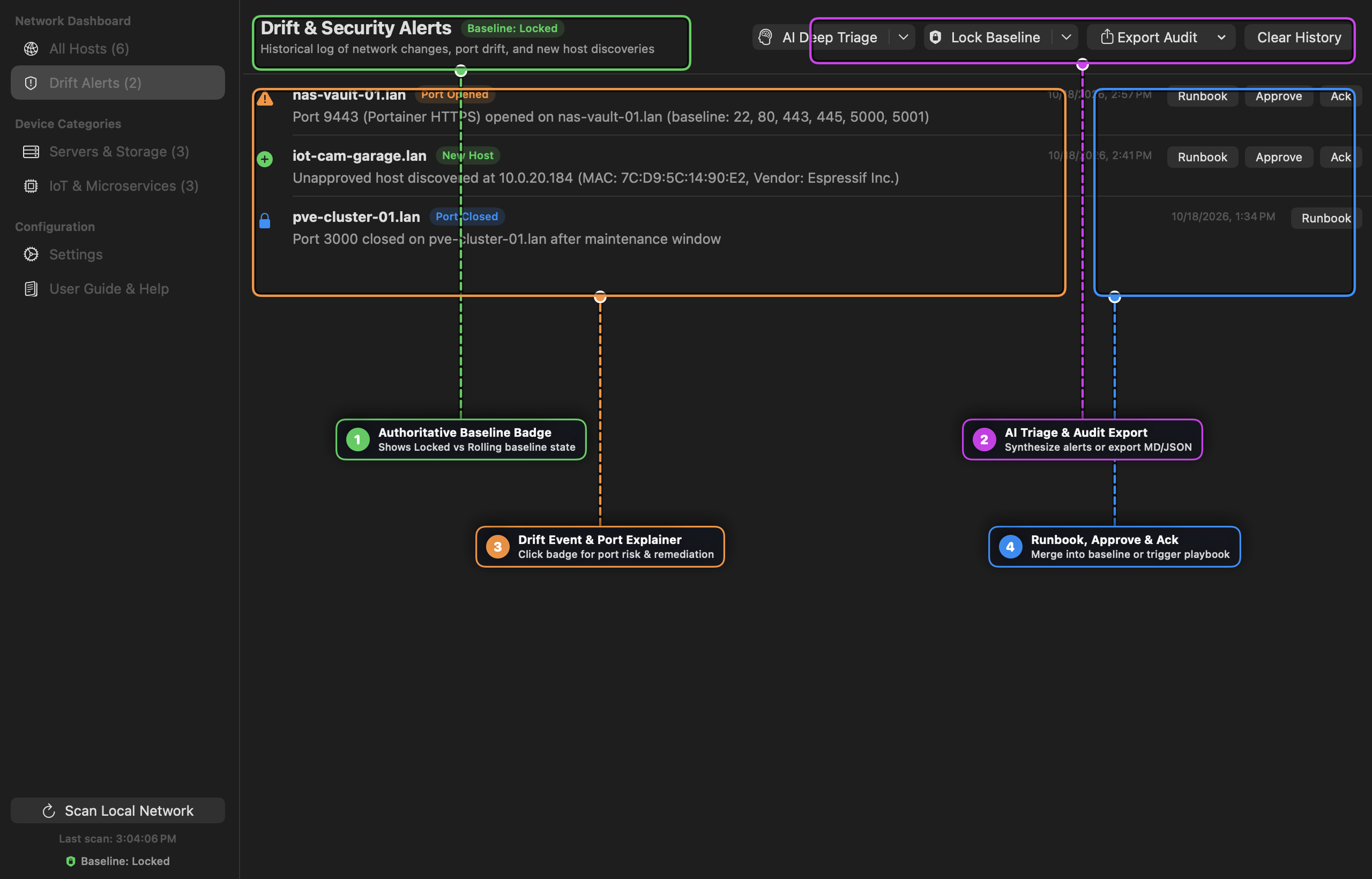
Visual Callout Guide — Drift & Security Alerts
- [1] Authoritative Baseline Badge: Indicates whether your subnet is enforcing a Locked gold-master baseline or operating in Rolling discovery mode.
- [2] AI Triage & Audit Export: Synthesize all active drift events with AI Triage / Deep Security Investigation, lock/bless the baseline, or export a compliance report in Markdown (
.md) or JSON (.json). - [3] Drift Event & Port Explainer: Each alert row highlights the host, drift category (
Port Opened,New Host,Port Closed), and baseline delta. Click the category badge or icon to open the Port Security Explainer popover. - [4] Runbook, Approve & Ack: Launch an automated Runbook triage procedure, Approve legitimate changes directly into the host’s baseline, or Ack the alert after investigation.
4. Searching & Filtering Hosts
Drifter includes an AppKit-backed search bar with tokenized filter support:
| Search Query | Filter Action |
|---|---|
ip:10.0.20. | Filter hosts matching IP subnet 10.0.20.* |
dns-sinkhole | Filter hosts by hostname |
port:22 | Show hosts with SSH port 22 open |
status:drift | Show hosts with active drift alerts |
synology | Filter hosts by hardware vendor or hostname |
You can also use the sidebar categories (Servers & Storage, IoT & Microservices) to filter hosts by device type.
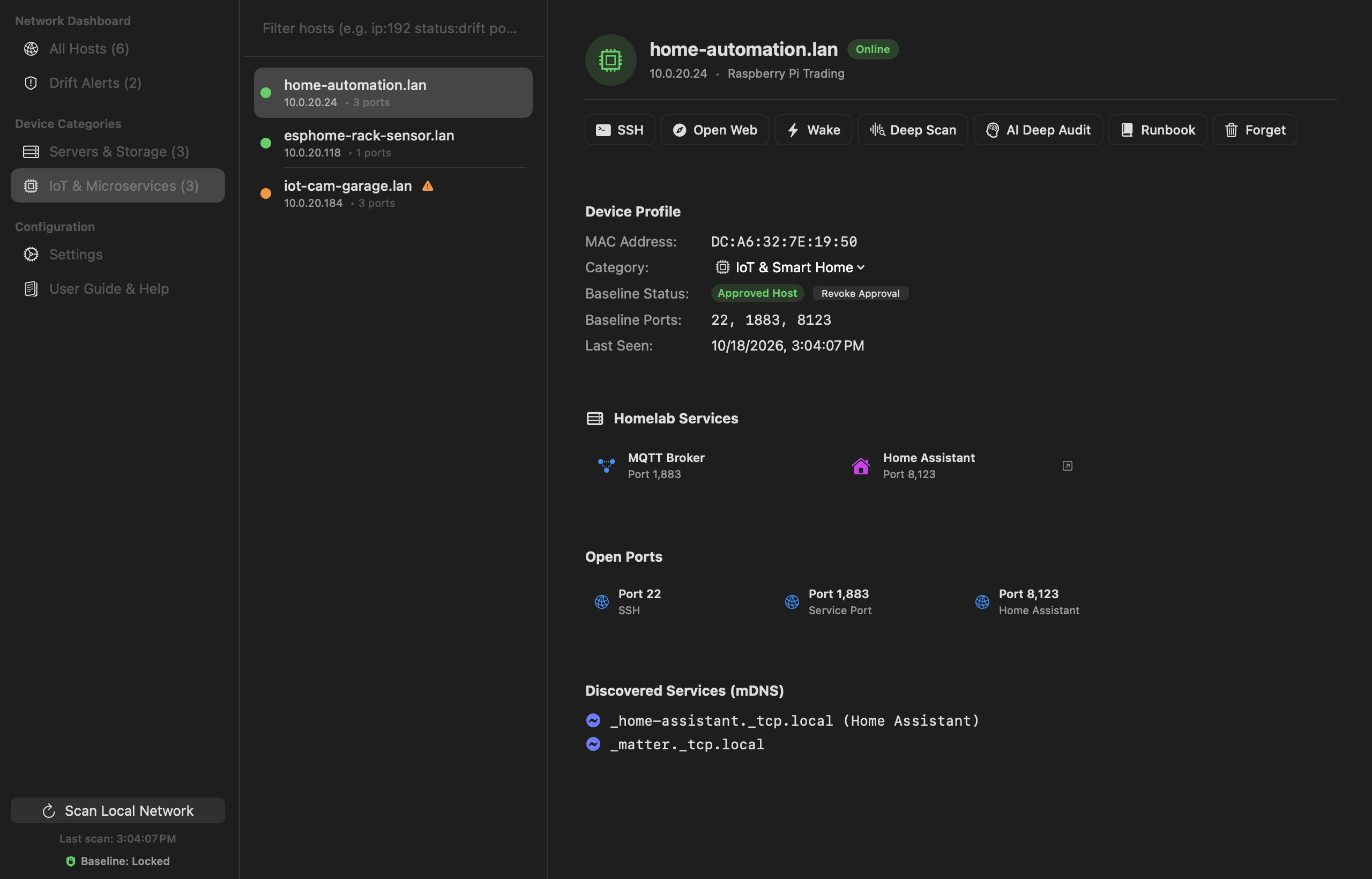
Interactive Device Categorization
Drifter automatically categorizes devices using vendor signatures, hostname keywords, mDNS broadcasts, and open service ports. You can also manually re-assign any device’s category:
- Select the host in the inventory list.
- In the Device Profile section, click the Category dropdown menu.
- Choose from Server & Storage, IoT & Smart Home, Workstation & PC, Network Infrastructure, or Unknown.
- The change persists immediately and updates the sidebar category counters.
Visual Callout Guide — Device Categories & mDNS Discovery
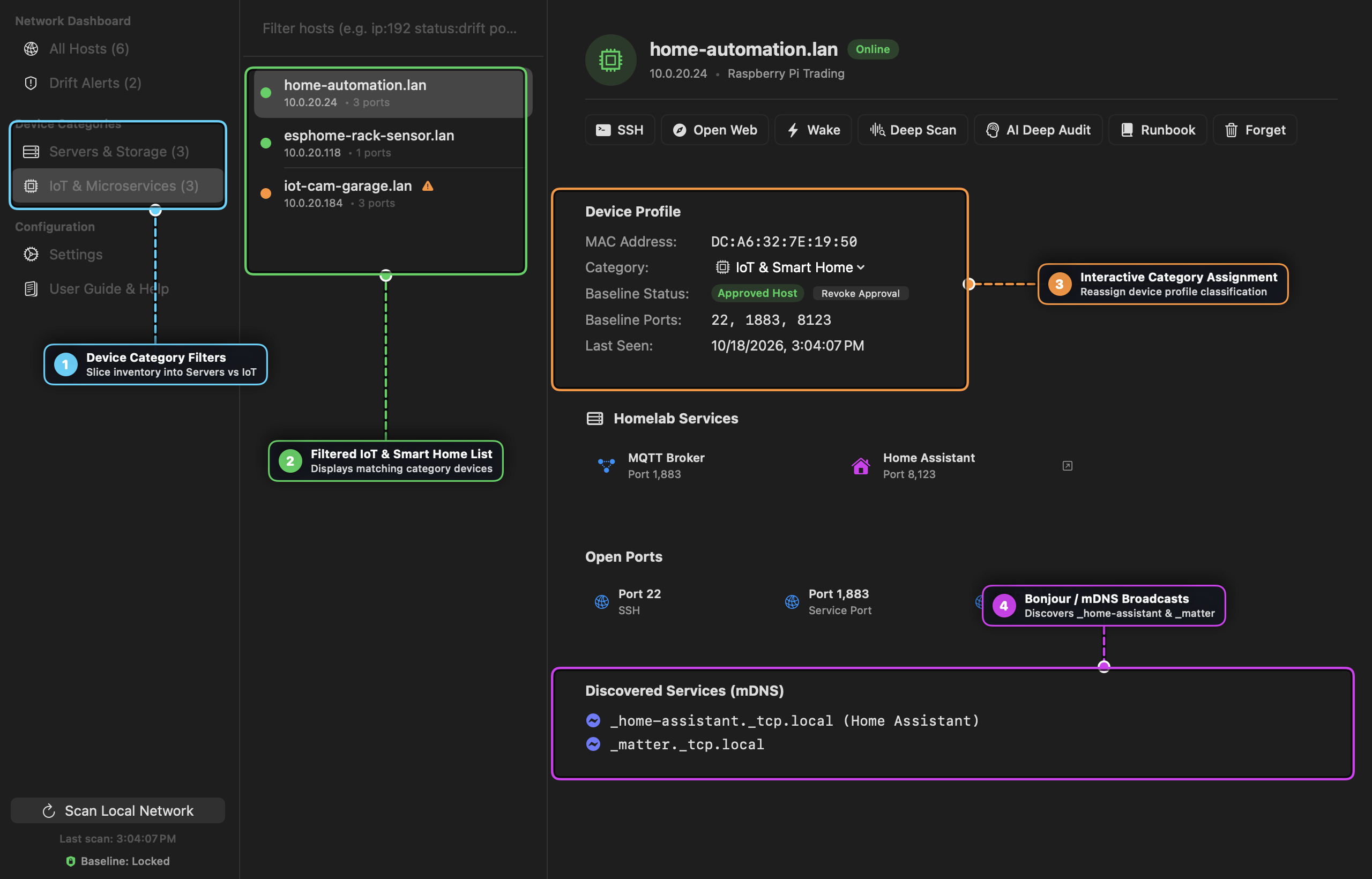
- [1] Device Category Filters: Quickly isolate Servers & Storage from IoT & Microservices in the sidebar.
- [2] Filtered IoT & Smart Home List: Displays only the hosts matching the active category along with their online/drift status indicator and open port count.
- [3] Interactive Category Assignment: Override or refine any host’s classification (
Server & Storage,IoT & Smart Home,Workstation & PC,Network Infrastructure) and inspect its baseline approval status. - [4] Bonjour / mDNS Broadcasts: Lists live Zeroconf service registrations (
_home-assistant._tcp.local,_matter._tcp.local,_esphomelib._tcp.local) discovered on the device.
5. SSH Terminal & 1Password Touch ID Integration
One-Click SSH Launch
Clicking the SSH button on any host card launches a terminal window directly connected to that device.
Automatic ~/.ssh/config Resolution
Drifter automatically parses your ~/.ssh/config file to resolve Host aliases and IP mappings:
- If
10.0.20.53is mapped toHost dns-sinkholein~/.ssh/config, Drifter executesssh dns-sinkhole. - OpenSSH automatically applies your configured
User,Port,IdentityFile, andIdentityAgent.
1Password Touch ID Support
If you use 1Password for SSH key management, Drifter automatically exports SSH_AUTH_SOCK (~/Library/Group Containers/2BUA8C4S2C.com.1password/t/agent.sock), prompting your macOS Touch ID fingerprint when connecting.
Supported Terminals
In Settings, pick your preferred terminal:
- Ghostty (Default)
- Apple Terminal
- iTerm2
- Custom Command Template (e.g.
ghostty -e ssh {target})
6. Runbook Automation Integration
Drifter integrates directly with Runbook for one-click incident response and automated health checks.
Triggering a Runbook
- Click Runbook on any host detail card or Drift Alert card.
- Drifter constructs a parameterized deep-link:
runbook://execute?template=security-audit&host=10.0.20.15 - Runbook opens directly and pre-selects the relevant audit procedure with variables pre-filled.
Pre-Installed Integration Templates
Drifter ships with two starter runbooks (stored in ~/.runbook/books/):
security-audit.yaml: Inspects open ports, firewall status (ufw/iptables), active SSH sessions, and failed login attempts.network-triage.yaml: Performs ping reachability tests, common port probes, and HTTP response header checks.
7. Deep Port Probing, Wake-on-LAN & Homelab Services
On-Demand Deep Port Probing
While general subnet sweeps test 7 common infrastructure ports to ensure instant scan times, clicking Deep Scan on any host detail card runs a high-speed concurrent probe of 23 common homelab, infrastructure, and database ports (8006, 9000, 9443, 32400, 8123, 8096, 3000, 9090, 5000, 5001, 8443, 1883, 5432, 6379, etc.).
Homelab Service Detection & Web Launchers
When Drifter discovers known homelab microservices, it populates direct 1-click launcher badges on the host card:
- Proxmox VE (
https://{ip}:8006) - Portainer (
https://{ip}:9443orhttp://{ip}:9000) - Home Assistant (
http://{ip}:8123) - Plex Media Server (
http://{ip}:32400/web) - Jellyfin (
http://{ip}:8096) - Cockpit (
https://{ip}:9090) - Grafana (
http://{ip}:3000) - Synology DSM (
http://{ip}:5000/https://{ip}:5001)
Wake-on-LAN (WoL)
For offline or sleeping hosts with a recorded MAC address, click the Wake button in the header action bar. Drifter transmits a standard UDP broadcast magic packet (0xFF * 6 + MAC * 16) across ports 9 and 7 to remotely power on the machine.
8. Menu Bar Status Item & Background Watchdog
Drifter features an unobtrusive macOS status item in the menu bar (waveform.path.ecg or exclamationmark.shield.fill icon):
- Left-Click: Instantly toggles the main Drifter dashboard window (brings to front or hides).
- Right-Click Context Menu:
- Live Status & Drift Alerts: Shows current watchdog polling status and a preview of up to 5 active drift alerts.
- Show Main Window: Brings the dashboard forward.
- Scan Subnet Now: Kicks off an immediate subnet ARP sweep and port scan.
- Lock Baseline Now: Locks the current network inventory as the authoritative baseline.
- Export Audit Report…: Exports a Markdown report directly to disk.
- Restart: Safely exits and relaunches Drifter.app in place.
- Quit: Closes the application.
- Background Watchdog: Automatically polls the local subnet in the background (configured in Settings: Every 5m, 15m, 30m, 1h, or Manual Only). Runs entirely within the application process with no external daemon required.
- Show/Hide Toggle: Can be enabled or disabled at any time under Settings > Show Menu Bar Watchdog Item.
9. Exporting Network Security Audit Reports
Generate comprehensive network baseline and compliance reports at any time by clicking Export Audit in the Drift Alerts tab or Settings:
- Markdown (
.md): A formatted GitHub Flavored Markdown document containing executive metrics (compliance %, rogue host count, port drift divergence), host inventory matrix, and unacknowledged security alerts. - JSON (
.json): A machine-readable export suitable for CI/CD pipelines, SIEM ingest, or homelab GitOps version control. - Clipboard: Copy formatted Markdown directly to the macOS clipboard for pasting into GitHub Issues, Obsidian, or Notion.
10. Optional AI Security Advisor
Drifter includes an optional, purely additive AI Security Advisor. It is disabled by default; when toggled off in Settings, all AI buttons and cards remain completely hidden so the application functions 100% offline with zero distractions.
Supported Providers
- Ollama (100% Local & Private):
- Connects to your local Ollama daemon (
http://localhost:11434). - Default model:
llama3.2. - Zero cloud telemetry; no network packets or host data leave your workstation.
- Connects to your local Ollama daemon (
- Cloud BYOK (Bring Your Own Key):
- Google Gemini: Default
gemini-2.5-flash - Anthropic Claude: Default
claude-3-5-haiku-latest - OpenAI: Default
gpt-4o-mini - 1Password Secret References: Supports
op://vault/item/credentialURI syntax with local in-memory caching and Touch ID authentication.
- Google Gemini: Default
Capabilities & Usage
- Fast Triage vs. Deep Security Reasoning:
- Fast Triage (~1s): Fast synthesis with compact token limits for quick, high-level homelab review.
- Deep Security Reasoning: Extended multi-pass threat modeling (up to 4,096 tokens) with adversarial threat evaluation, lateral movement inspection, and hardware-specific attack surface analysis.
- Any fast brief can be escalated to Deep Reasoning in one click.
- Drift Incident Triage:
- In the Drift Alerts tab, click AI Triage (or select Deep Security Investigation from the dropdown menu).
- Generates an instant Security Brief card with classification, synthesis, and actionable terminal commands.
- Targeted Alert Investigation:
- Right-click any alert row in Drift Alerts and select Deep Security Investigation to run an isolated, in-depth threat audit targeting that specific host and event.
- Host Security Audit:
- On any host detail card, click AI Audit in the action bar (or select Deep Audit from the dropdown).
- Connection Verification:
- In Settings > AI Security Advisor, click Test Connection to immediately verify your local Ollama instance or cloud API key.
11. Settings & Customization
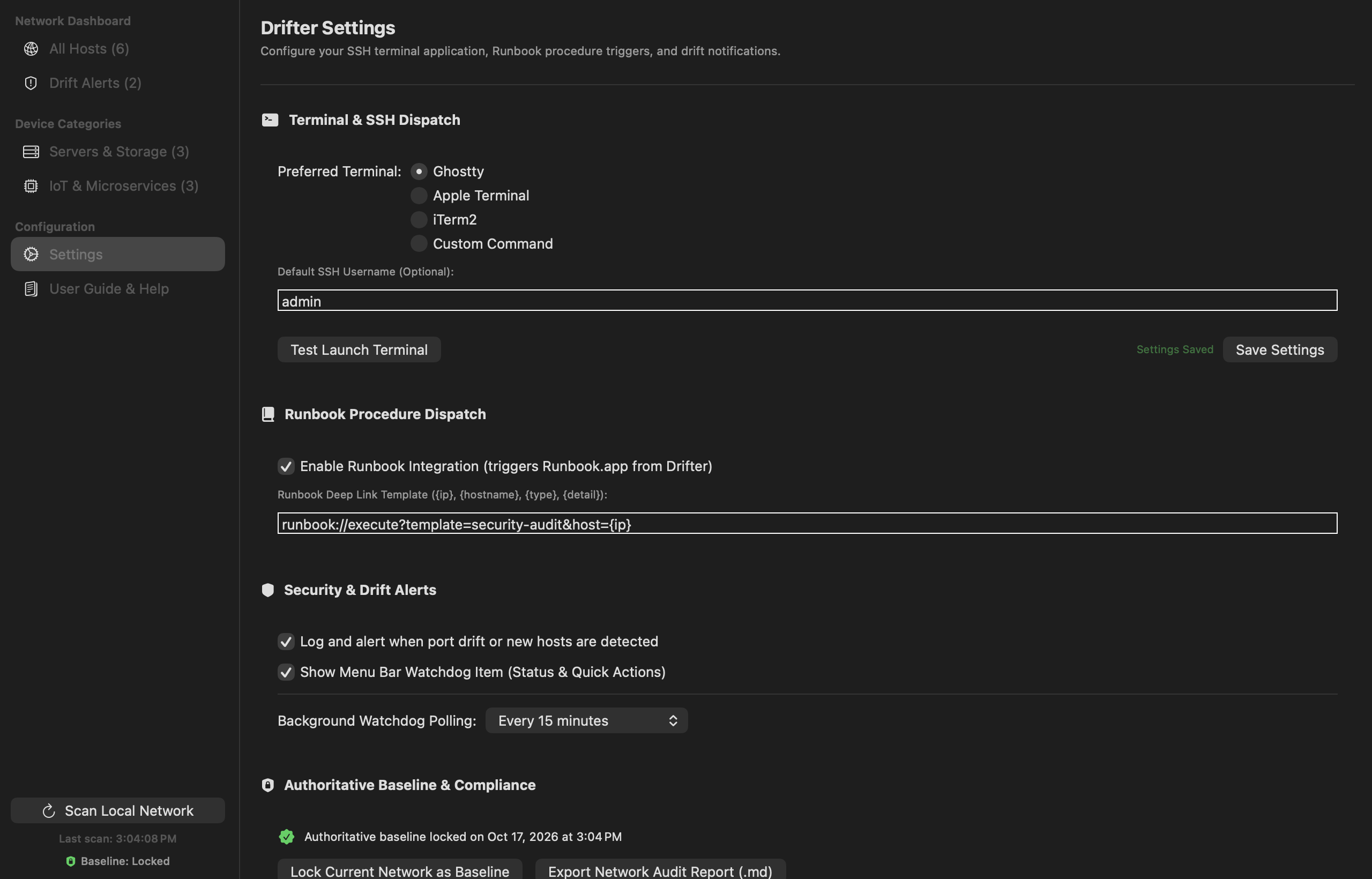
Navigate to Settings in the sidebar to configure:
- Preferred Terminal Application: Select Ghostty, Apple Terminal, iTerm2, or a custom launch command template.
- Default SSH Username: Set a default username for SSH connections (if not defined in
~/.ssh/config). - Runbook URL Template: Customize the deep-link query format.
- Background Watchdog Polling: Select background scan frequency (Manual Only, 5 min, 15 min, 30 min, 1 hour).
- Baseline Management: Snapshot and lock current state as the authoritative baseline.
- Drift Alert Notifications: Enable or disable macOS desktop notifications.
- AI Security Advisor: Enable optional local Ollama or cloud BYOK security analysis.
Visual Callout Guide — Settings & Watchdog Configuration
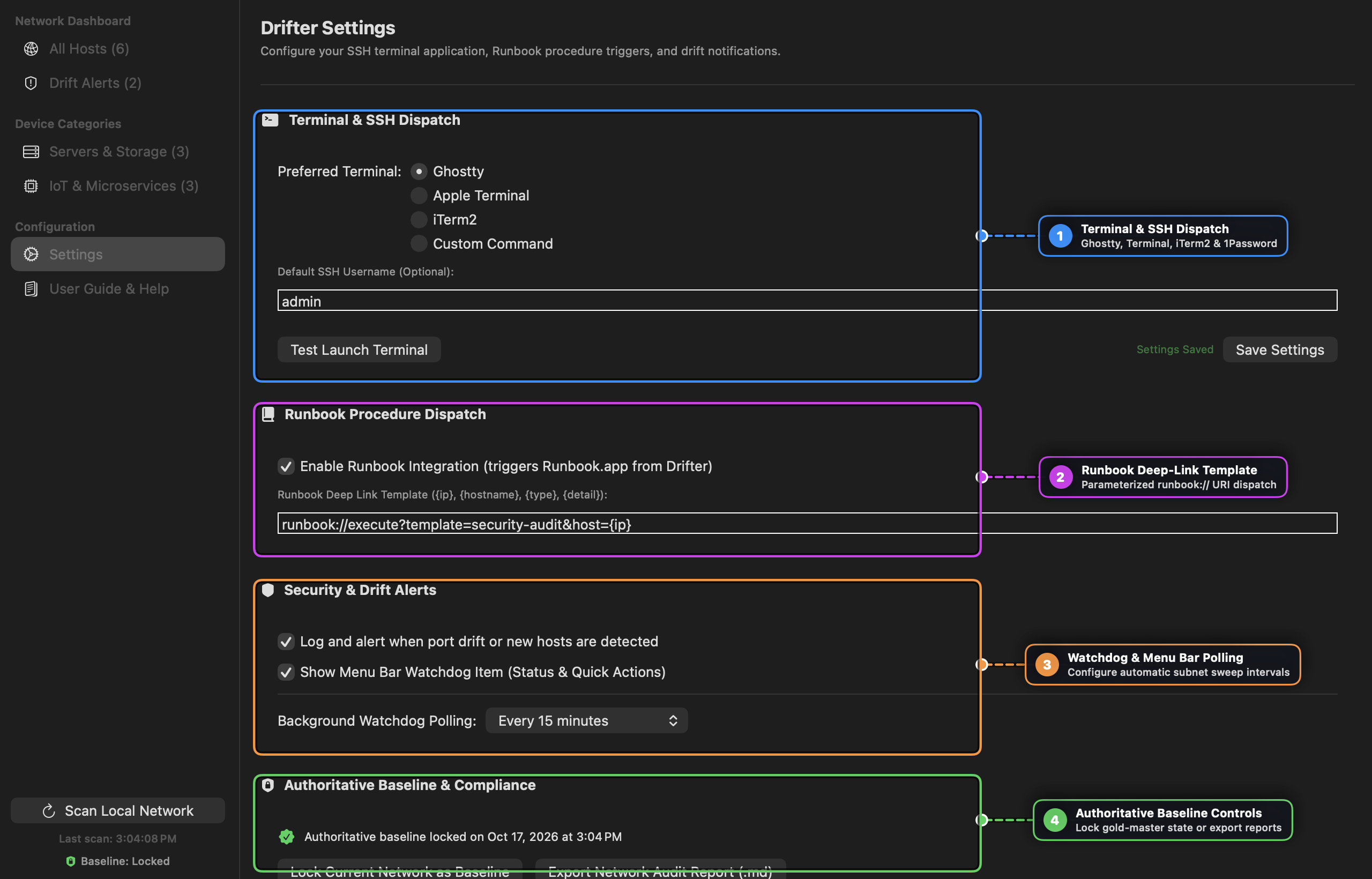
- [1] Terminal & SSH Dispatch: Choose your preferred terminal emulator (Ghostty, Apple Terminal, iTerm2, or Custom Command) and optional fallback SSH username.
- [2] Runbook Deep-Link Template: Customize the
runbook://executeURI template with{ip},{hostname},{type}, and{detail}placeholders. - [3] Watchdog & Menu Bar Polling: Configure desktop drift notifications, the macOS menu bar watchdog status item, and automated background scan intervals.
- [4] Authoritative Baseline Controls: Snapshot the current network inventory as the authoritative baseline or export a full Markdown audit report.
12. Data Storage & Privacy
Drifter is 100% local and offline by default. No telemetry or host data ever leaves your Mac.
- Local Store Location:
~/Library/Application Support/DrifterMac/drifter_store.json - Forgetting Hosts: Click the Forget (
trash) button on any host card to permanently delete a host baseline from your local store. - AI Privacy: If the optional AI Advisor is enabled with Ollama, queries execute strictly against your local machine. If configured with a cloud provider, payloads contain only minimal host and port identifiers needed for the specific on-demand analysis.