Drifter Practical Cookbook & Recipes
Step-by-step practical recipes and power workflows for Drifter.
Hands-on recipes for securing your homelab subnet, establishing an authoritative gold-master baseline, triaging port drift incidents, and automating remediation with Drifter, 1Password, and Runbook.
View on GitHub 📖 Open User Guide →
Table of Contents
- Recipe 1: Establishing a Zero-Trust Homelab Baseline
- Recipe 2: Triaging an Unexpected Open Container Port
- Recipe 3: Detecting & Isolating Unapproved / Rogue IoT Devices
- Recipe 4: 1-Click SSH with
~/.ssh/config& 1Password Touch ID - Recipe 5: Automated Incident Response with Runbook Deep Links
- Recipe 6: 100% Local AI Threat Modeling with Ollama (
llama3.2) - Recipe 7: GitOps Network Compliance & Audit Report Diffing
Recipe 1: Establishing a Zero-Trust Homelab Baseline
Goal: Discover every active host and microservice on your LAN, classify servers vs. IoT devices, and lock an authoritative baseline so any future port or device change triggers an immediate alert.
Steps
- Run an Initial Subnet Sweep:
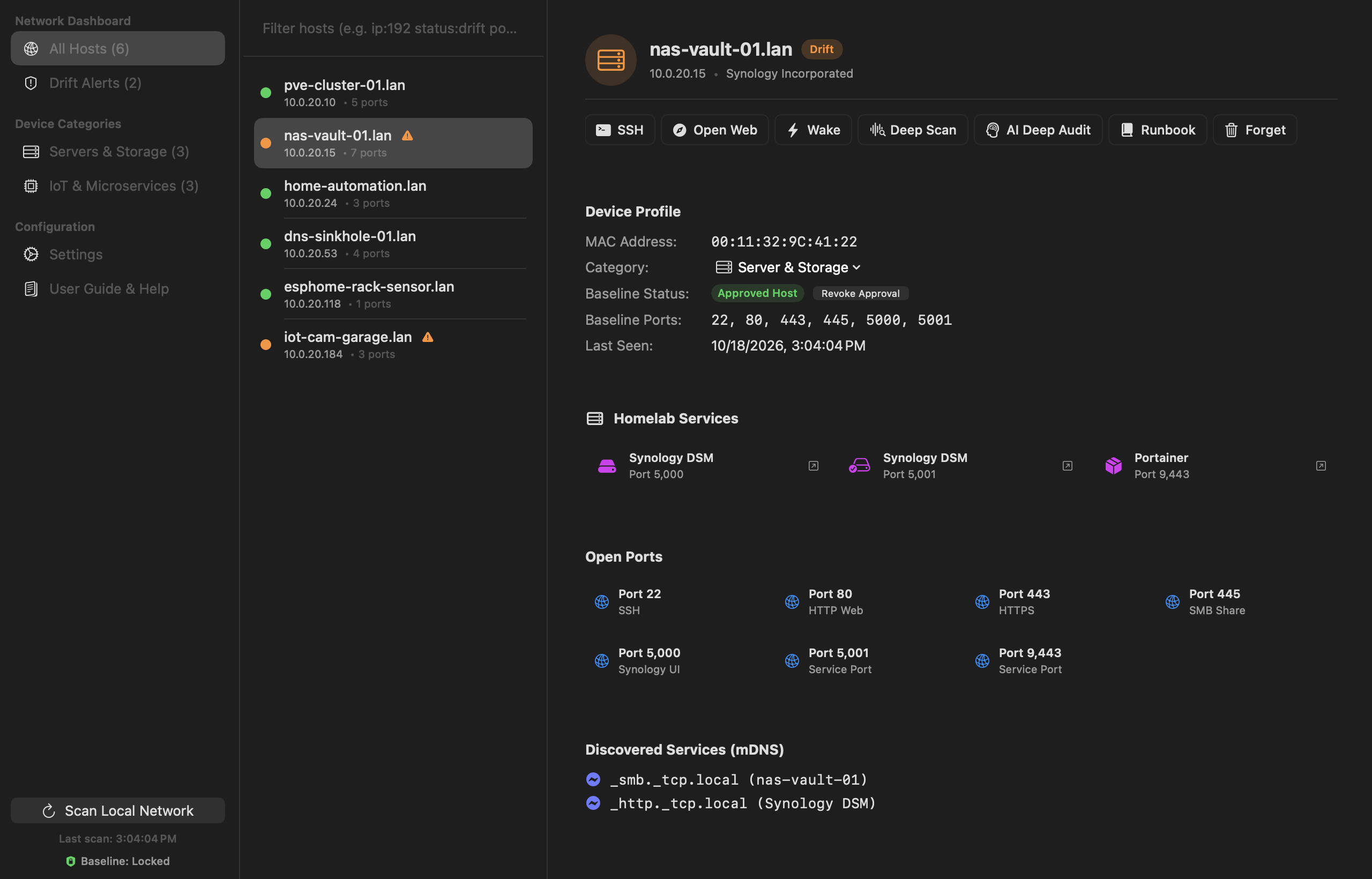
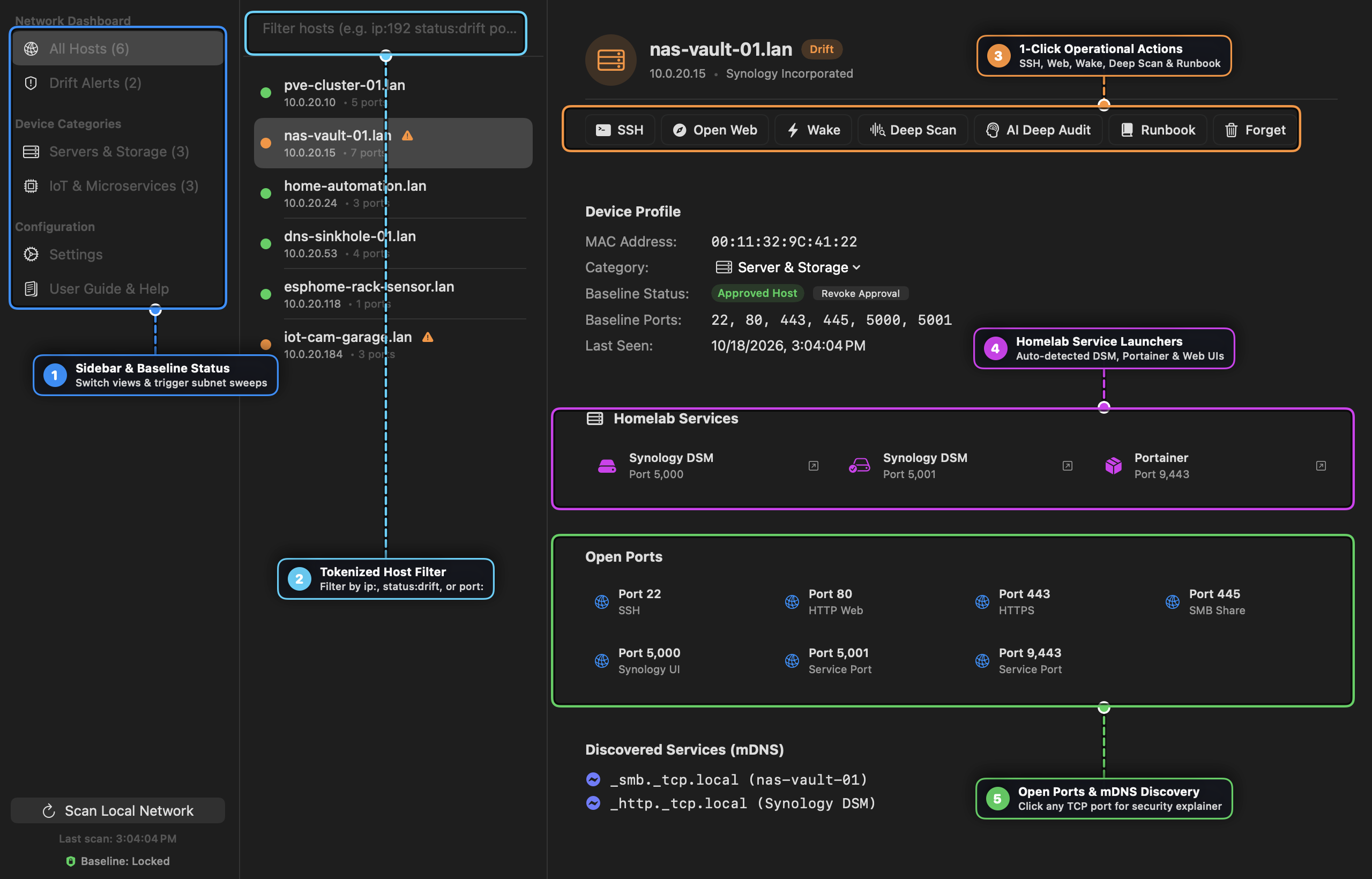
- Click Scan Local Network at the bottom of the left sidebar ([1]). Drifter warms the macOS kernel ARP cache across your active
/24subnet, inspects/usr/sbin/arp -a, queries mDNS/Bonjour services, and resolves hardware vendors via OUI lookup.
- Click Scan Local Network at the bottom of the left sidebar ([1]). Drifter warms the macOS kernel ARP cache across your active
- Run Deep Scans on Core Hypervisors & NAS Nodes:
- Select each server (
pve-cluster-01.lan,nas-vault-01.lan) and click Deep Scan in the top action bar ([3]). - Drifter probes 23 homelab ports (
8006Proxmox,9443Portainer,5000/5001Synology DSM,8123Home Assistant,3000Grafana,5432PostgreSQL,6379Redis) and populates Homelab Service Launchers ([4]).
- Select each server (
- Verify Device Categories:
- Check Servers & Storage and IoT & Microservices in the sidebar. If any host needs reclassification, use the Category dropdown under Device Profile.
- Bless & Lock the Authoritative Baseline:
- Switch to Drift Alerts in the sidebar and click Bless All (or Bless Baseline > Bless All & Lock Baseline).
- Every current host is marked
Approved Host, its current open ports are recorded asBaseline Ports, and the sidebar displaysBaseline: Locked.
Recipe 2: Triaging an Unexpected Open Container Port
Goal: Investigate why a new port (9443 or 8080) appeared on an approved server and either remediate the exposure or approve it into the baseline.
Steps
- Inspect the Drift Alert:
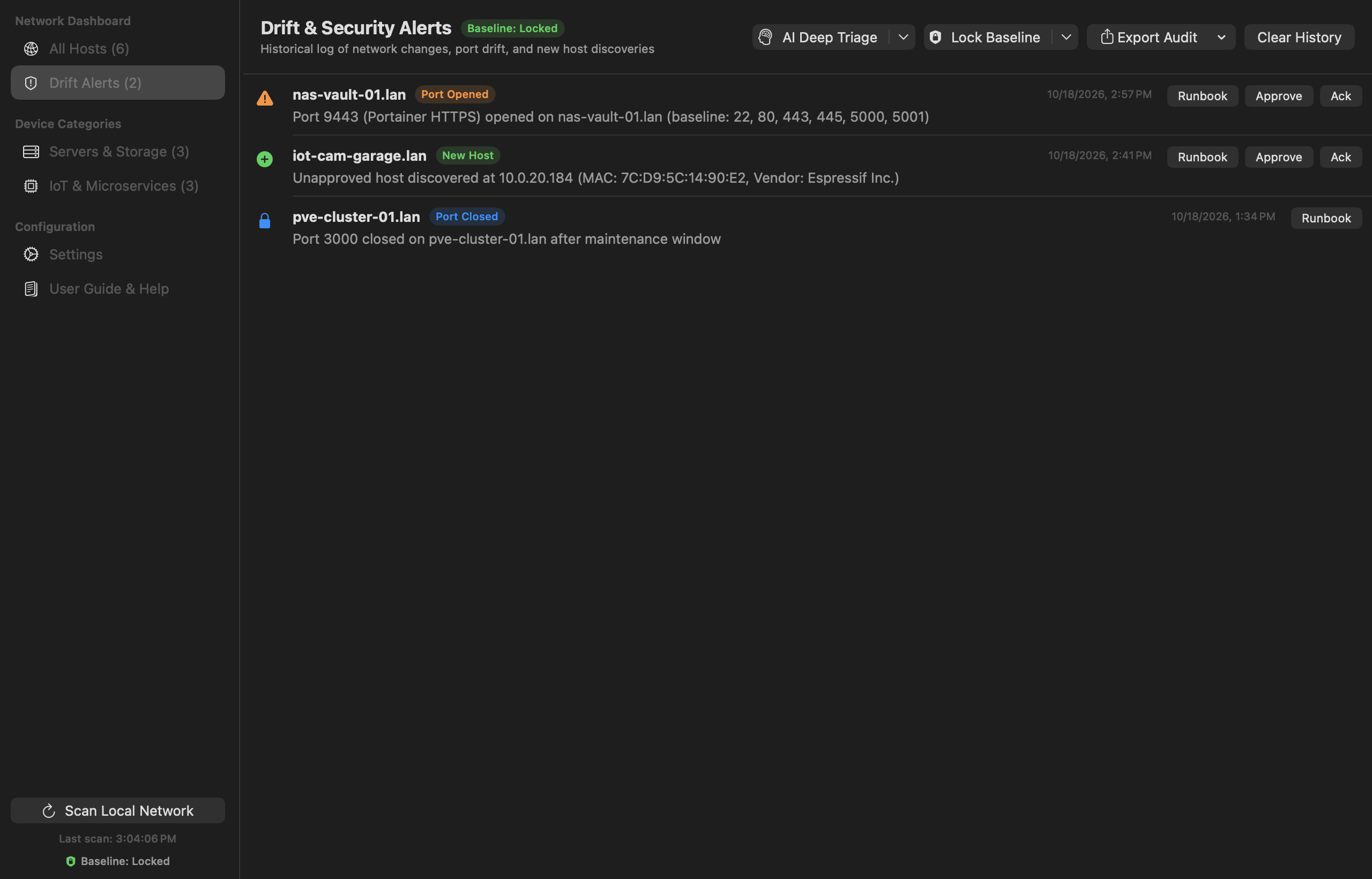
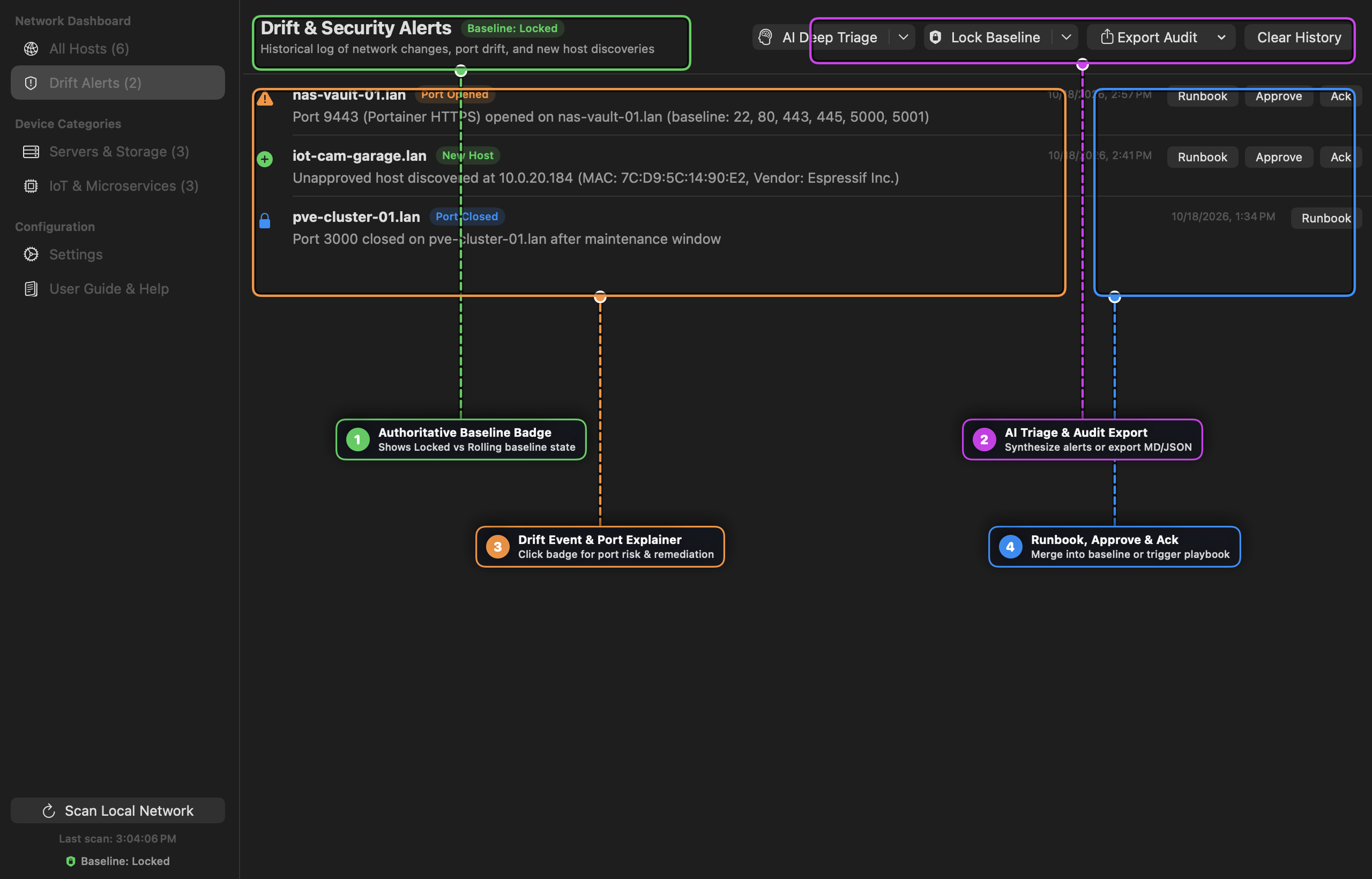
- Open Drift Alerts ([1]). Locate the orange
Port Openedbadge on the affected host ([3]).
- Open Drift Alerts ([1]). Locate the orange
- Open the Interactive Port Security Explainer:
- Click the orange warning icon or the
Port Openedcapsule badge ([3]). - Review the Port Security Explainer popover, which details common services on that port, potential attack vectors, and copyable verification commands (
lsof -i :9443,ss -tulpn).
- Click the orange warning icon or the
- Verify or Remediate:
- If legitimate (e.g., you just deployed Portainer over HTTPS on
nas-vault-01.lan): Click the green Approve button ([4]) to merge port9443into that host’sBaseline Portswithout resetting other hosts. - If unauthorized or accidental: Right-click the alert row, select Launch SSH Session, stop the rogue container, and re-scan the host.
- If legitimate (e.g., you just deployed Portainer over HTTPS on
Recipe 3: Detecting & Isolating Unapproved / Rogue IoT Devices
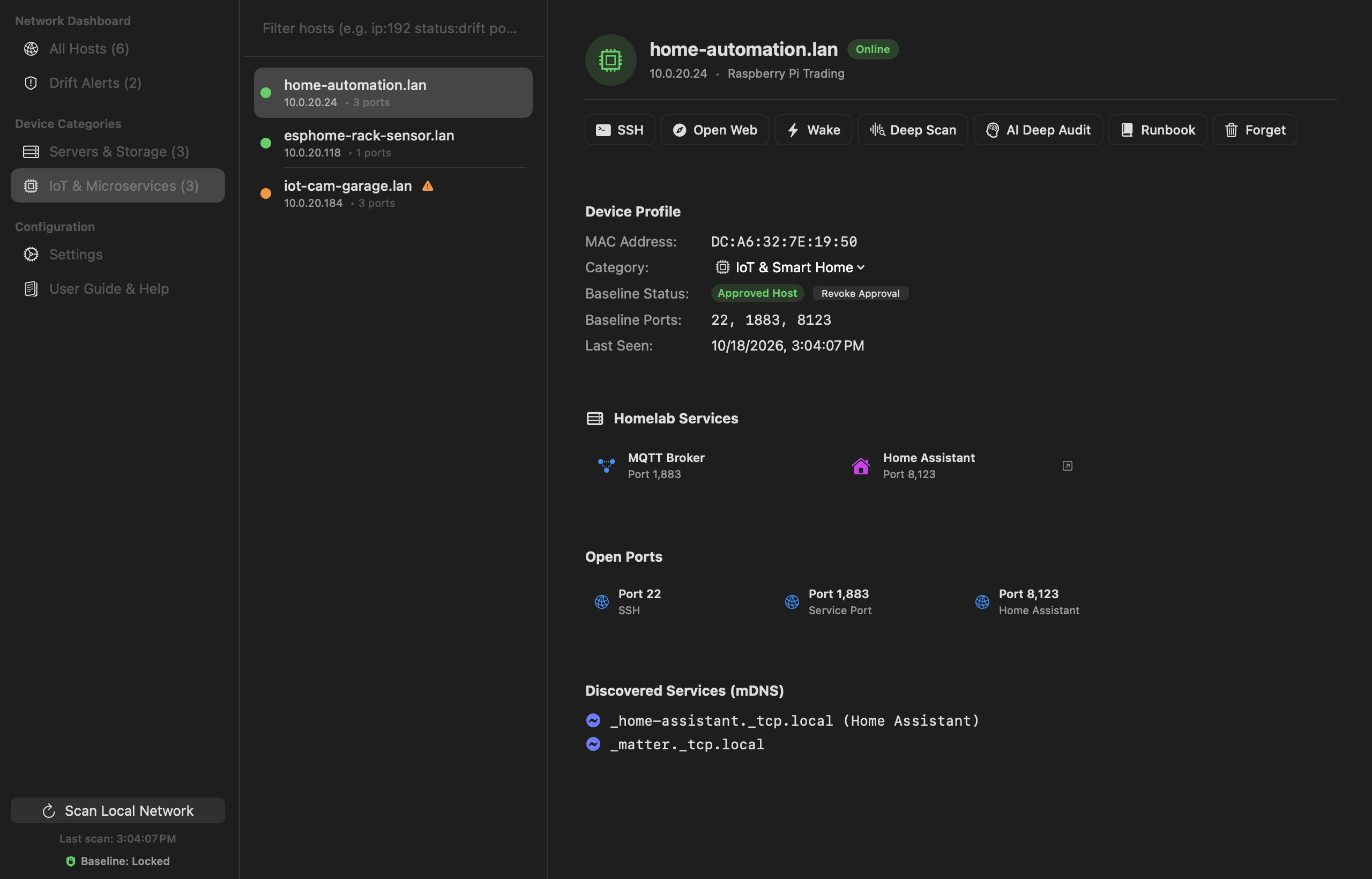
Goal: Catch unknown devices that join your Wi-Fi or VLAN after your baseline is locked and audit their exposed services.
Steps
- Enable Background Watchdog Polling:
- In Settings > Security & Drift Alerts, set Background Watchdog Polling to Every 15 minutes and enable Log and alert when port drift or new hosts are detected.
- Filter for Drift Status:
- When a desktop notification or menu bar badge alerts you to a
New Host, open All Hosts and typestatus:driftin the filter bar. - Any device that joined after your baseline lock displays an
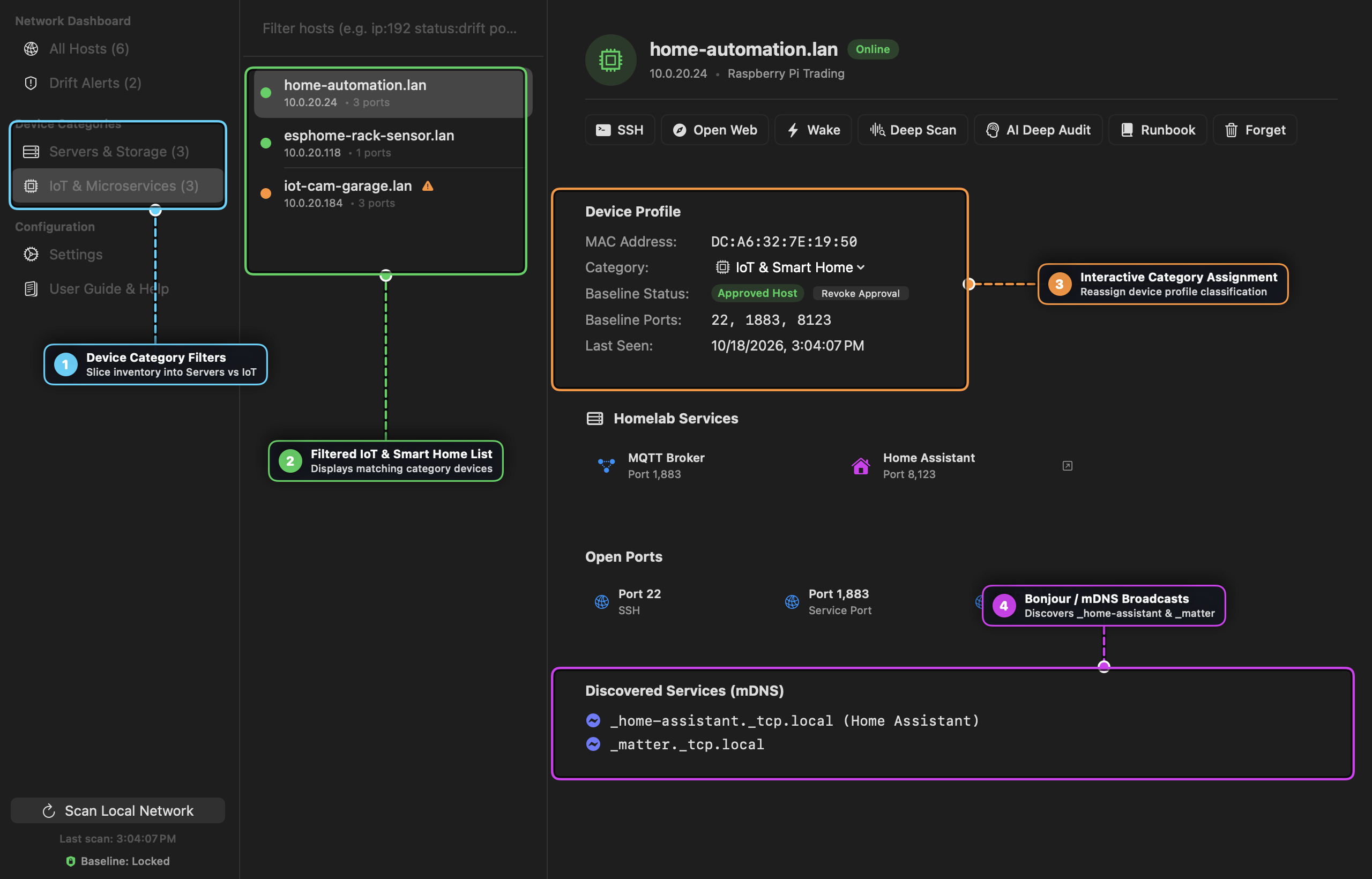
Unapproved / Roguebadge in its Device Profile ([3]).
- When a desktop notification or menu bar badge alerts you to a
- Inspect mDNS & Vendor Signatures:
- Check the hardware Vendor (resolved from the MAC OUI) and Discovered Services (mDNS) ([4]) to identify what the device is broadcasting (
_esphomelib._tcp,_http._tcp,_matter._tcp).
- Check the hardware Vendor (resolved from the MAC OUI) and Discovered Services (mDNS) ([4]) to identify what the device is broadcasting (
- Approve or Quarantine:
- If you recognize the device, click Approve Host in the action bar. Otherwise, block its MAC address on your router/firewall and click Forget once removed.
Recipe 4: 1-Click SSH with ~/.ssh/config & 1Password Touch ID
Goal: Connect to any discovered host in Ghostty, iTerm2, or Apple Terminal using your existing SSH aliases and 1Password Touch ID keys.
Steps
- Map Hosts in
~/.ssh/config(Optional):Host nas-vault HostName 10.0.20.15 User sysadmin Port 22 IdentityAgent "~/Library/Group Containers/2BUA8C4S2C.com.1password/t/agent.sock" - Configure Your Terminal in Drifter:
- Open Settings > Terminal & SSH Dispatch and choose Ghostty (or Apple Terminal / iTerm2).
- Launch SSH from Any Host or Alert:
- Click SSH on any host card (or right-click any Drift Alert and choose Launch SSH Session).
- Drifter matches
10.0.20.15toHost nas-vaultin~/.ssh/config, exportsSSH_AUTH_SOCKfor 1Password, and opens your terminal with Touch ID authentication ready.
Recipe 5: Automated Incident Response with Runbook Deep Links
Goal: Trigger parameterized operational playbooks in Runbook.app directly from a Drifter host card or security alert.
Steps
- Verify Runbook Integration in Settings:
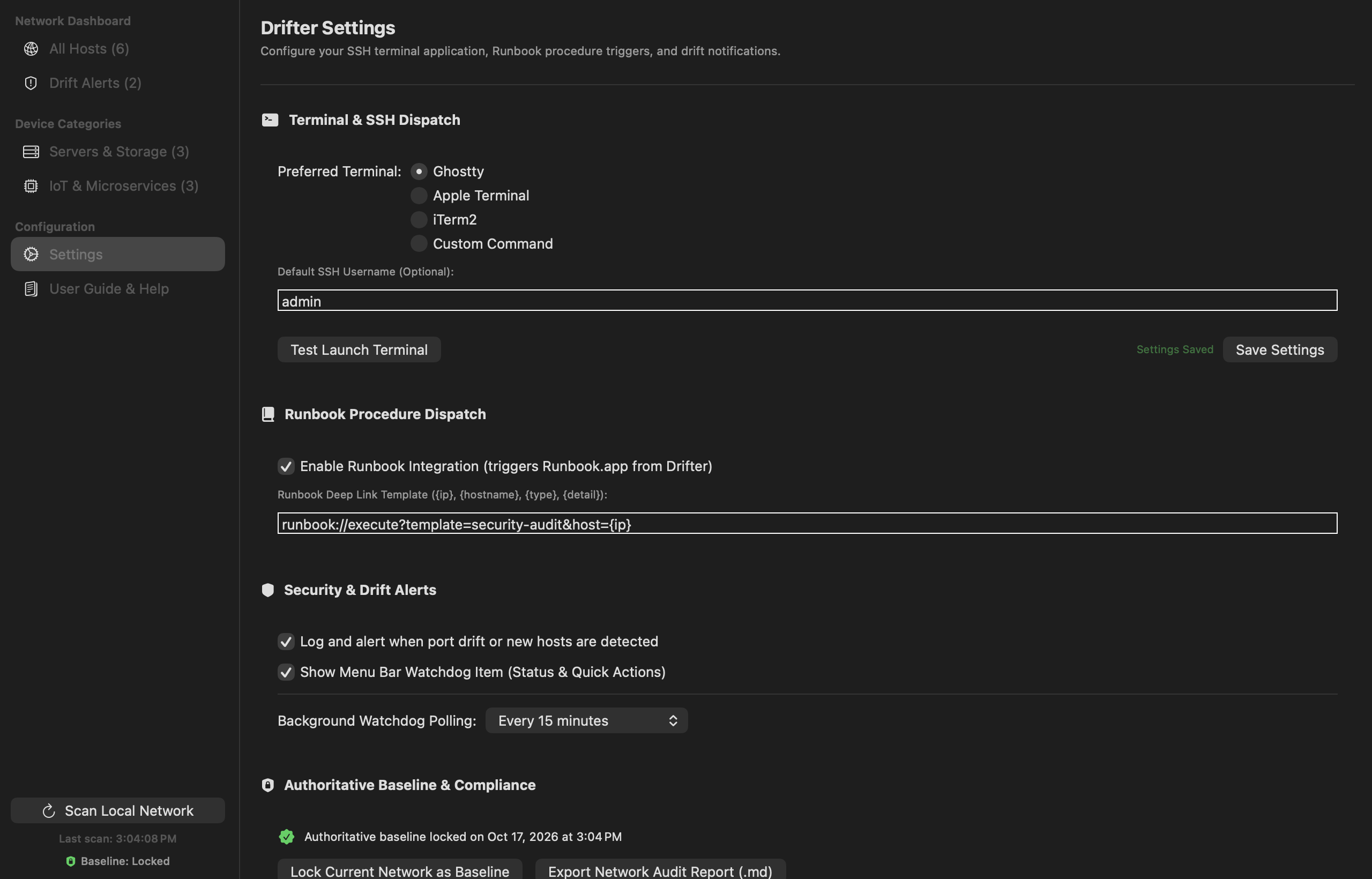
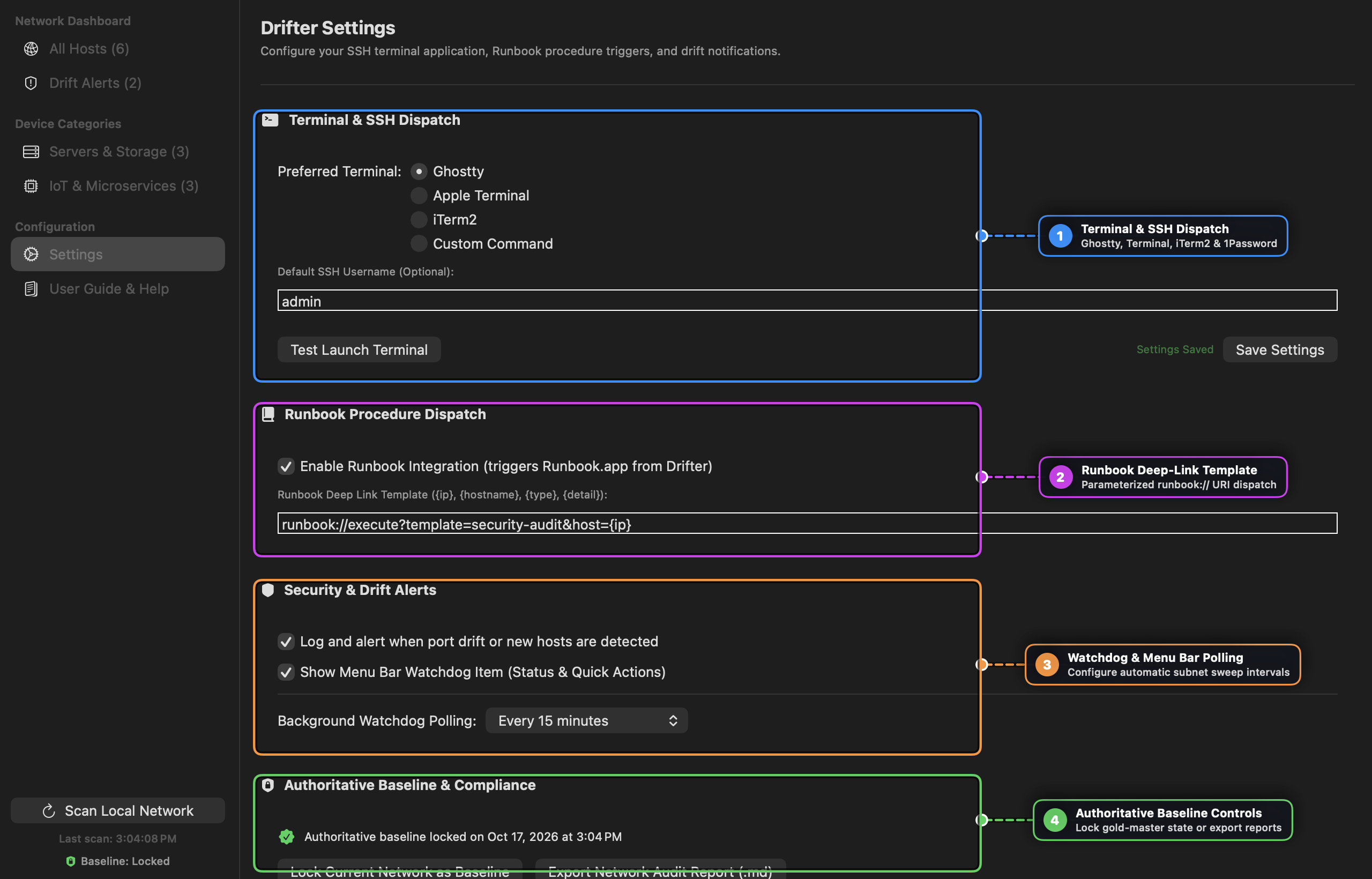
- Open Settings > Runbook Procedure Dispatch ([2]) and confirm Enable Runbook Integration is checked.
- Default template:
runbook://execute?template=security-audit&host={ip}
- Dispatch from a Drift Alert:
- In Drift Alerts, click Runbook on any alert row (or right-click and choose Runbook Triage).
- Drifter launches
Runbook.appwithsecurity-audit.yamlpre-populated for the target host IP, checkingufw/iptablesstatus, listening sockets, and recent SSH auth logs.
Recipe 6: 100% Local AI Threat Modeling with Ollama (llama3.2)
Goal: Synthesize multi-host drift events and perform deep lateral-movement threat modeling without sending a single packet to the cloud.
Steps
- Start Ollama Locally:
ollama pull llama3.2 ollama serve - Enable the AI Security Advisor:
- In Settings > AI Security Advisor (Optional), toggle Enable AI Security Advisor ON.
- Select Ollama (Local), verify the endpoint is
http://localhost:11434, and click Test Connection.
- Run Fast Triage or Deep Security Investigation:
- In Drift Alerts, click AI Triage for a sub-second executive brief, or click the dropdown arrow and select Deep Security Investigation for multi-step attack surface analysis with copyable remediation commands.
- Using Cloud BYOK instead? Paste a 1Password reference (
op://Private/Gemini/api_key) into the API Key field so raw credentials are never stored on disk.
Recipe 7: GitOps Network Compliance & Audit Report Diffing
Goal: Export point-in-time network posture reports in Markdown and JSON to track homelab infrastructure changes in Git.
Steps
- Export a Compliance Snapshot:
- Open Drift Alerts, click Export Audit in the top-right toolbar, and choose Export Markdown (
.md) or Export JSON (.json) (also accessible from the menu bar icon or Settings [4]).
- Open Drift Alerts, click Export Audit in the top-right toolbar, and choose Export Markdown (
- Commit & Diff in Your Homelab Repo:The report captures compliance percentage, locked baseline timestamps, full host/MAC/vendor/port matrices, and unacknowledged drift events.
cp ~/Downloads/drifter_network_audit.json ~/homelab/audits/latest.json
git diff ~/homelab/audits/latest.json